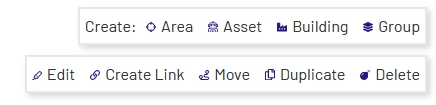
Enterprise Explorer provides 6 actions that can be performed on most* entity types. In order to perform any of these actions, an existing entity in the tree must be selected first, as the actions all follow a set of rules to ensure that the hierarchy stays valid. Valid options are shown at the upper right of the selected entity. Which of these actions is actually allowed to be performed by the current user is restricted by that user's permissions.
Create
For most entity types, choosing the 'Create' option will open a dialog window with a simple form to create the new entity. For Aggregations, Dashboards, and Diagrams, the user will be sent to another page.
Edit
Editing any of the simpler entity types will open a dialog window within the current page where values can be changed. Choosing to edit an Aggregation, Dashboard, or Diagram will send the user to another page. Note that there are a few fields (Tag name, for example) that cannot be edited after the entity is initially created.
Delete
Deleting an entity removes it from the site entirely. There is no undo option for this action, so be sure it's what you want to do! Deleting an entity with children (i.e. not the lower-most entity) will also delete all entities further down that branch.
Move
Moving an entity does exactly what it sounds like - the entity is shifted in Enterprise Explorer to wherever the user chooses. This is distinct from linking the entity (see below). Note that if a branch (part of the tree with other entities 'under' it) is moved, all of the lower entities are moved as well. Because of this, branches cannot be moved within the same larger branch, as it could break the hierarchy.
Duplicate
Duplicate opens the create dialog with most of the fields pre-populated with the values from the original entity. Then the user can change whichever field(s) they want to have different values on the new entity, without having to re-enter all the others. Aggregations and Diagrams cannot be duplicated.
Link
Linking creates a 'copy' of the selected entity at a new location in the tree, tied to the original entity. This is useful for representing when a tag, asset, etc. is used in multiple areas of the business. Though the link behaves as a separate entity as far as permissions are concerned, it is tied to the original entity. If that original entity is deleted, the linked 'copy' will be as well. Likewise, if the original entity is edited, all links to it will show the new values as well. There are special rules around where links can be created. Linked entities are distinguished in Enterprise Explorer by a small chain indicator at the upper left of their icon:

* Aggregations, Dashboards, and Diagrams cannot be moved. They must stay in their respective groups under the Data Automation group, but they can be linked elsewhere in the organization (see above). Choosing to create or edit an Aggregation, Dashboard, or Diagram will take the user to a separate page, as those are too complex to edit within EE.