Clickable rules allow diagram designers to prevent buttons from being clicked depending on tag conditions. They function a lot like workflow rules, with the exception that the rules don't "kick in" until a button is clicked. This can be helpful for preventing duplicate submissions, requiring process validation, etc. After a button with this type of rule set up is clicked, it will immediately be disabled. Starting ~1 second later, the diagram will evaluate the rule every second and re-enable the button when the rule's conditions are met. Note that if those conditions become false again, the button won't be re-disabled until it is clicked again.
These rules only work on tag submit buttons, Mongoose submit buttons, and database output buttons. To set them up, select a submit button on the diagram canvas, then click the 'Configure Button Clickable Rules' button in the left panel:

That will open a popup window to configure the button's clickable rules. Click the green + icon on the right to create your first rule or add additional rules to an existing list:
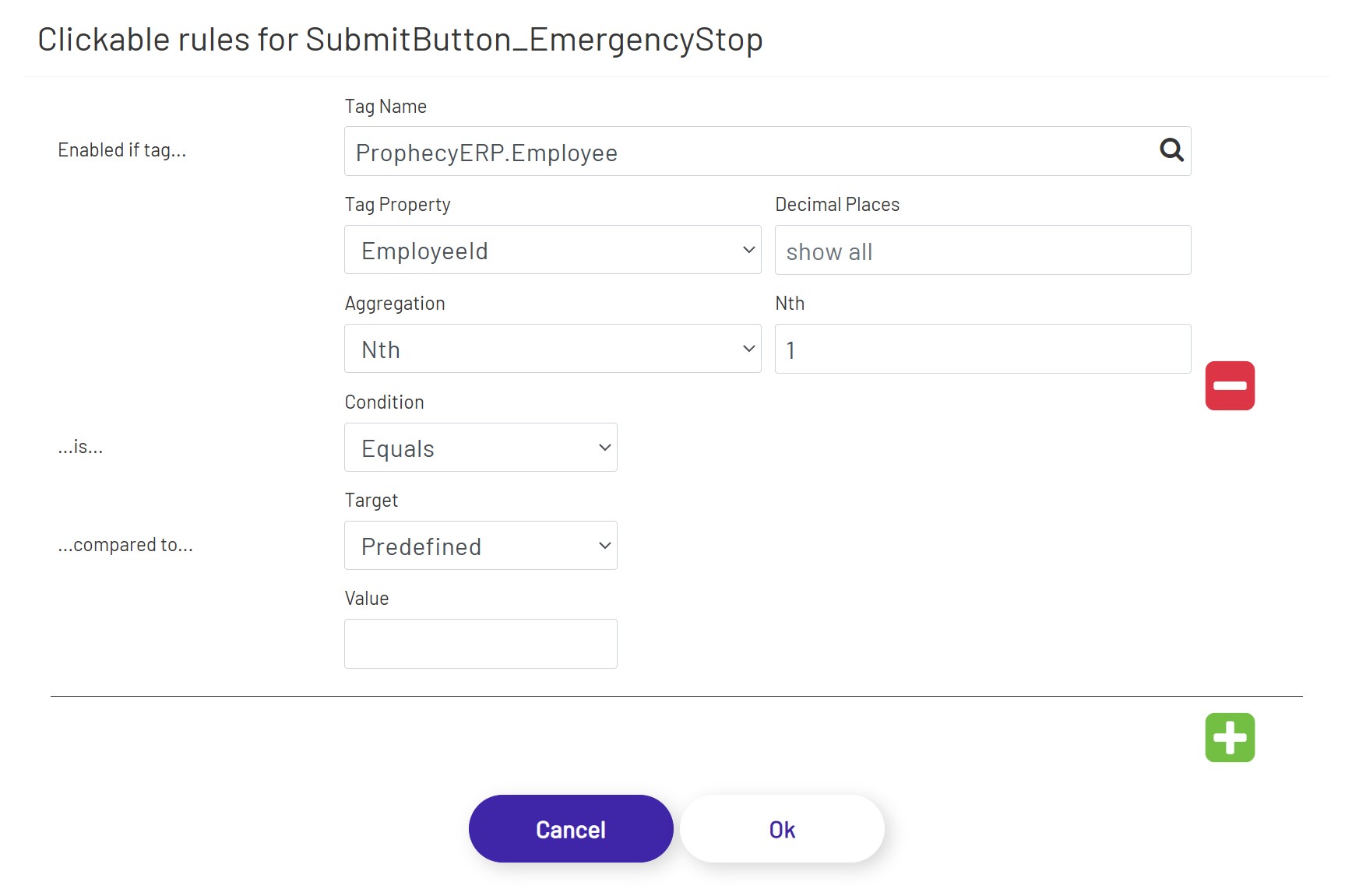
Each rule is made up of several parts:
-
Tag Name: The tag this rule is going to monitor to determine when the button should be re-enabled. Multiple rules for the same button can look at different tags.
-
Tag Property: The property of the source tag set above that this rule will look at. This is chosen from a list of properties like Value, alarm limits, etc. Note that some of the options in this dropdown depend on features being enabled on that tag. For example, choosing to base a rule on an alarm limit value will not work if that alarm limit isn't enabled on the tag.
-
Decimal Places: If a numeric Tag property is chosen above, this rounds the value to a specified number of decimals if it is not blank.
-
Aggregation: If a DB Tag or an ERP Tag is chosen above, this aggregation selects/calculates a value from that Tag.
-
Nth: If 'Nth' is chosen above as Aggregation, this defines the index of the value from its Tag property's value collection.
-
Condition: This is the comparison the diagram will make between the value it pulls out of the source tag and the comparison value you configure below. The available options vary based on the Data Type set above.
-
Target: This chooses the comparison target value between 'Predefined' and 'Tag'.
-
Value: If 'Predefined' is chosen above as Target, The Tag Property value you configured the rule to use can be compared to this 'hard-coded' value, using the Condition you configured above. The allowed values in this field will vary based on the Data Type chosen above. For example, you will not be able to enter 'Bob' for the comparison value of an integer tag value.
-
Tag Name, Tag Property, Decimal Places, Aggregation, and Nth under Target: If 'Tag' is chosen above as Target, these define another Tag as a comparison target.
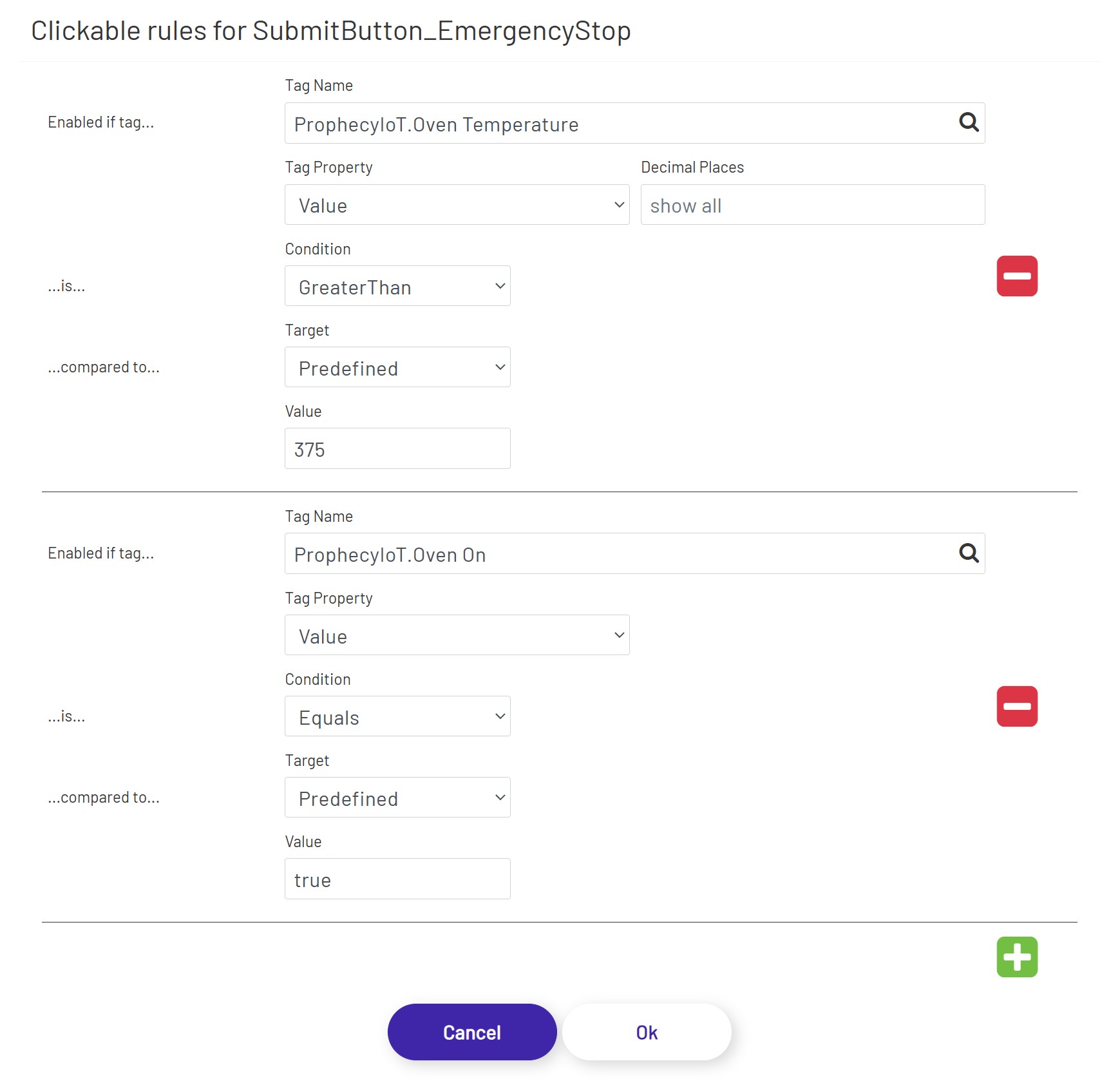
The image below shows an example set of rules that will only re-enable a button if one tag value is greater than a preset value, and another tag's value is 'true'. If either of those conditions are not met, the button will stay disabled after it is clicked.