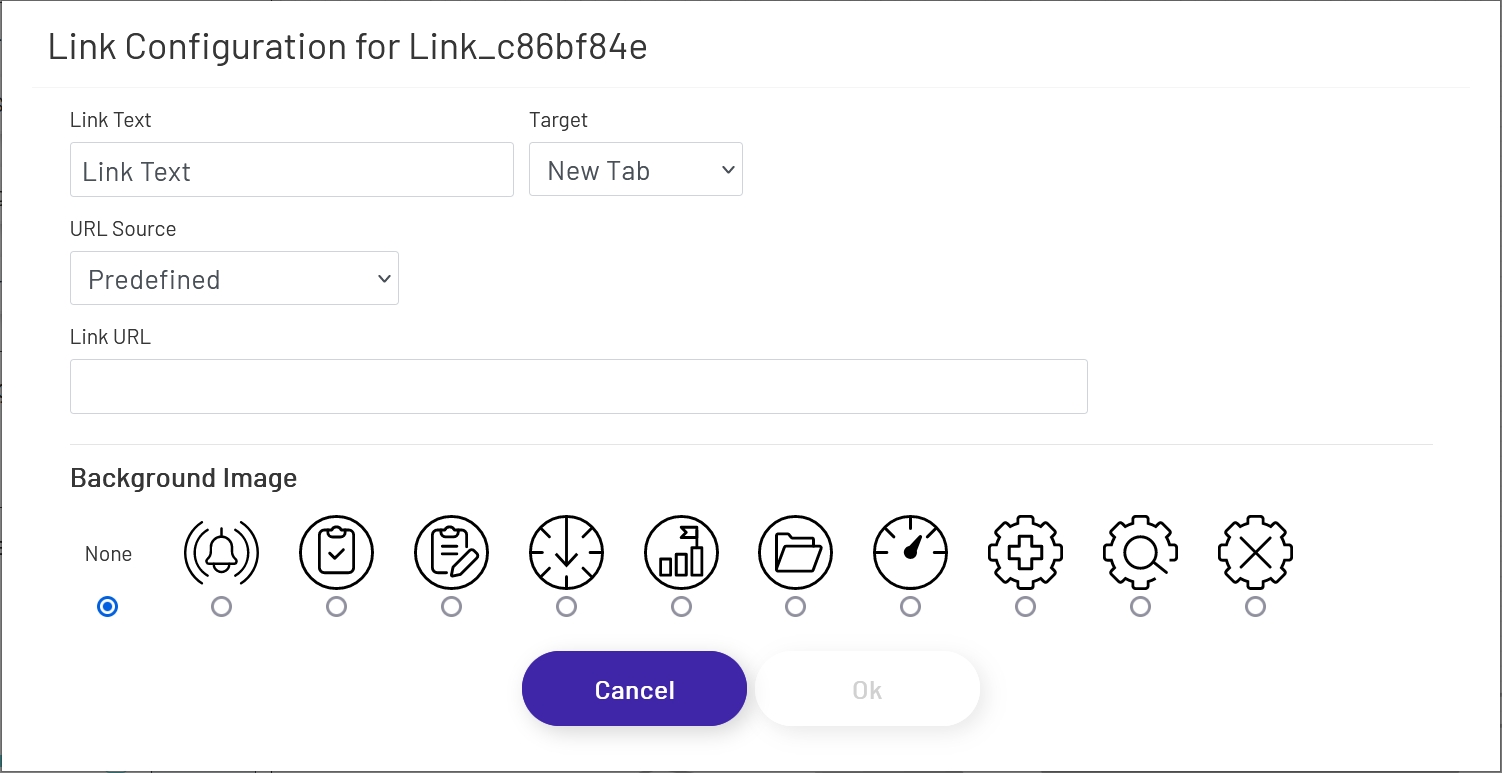
Link shapes are useful for providing ways to access other pages from within a diagram while it's in full-screen mode, when operators may not have easy access to bookmarks or the browser address bar. They can also be used to create basic 'navigation' between multiple diagrams that the operator may need to use for daily functions. Link URLs can also be pulled in from external sources, for allowing easy access to production documentation from ERP and other sources.
To create a link, drag a Link shape onto the canvas from the 'Utility Shapes' section of the palette. Once the shape is on the canvas, click the 'Configure Link' button in the left panel.
Note that for all of the 'URL Source' options described below, the value provided must always be a full URL with protocol, path, and port (if needed). If an empty or invalid value is provided, the link will point at the root of your Prophecy site.
- Link Text: This is the link label the diagram operator will see when the diagram is in live mode.
- Target: Choose whether you want the link to open in the current tab (taking the operator off of the current diagram) or open a new tab.
- URL Source: This sets the source type that will be used to obtain this link - 'Predefined', 'Tag', 'Data Point', or 'Mongoose'.
- Link URL: If the URL Source property above is set to 'Predefined', this field will appear for you to enter a hard-coded value.
- Tag Name: If 'Tag' is specified for the URL Source, choose the name of the tag to use here.
- Tag Property: If 'Tag' is specified for the URL Source, this is the tag property whose value will be used for the URL on this link.
- Decimal Places: If a numeric Tag property is chosen above, this rounds the value to a specified number of decimals if it is not blank.
- Aggregation: If a DB Tag or an ERP Tag is chosen above, this aggregation selects/calculates a value from that Tag.
- Nth: If 'Nth' is chosen above as Aggregation, this defines the index of the value from its Tag property's value collection.
- Data Point: If the URL Source is set to 'Data Point', see here for details on how to configure that portion of the form.
The following config options only appear if the URL Source is set to 'Mongoose'. This option requires knowledge of CSI and which IDO calls need to be made, and usually depends on filters from the diagram or other data sources. Contact the Prophecy Consulting Group for help figuring out how to get the values you want from CSI if needed.
- Connection: Choose the Mongoose connection this link shape will make IDO calls through. Most sites will only have one, in which case the option will be selected automatically.
- IDO Definition: Choose the name of the IDO Definition you want to use a returned value from.
- IDO Property: Choose the name of the IDO Property in the definition selected above whose value you want to display. This must be a single value after any filters are applied (see below).
If filters were set up on the IDO, a row for each will be listed in this section of the form. The 'Filter Index' is the number that will be replaced with the value specified for each filter row (see here for more info). Each row can specify either a predefined value set by the diagram designer, or a 'live' value provided by the operator.
- Filter Value: If you want to use a predefined value, put it here. This field also supports tokens.
- Filter Input Field: If you want the filter value to come from a user input field on the diagram, choose its name from this dropdown.
- Column Name: If the shape chosen for a Filter Input Field is a grid (see below), choose the column the filter value should come from. The user will select that value by clicking on a row in the grid.
Background Image
Link shapes support using a set of icon images for their backgrounds:
To use one of these backgrounds, simply choose from the radio button shown above. If a link uses icon backgrounds, there are a few changes to how it works:
-
Color Rules change the color of the icon lines, rather than the link background color. Links still allow you to choose a separate background color as well.
-
Icon links cannot have preset text or Text Rules. Use a separate text shape if a label is needed in addition to the icon.
-
Icon links must always be square to prevent warping of the icon image, so the diagram tool enforces that. Link backgrounds are generally transparent, but this can come into play if a background color is set.