Some diagram shapes can be configured to change their text dynamically based on the value of tag properties. This can be useful for calling out important status changes or making required user actions more obvious. While the text can be configured to react to tag alarm values, there is also a separate diagram feature specifically for alerting users to tag alarms. This feature can also be used in conjunction with coloring rules. Note that this feature only works on basic shapes and button elements, and the text updates at 1-second intervals.
To set up these dynamic text changes, select a valid shape on the diagram canvas, then click the 'Configure Text Rules' button in the left panel:
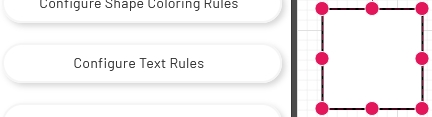
That will open a popup window to configure the shape's text rules. Click the green + icon on the right to create your first rule or add additional rules to an existing list:
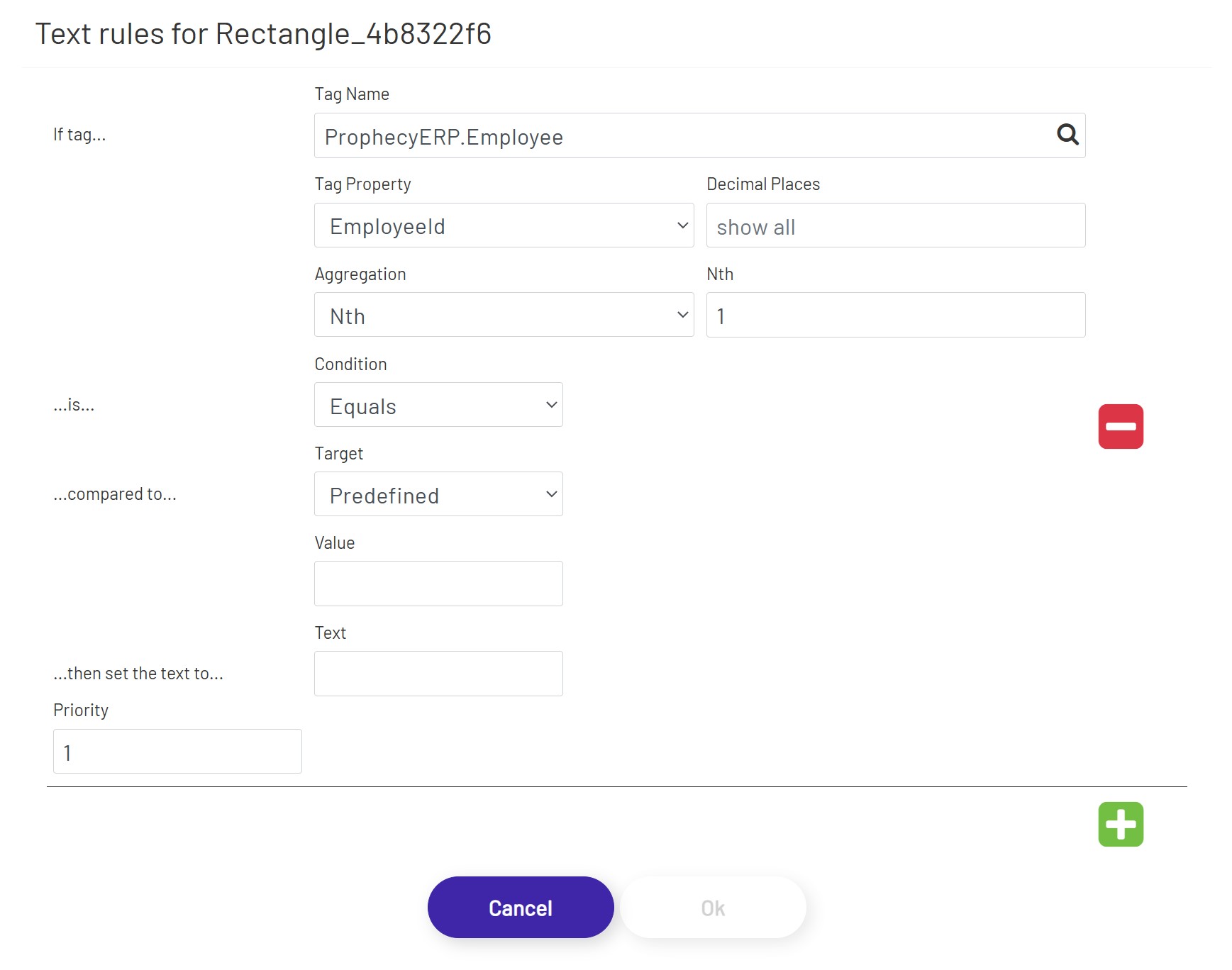
Each rule is made up of several parts:
-
Tag Name: The tag this rule is going to be based on to determine if the shape should change text. Multiple rules for the same shape can look at different tags.
-
Tag Property: The property of the source tag set above that this rule will look at. This is chosen from a list of properties like Value, alarm limits, etc. Note that some of the options in this dropdown depend on features being enabled on that tag. For example, choosing to base a rule on an alarm limit value will not work if that alarm limit isn't enabled on the tag.
-
Decimal Places: If a numeric Tag property is chosen above, this rounds the value to a specified number of decimals if it is not blank.
-
Aggregation: If a DB Tag or an ERP Tag is chosen above, this aggregation selects/calculates a value from that Tag.
-
Nth: If 'Nth' is chosen above as Aggregation, this defines the index of the value from its Tag property's value collection.
-
Condition: This is the comparison the diagram will make between the value it pulls out of the source tag and the comparison value you configure below. The available options vary based on the Data Type set above.
-
Target: This chooses the comparison target value between 'Predefined' and 'Tag'.
-
Value: If 'Predefined' is chosen above as Target, The Tag Property value you configured the rule to use can be compared to this 'hard-coded' value, using the Condition you configured above. The allowed values in this field will vary based on the Data Type chosen above. For example, you will not be able to enter 'Bob' for the comparison value of an integer tag value.
-
Tag Name, Tag Property, Decimal Places, Aggregation, and Nth under Target: If 'Tag' is chosen above as Target, these define another Tag as a comparison target.
-
Text: What text to display on the shape if the comparison between the tag parameter value and the condition value (pre-defined or tag-based) you configured passes the condition you chose.
-
Priority: This sets the order in which the rules will be evaluated when choosing which text should display on the shape (from lowest to highest). This can be useful for setting 'overrides' if there are special conditions that would require different text than normal.
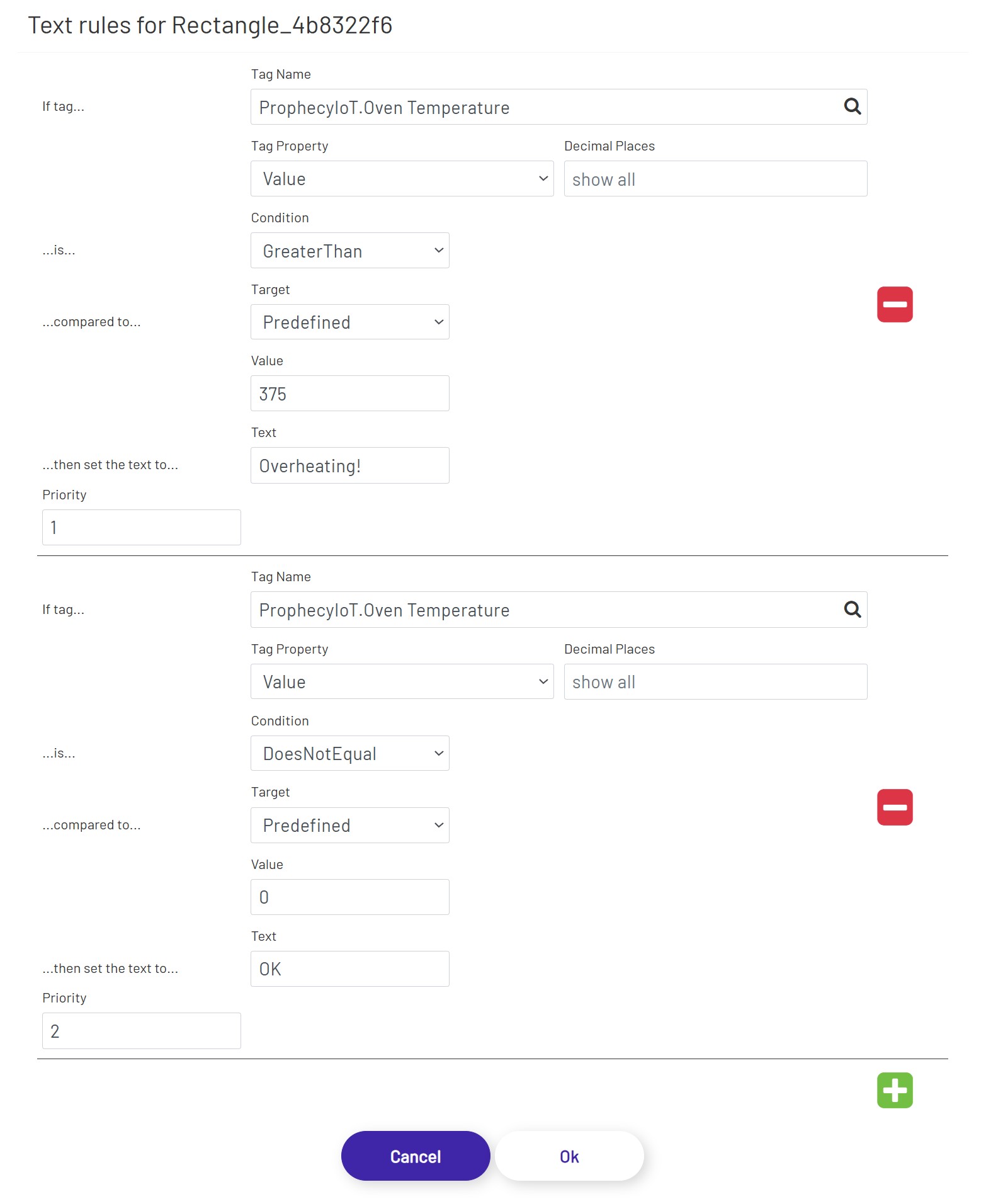
The image below shows an example set of rules for a shape based on the temperature being reported by a tag. It functions similarly to an alarm notification - if the temperature goes too high, that text will show a warning. Note that are temperature ranges where both rules could be true. In those cases, the top rule will 'win' because it's higher priority, and that's the rule that will take effect.
When creating rules, make sure that you cover all possible values for the tag(s) you will be looking at for those rules. If you have one rule checking for greater than 90 and another checking for less than 90, no rule will be valid when the value is exactly 90 and whatever text was in there before will continue to display, even though technically no rule is in effect.