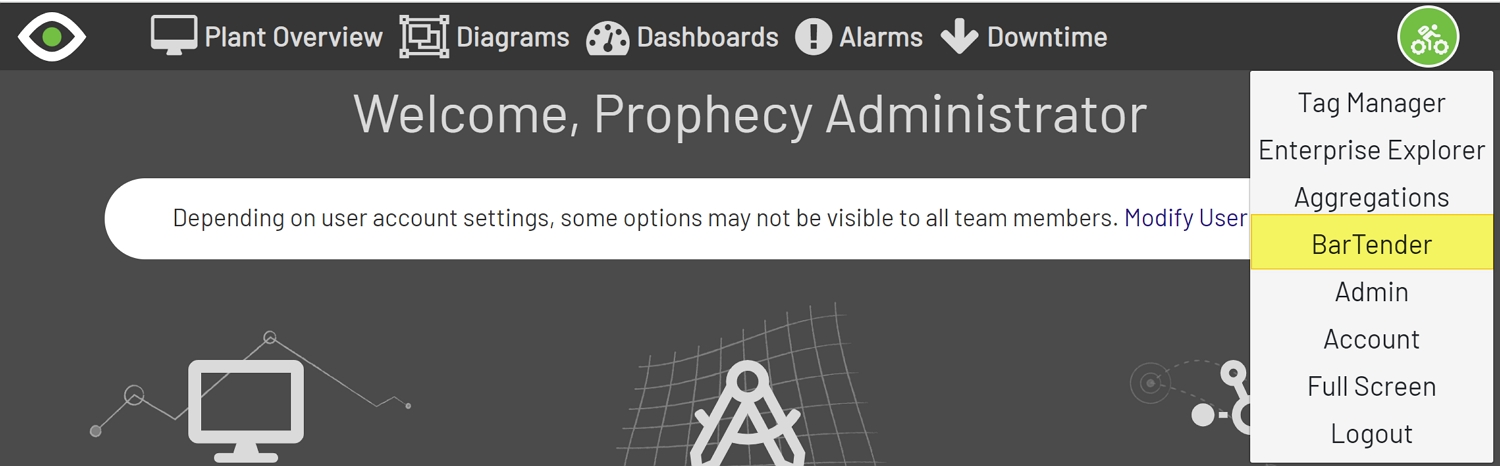
Before BarTender labels can be printed the label structure will need to be added to Prophecy. To navigate to the Label Set Up select BarTender from the User dropdown menu. From there, click the Labels button on the right-hand side of the screen.
Note: Only users with Admin permissions will be able to add new Labels.

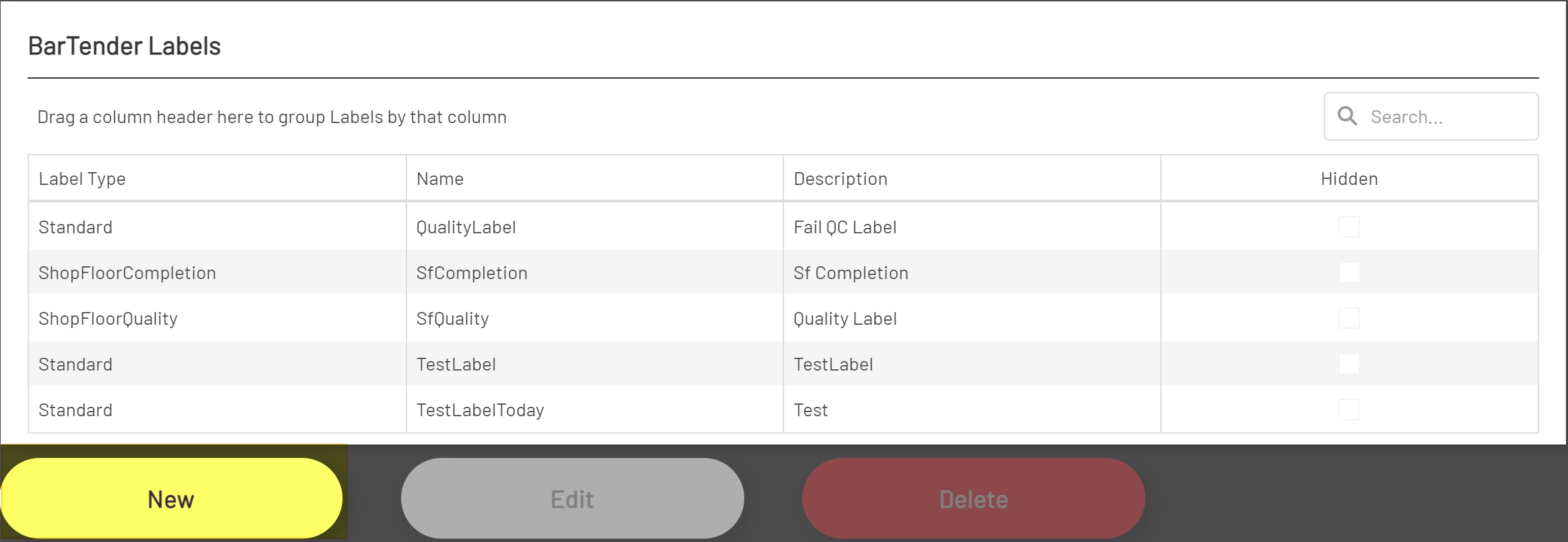
Adding a Label
To add a new Label, click the New button below the Labels grid.
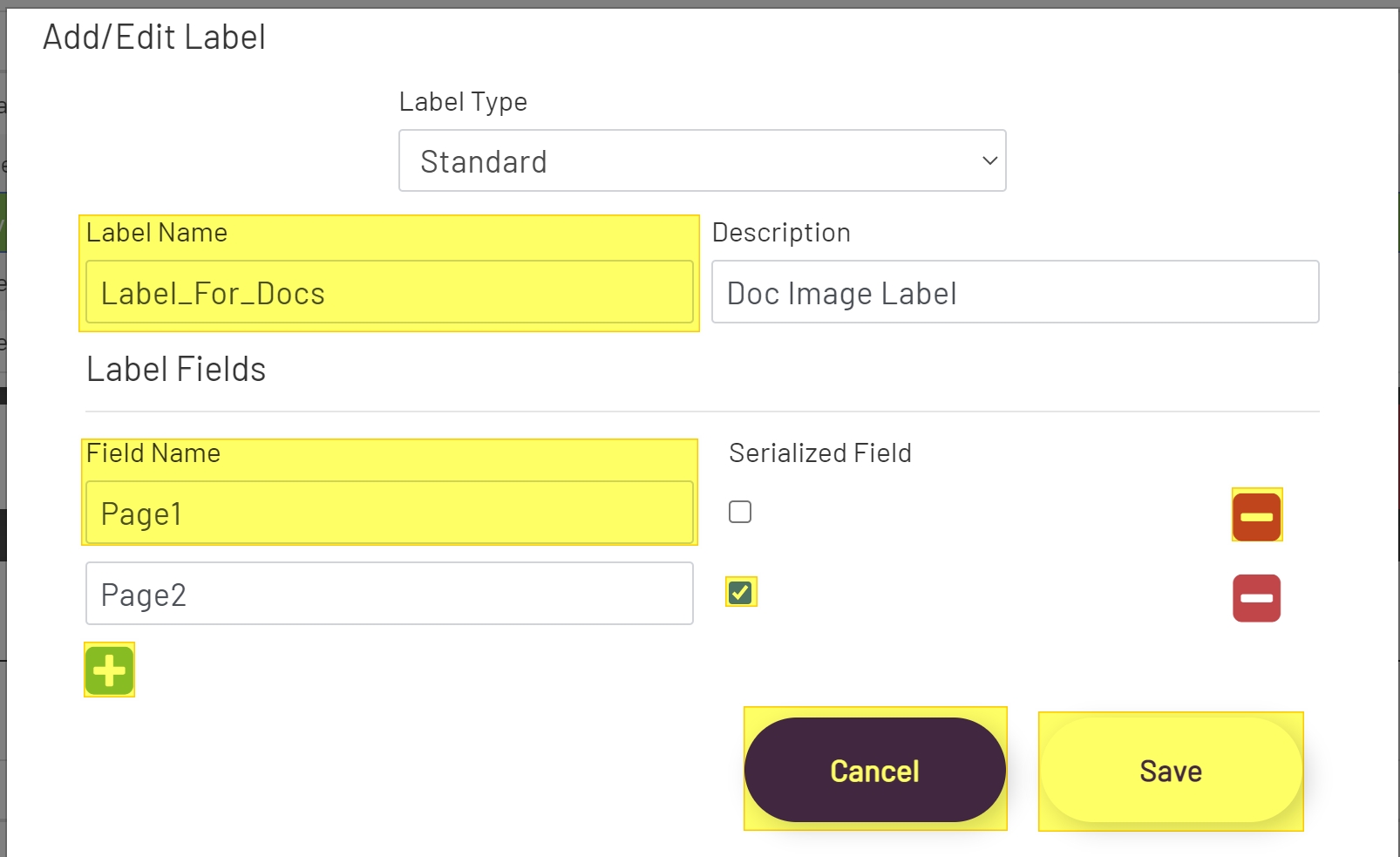
In the Modal window select a Label Type and enter a name and description for the Label. See the definitions below for Label Types:
-
Standard: Standard should be used when printing labels through Diagrams. This type of label will allow label field names to be entered manually.
-
ShopFloorCompletion: The ShopFloorCompletion type is a label type that is used for printing Completion Labels in Manufacturing Hub. This Label type should not be used when the Label will be printed through Diagrams. When creating a ShopFloorCompletion Label, fields will be selected from a drop-down list that contains all available fields related to printing Completion Labels in Manufacturing Hub. Not all available fields have to be used. Any combination of the fields in the list can be selected for a Label. See the list below for ShopFloorCompletion field definitions:
-
EmployeeId: The Id of the employee that printed the label.
-
EmployeeName: The name of the employee that printed the label.
-
EndTime: The time the transaction was completed.
-
Item: The item of the completion or move transaction.
-
ItemDescription: The description of the item of the completion or move transaction.
-
Job: The job for the move or completion.
-
Location: The warehouse location for the item. If the transaction is not for the last job operation, then the location will be blank.
-
Lot: The lot number for the item. If the transaction is not for the last job operation, then the lot will be blank.
-
Operation: The job operation that is being transacted.
-
OperationDescription: The description of the operation that is being transacted.
-
OperationQuantity: The total quantity received for the operation.
-
QuantityComplete: The total quantity that has been completed for the operation.
-
Resource: The Id of the resource that was selected for the job operation.
-
StartTime: The time the transaction was started.
-
Suffix: The suffix for the job that is being transacted.
-
TotalScrapped: The total quantity that has been scrapped for the job and operation.
-
UOM: The UOM for the job item that is being transacted.
-
Warehouse: The warehouse for the job that is being transacted. If the transaction is not for the last job operation, then the warehouse will be blank.
-
WorkstationId: The Shop Floor Workstation that the label was printed from.
-
WorkstationName: The name of the WorkStation that the label was printed from.
-
-
ShopFloorQuality: The ShopFloorQuality type is a label type that is used for printing Quality Labels in Manufacturing Hub. This Label type should not be used when the Label will be printed through Diagrams. When creating a ShopFloorQuality Label, fields will be selected from a drop-down list that contains all available fields related to printing Quality Labels in Manufacturing Hub. Not all available fields have to be used. Any combination of the fields in the list can be selected for a Label. The ShopFloorQuality label has all the fields that are available for the ShopFloorCompletion, as well as the fields listed below:
-
DefectCode: The code of the defect that was selected for the transaction.
-
DefectDescription: The defect description of the defect that was selected for the transaction.
-
FailedQuantity: The failed quantity for each defect.
-
Notes: The notes entered for each defect.
-
When creating a Label, the Label Name must match the name of the BarTender template file.
Example: I have created a BarTender Label named Line1_Label.btw. The name given to this Label in Prophecy would be Line1_Label.
After the Label has been named, any Fields that will be printed through Prophecy will need to be added.
Adding Standard Label Fields
To add the first Field, enter the name of the field in Field Name input.
If this Field is a Serialized Field in BarTender then check the Serialized Field checkbox. BarTender has great tools for handling Serialization, and it is preferred that Serialized values be handled directly through BarTender, although it is not required. More information on setting up Serialized Fields in BarTender can be found here.
If this field is not a Serialized Field, then the name must match the Named Data Source for this Field in BarTender. More information on creating Named Data Sources can be found here.
After entering the desired information, click the Green Plus button to add another Field. Repeat these steps until all desired Fields have been added.
If an inaccurate field has been added at any point during the set up then the Field can be removed by clicking the Red Minus button to the right of the Field.
Once all Fields have been added click the Save button at the bottom right of the window. Or click Cancel to cancel changes.
Note: Label Field Names cannot contain spaces or any special characters other than the underscore character (_).
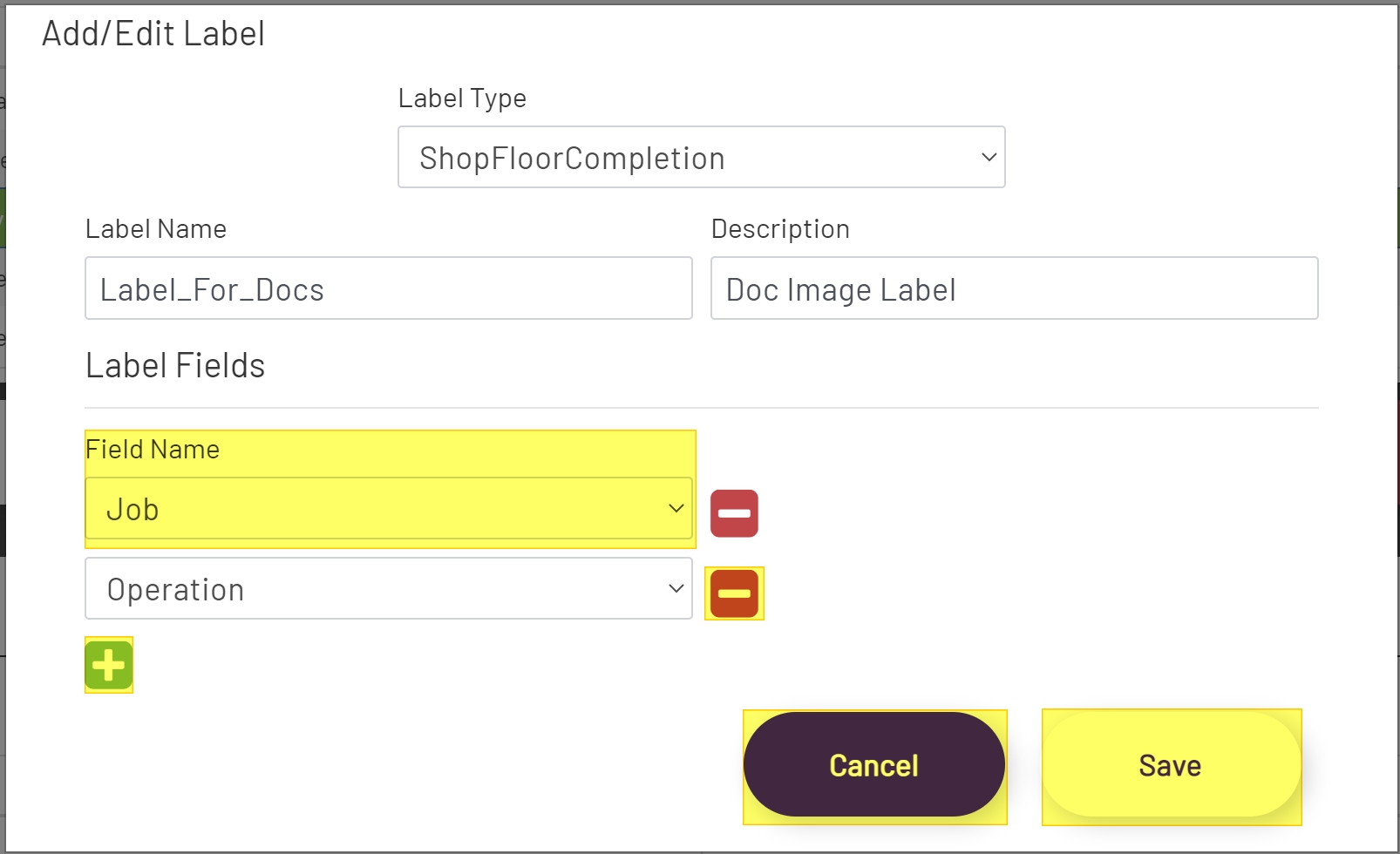
Adding Shop Floor Label Fields
To add the first Field, select the desired field from the drop-down.
After selecting the desired information, click the Green Plus button to add another Field. Repeat these steps until all desired Fields have been added.
Once all Fields have been added click the Save button at the bottom right of the window. Or click Cancel to cancel changes.
Note: Label Field Names cannot contain spaces or any special characters other than the underscore character (_).