Data Points are additional data source options for diagrams beyond the usual tag or Mongoose sources. They can be used to pull in values from 3rd-party databases that Prophecy does not natively connect to, and allow easy re-use of values between multiple diagrams.
Data Points can be complex to configure, and may depend on connections to external SQL data sources or Mongoose connections. Contact the Prophecy Consulting Group for help setting those up if needed.
Data Point Management
Data Points are managed on the admin page, by clicking the Data Points tab on the left. That page contains a grid of existing Data Points, with options to add a new one or edit or delete existing Data Points below the grid:
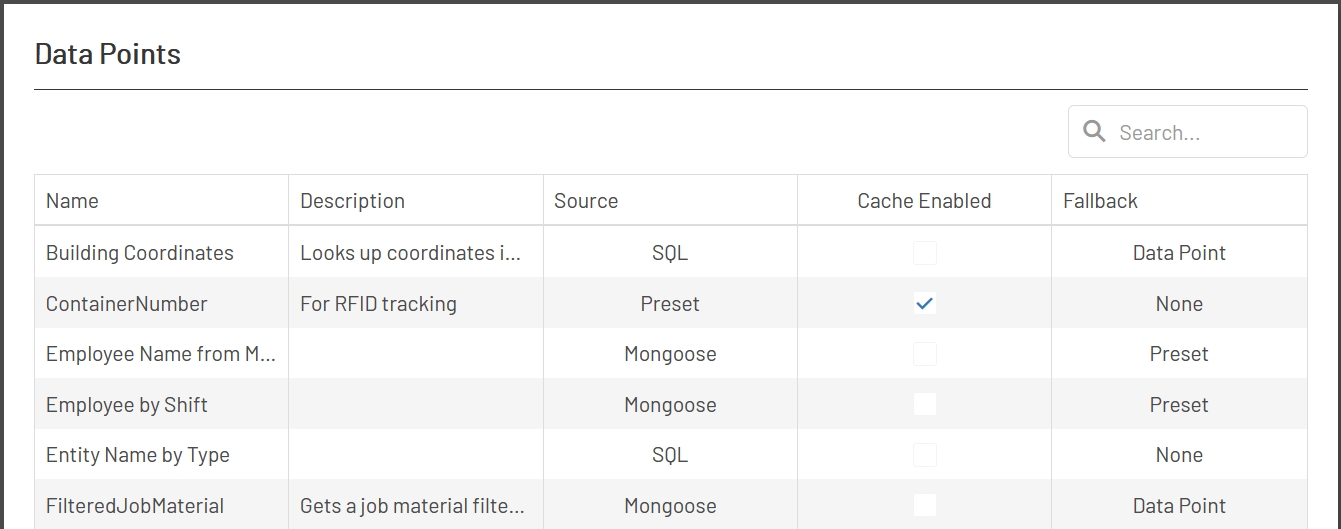
Each Data Point has these options:
- Name: This is used for display within Prophecy, in this grid and when choosing Data Points when configuring diagram shapes.
- Description: This is for internal use only, to help explain what the Data Point is doing.
- Source: This sets the data source for the Data Point. Each option has different settings that will also have to be configured. Available choices are 'Preset', 'Mongoose', 'SQL', and 'Tag'.
- Fallback Behavior: This setting determines what happens if Prophecy is unable to fetch a value for this Data Point.
- Data Point: If the value for the Data Point cannot be fetched, Prophecy will try to fetch the value of another. Note that Prophecy will only fall back one 'level' deep - you cannot have a Data Point that falls back on another Data Point which falls back on another, etc. If the fallback Data Point would usually require filter values, those filter values will not be provided when Prophecy tries to fetch the fallback value, so that lookup may fail as well. If using a Data Point as a fallback, it is best if that is a preset value Data Point used simply for displaying an error message.
- Expired Cache: If this option is chosen and the Data Point's value has been cached (see settings below), the most recent cached value will be returned, even if that value is expired.
- None: No value will be returned for this Data Point. If it is being used in a diagram, whatever value was shown previously will continue to show.
- Preset: If a value cannot be fetched for the Data Point, a preset string value can be displayed instead.
- Cache Enabled: If checked, new values fetched for this Data Point will be saved. Subsequent lookups of this Data Point will use that cached value until it expires (see below). This should be used for values that do not change frequently or can stand to be a little delayed. This will reduce the number of Mongoose calls or SQL queries that are run by diagrams using this Data Point, which can improve performance and reduce network load. Note that if a Data Point requires filters (see below), any filter values provided will not be used until the cache expires and a new value is fetched. Generally speaking, Data Points which require filters should not be cached.
- Cache Duration: If the 'Cache Enabled' box is checked, this sets the length of time (in minutes) that a cached value will be re-used before it is updated with a fresh value.
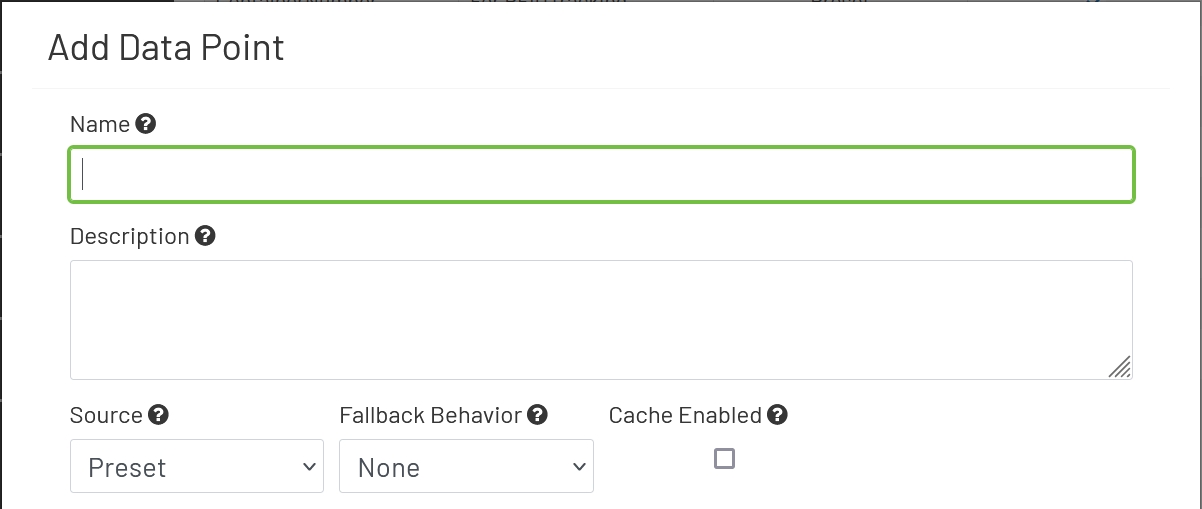
Depending on the 'Source' option chosen above, different 'Source Config' sections will display at the bottom of the form.
Preset
- Preset Value: This is the hard-coded value that will be returned whenever this Data Point is read. There is no practical upper limit on the length of this string.

Mongoose
- Connection: The Mongoose connection that this Data Value will make its IDO call through. Many Prophecy sites will only have one connection configured, in which case that option will be selected automatically.
- Definition: The name of the IDO Definition this Data Point will attempt to fetch a value from. Note that if this definition has filters defined, the source for those filter values will be configured when setting up the shape(s) that will use this Data Point on diagrams.
- Property: This is the name of the IDO Property in the definition selected above whose value you want to display. This should be a single value able to be displayed in simple text.

SQL
- Connection: The SQL Connection that the Data Point will use when fetching a value.
- Query Text: The text of the query that Prophecy will run on the connection above when fetching the Data Point value. Input parameters are supported in this query. Those parameters must be sequential integers, each wrapped in {} brackets. If the value of the parameter will be non-numeric, it should be wrapped in single quotes. A parameterized query might look like:
SELECT Name FROM Operators WHERE OperatorId='{0}' AND Shift={1}. If this query has filters defined, the source for those filter values will be configured when setting up the shape(s) that will use this Data Point on diagrams.

NOTE:
- Only
SELECTstatements are supported in SQL Data Points. - The query should result in a scalar (single) value. If multiple values are returned by the query, only the first will be returned for the Data Point.
- If a query returns no results, Prophecy will treat that as a failure and use the fallback behavior of that Data Point (if any). If an empty result set is an expected and valid value for this Data Point, set the 'Fallback Behavior' to 'None' or 'Preset Value' with an empty string.
Tag
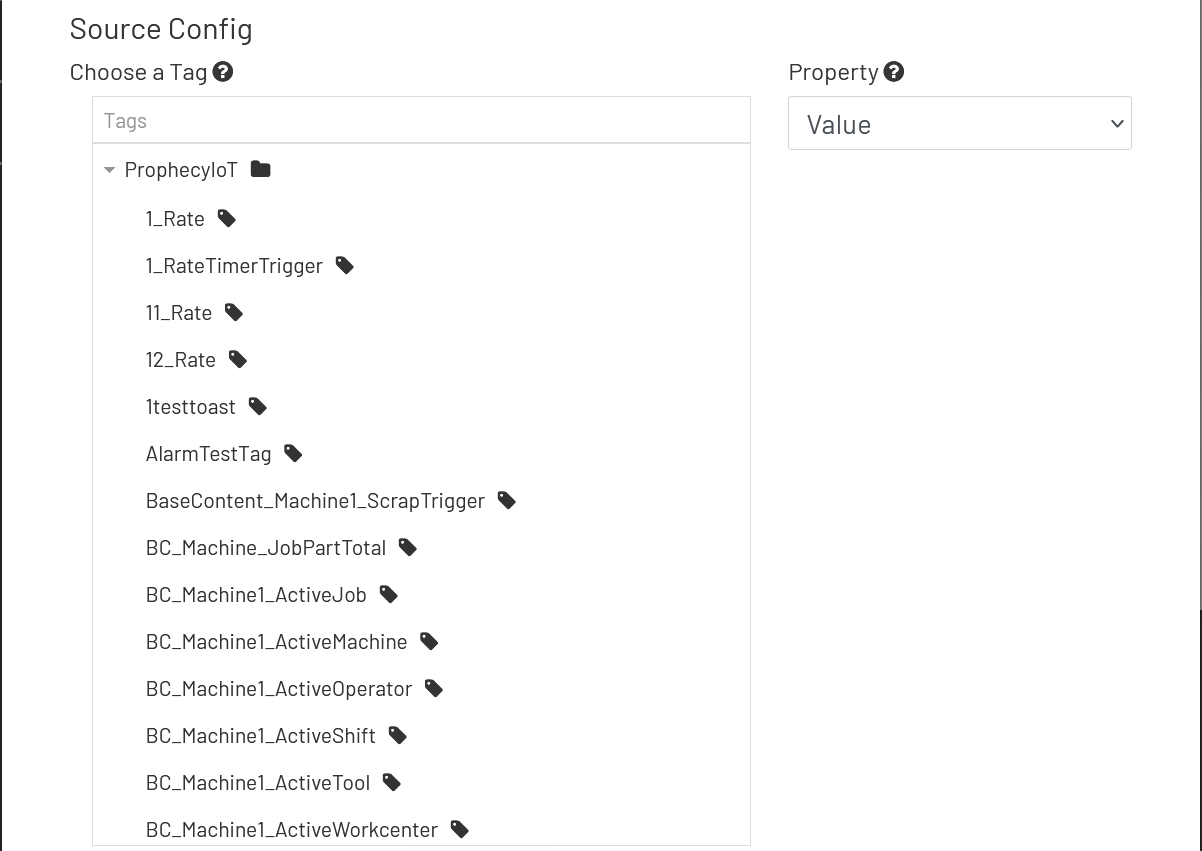
- Tag: Choose the name of the tag this Data Point will attempt to fetch a value from.
- Property: This is the name of the tag property to fetch the value of (usually 'Value'). Note that some of the properties in this dropdown depend on features being enabled on that tag. For example, choosing to display an alarm limit value will not work if that alarm limit isn't enabled on the tag.
NOTE:
- Tag-based Data Points displayed on a diagram will have new values fetched every second.
- Tag-based Data Point values are never cached.