The Plant Overview section allows Prophecy users to view multiple Alarms, Diagrams, Dashboards, and whitelisted External URLs in one place. Objects that can be added are linked directly to the logged in user’s permissions. For example, if a user does not have access to view Diagrams, then diagrams cannot be added to a user’s view. External URLs are only available for URLs that have been whitelisted by an admin in the Plant Overview External Urls section in the Admin Settings.
Navigation
Items
When in View mode, the user can navigate to the pages containing the individual Items. This can sometimes be important if there is a need to make changes to the Item. To navigate to the Item, click the navigation icon on the left of the item toolbar.

Views
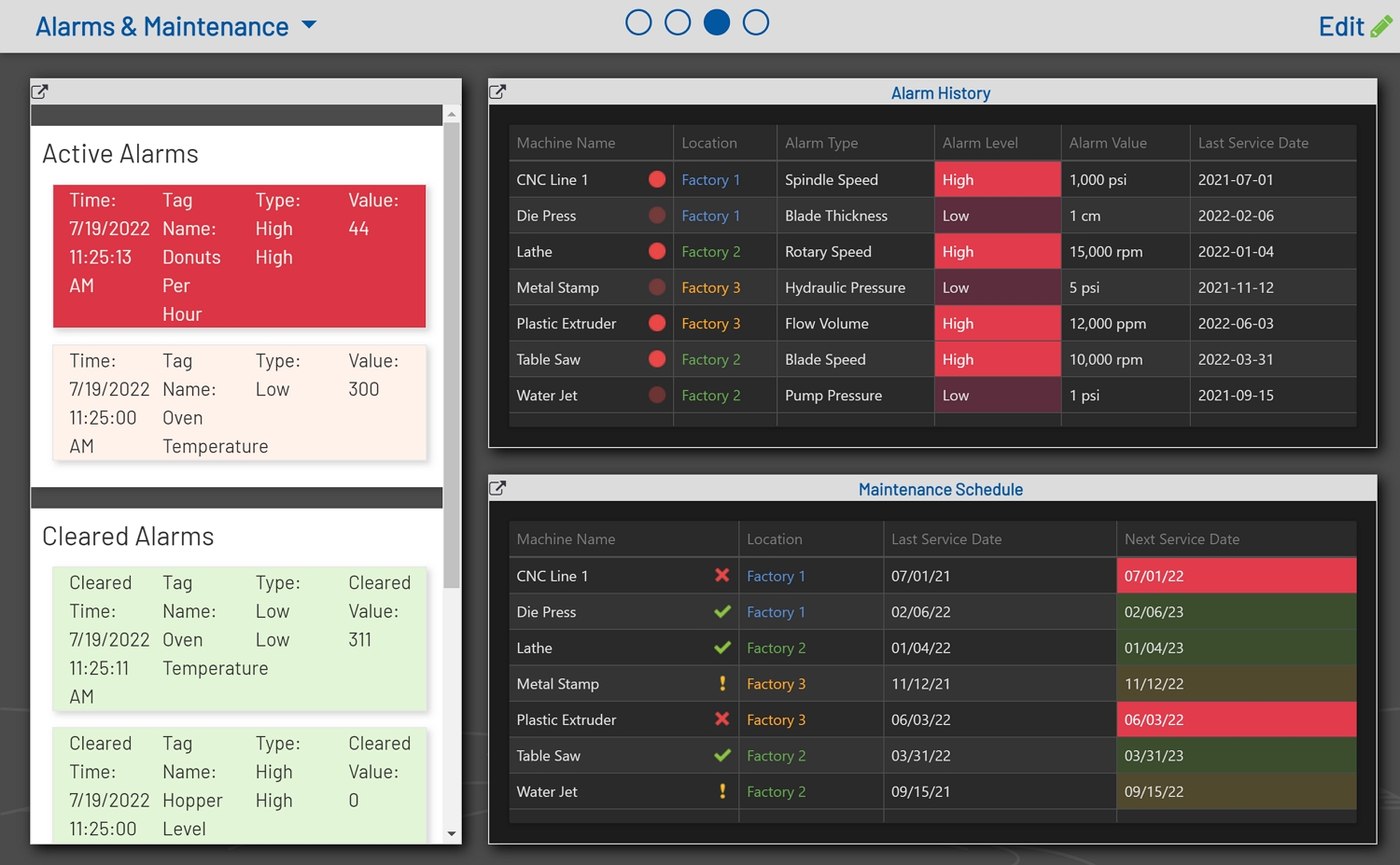
There are two ways to navigate to a View page. Using the navigation dropdown or using the navigation dots.
To use the navigation dropdown, click on the dropdown in the top left of the menu bar and simply select the View to navigate to.
To use the navigation dots, simply click on the dot to show the View.
Note: Navigation dots are only available when there are two or more Views.


View Urls
There may be times when it is necessary to navigate to a specific View. Fortunately, all Views are URL routable by the index of the particular View. Views use a 0-based index. So, for example, if you wanted to route to the third View in your Plant Overview, you would use the URL https://www.yoururl/plantoverview/2.
Note: View URLs can also be copied directly from the address bar in the browser.
Below are links to setting up and maintaining Plant Overview.