There are times in the Label printing process when things do not print exactly as expected. Or sometimes a print job may get stuck during the printing process. When this happens Labels will need to be reprinted.
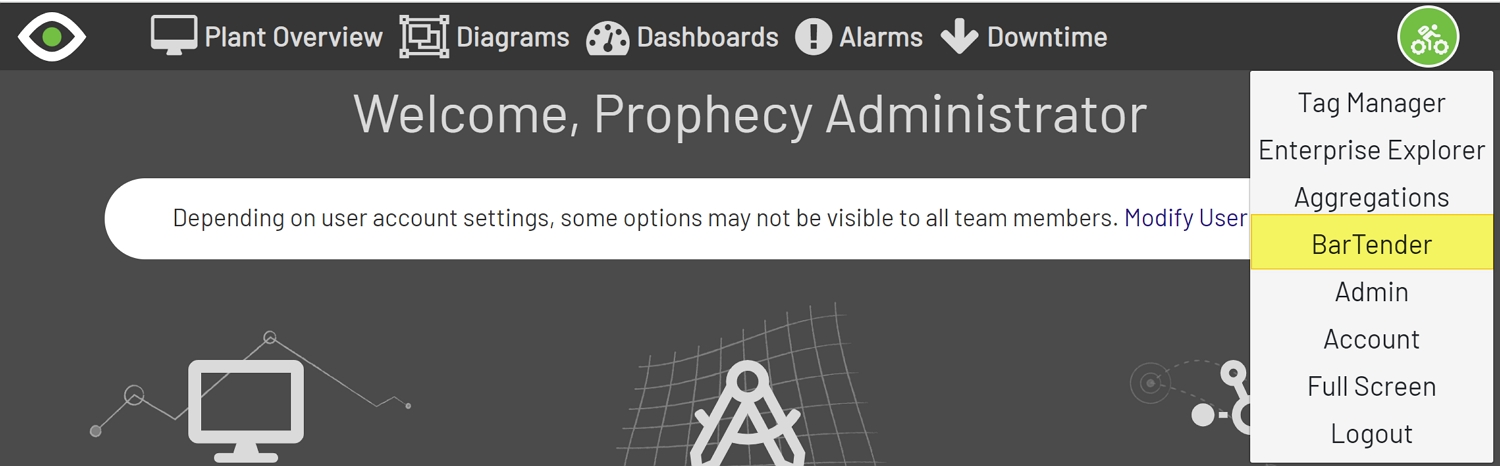
To navigate to the Reprinting screen, click on the User dropdown in the Top Bar. From there, select BarTender. This will open the Label Reprinting screen.
Note: A user must be in the Reprint Role to access Label Reprinting.
Selecting a Label
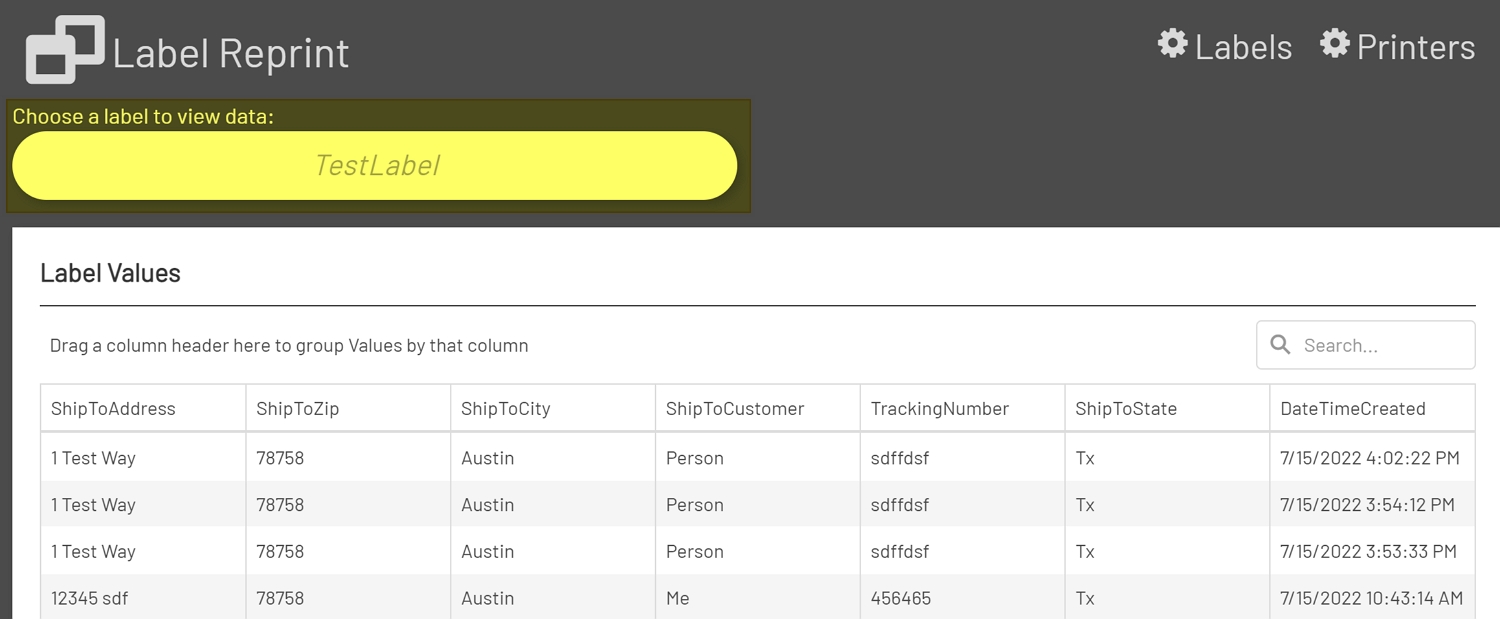
Select a Label from the Label dropdown at the top of the screen to view the data that has been printed to that Label. After selecting a Label the Label Values grid will be populated with previously printed data for the chosen Label.
Note: Label data is restricted for non-Admin users to the Diagrams that they have access to print from. The grid will only show data from these Diagrams for non-Admin users. Admins will have full access to all data that has been printed from any Diagram.
Reprinting a Label
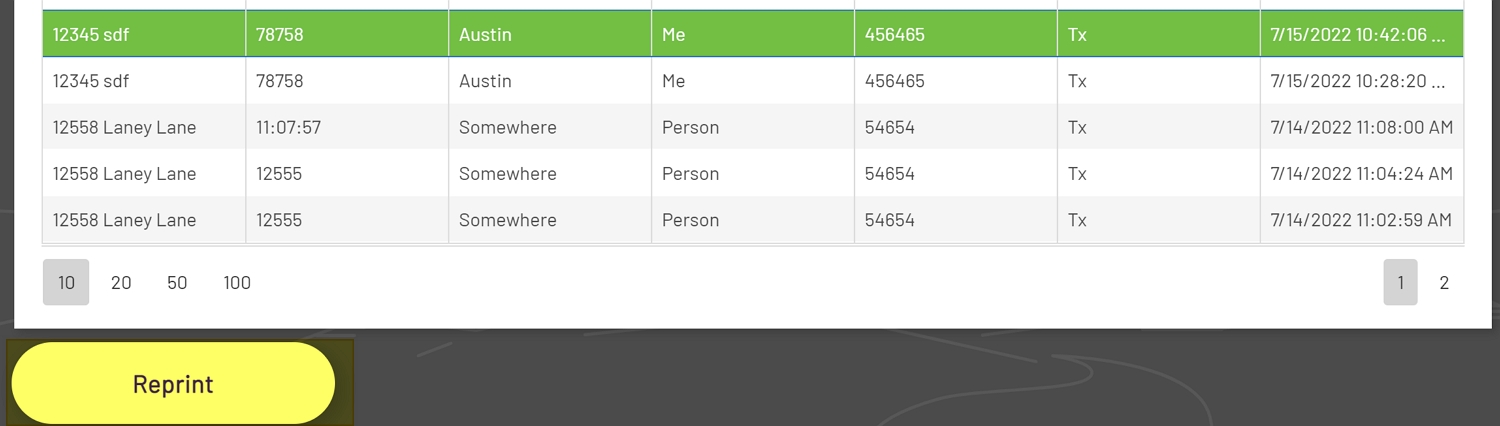
From the Label Values grid click on the row for the Label that needs to be reprinted. Then click the Reprint button below the grid.
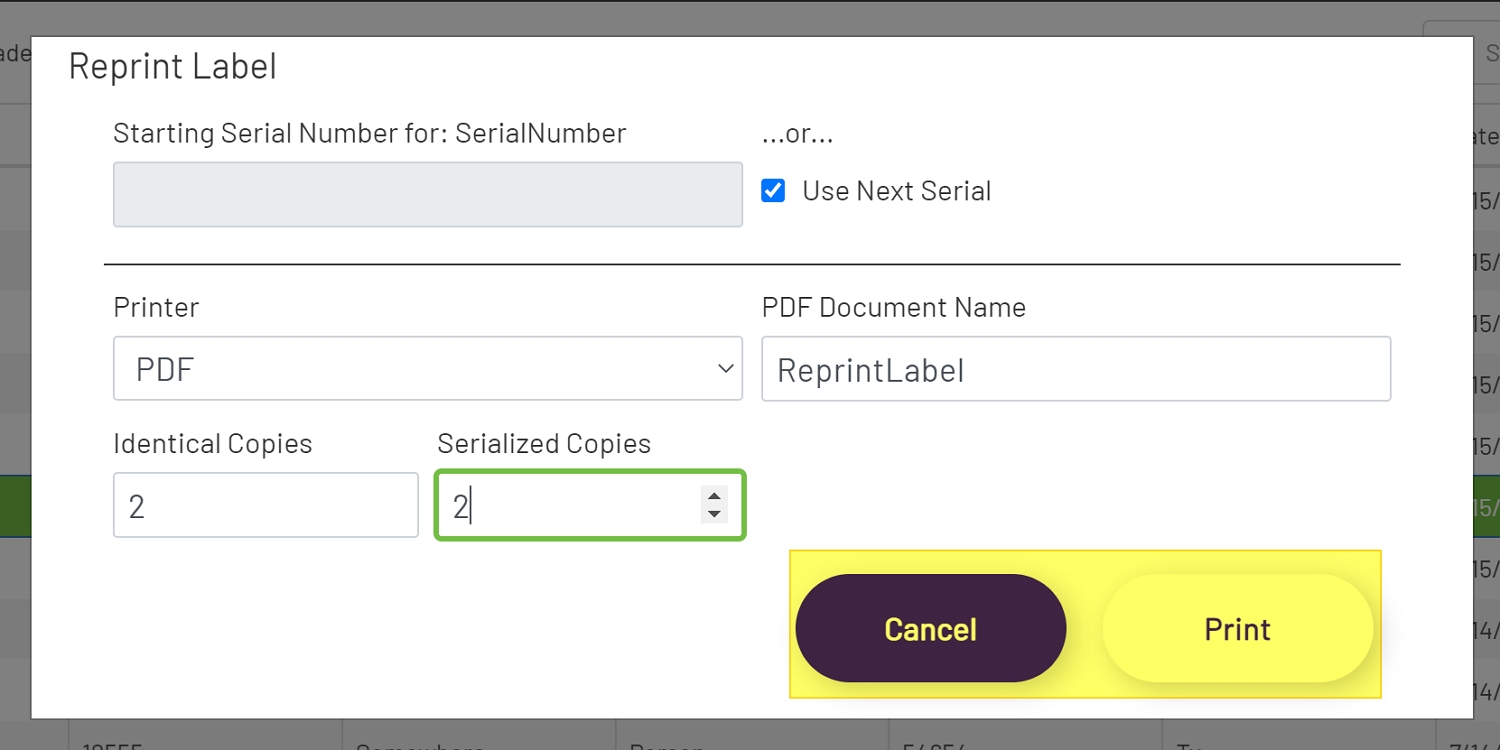
If the Label being reprinted contains Serialized Fields, all Serialized Fields will show at the top of the modal. There will be two options for serialized printing.
-
Enter the starting serial number for the field. This will be the starting serial number for the Reprint.
-
Use next Serial. Checking use Next Serial will assign the next serial number for the BarTender Label and will disable the Serial Number input.
The next Field is the Printer dropdown. This dropdown will be populated for all non-hidden printers that have been set up in the application. If the selected Printer is the BarTender PDF Printer, then another input will show to enter a name for the PDF document being printed.
The next two Fields are the Identical Copies and Serialized Copies Fields. If the Label being Reprinted does not contain Serialized Fields, then the Serialized Fields input will be disabled.
-
Identical Copies: This will print X number of Identical Copies of the label. For example, setting the Identical Copies to 5 and the Serialized Copies to 2 will print 10 Labels. Five Identical Copies of each serial number.
-
Serial Copies: This sets the number of serial numbers to print. For example, if 12345 is entered as the beginning Serial Number above, and the Serialized Copies are set to 2, then the serial numbers 12345 and 12346 will be printed.
Once all required values have been entered, click the Print button to Reprint the Labels or click the Cancel button to discard the changes.
Note: If GDFs (Global Data Fields) are being used in the BarTender Label, then only the Next Serial option will work. Entering a starting serial number for any Labels with GDFs will be ignored by BarTender and the next available serialized value will be used.