Enterprise Explorer (EE) provides a way to categorize physical and conceptual holdings, and to show relationships between them. Entities are arranged hierarchically, and can be linked to each other to show relationships and where concepts or machines are used in multiple areas of the organization.
Enterprise Explorer is reached from the the dropdown menu in the top nav bar.
The top-level entities in your organization will always be shown on the left. Note that the 'Data Automation' group and its sub-groups are for complex entity types with special rules, and they cannot be removed or renamed.
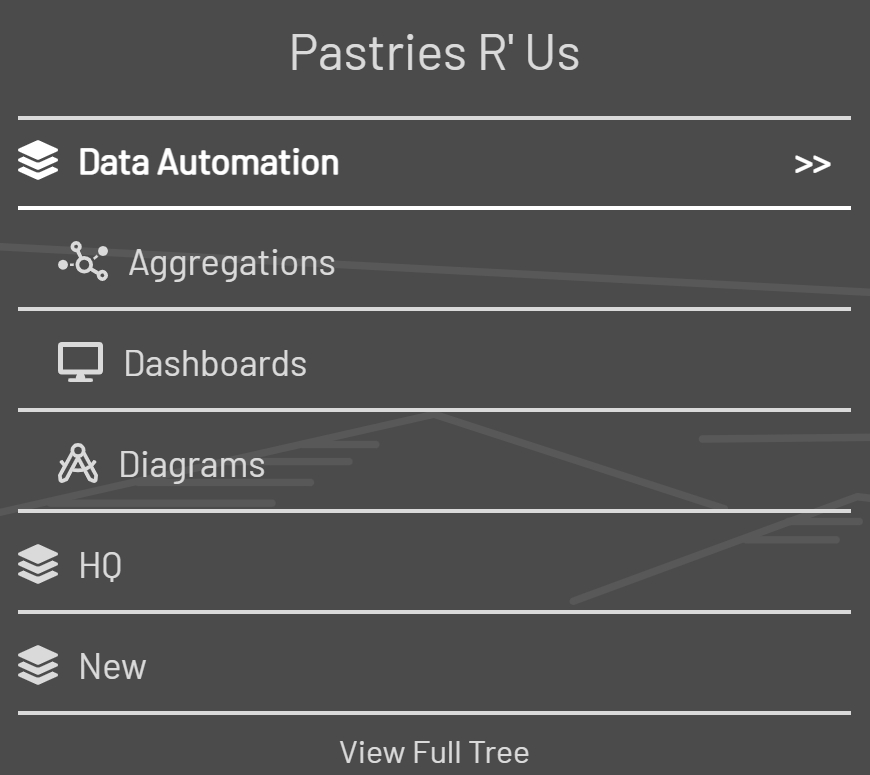
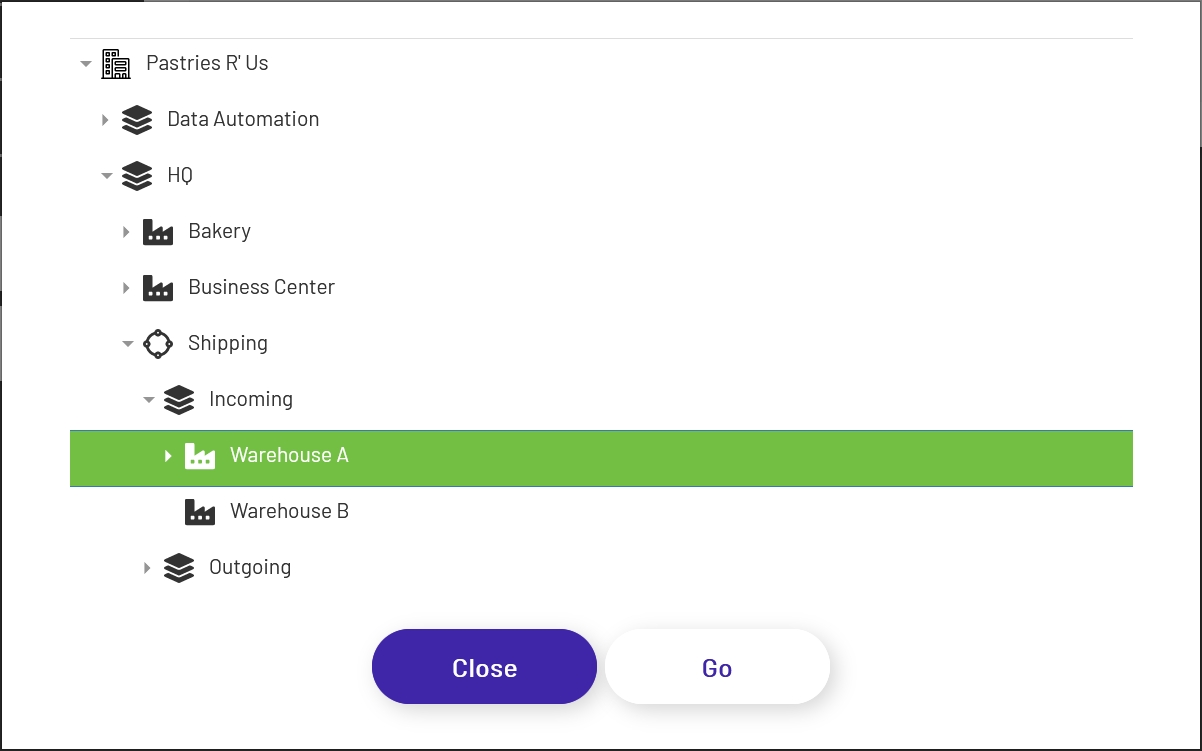
On devices with screens large enough to display it properly, a 'View Full Tree' link will appear below the left nav. Clicking that opens a modal window with a hierachical view of your entities, where you can navigate to the one you want to view and click 'Go'.
Once an entity is selected in either the left nav or through the tree view, its details and available actions will show on the right, and any children under that entity will be shown in an accordion. Each of those children can be expanded to see some basic information, and clicking "View Details" will navigate 'down' a level to view that child's full details, as well as any children under it.
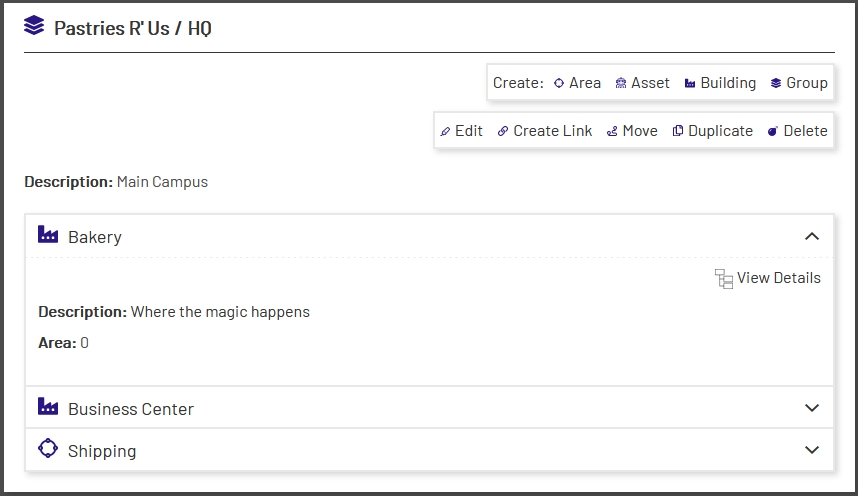
You can quickly jump 'up' to higher levels by clicking links in the breadcrumb shown at the top of each entity card, or by clicking back on one of the top-level entities in the left nav.

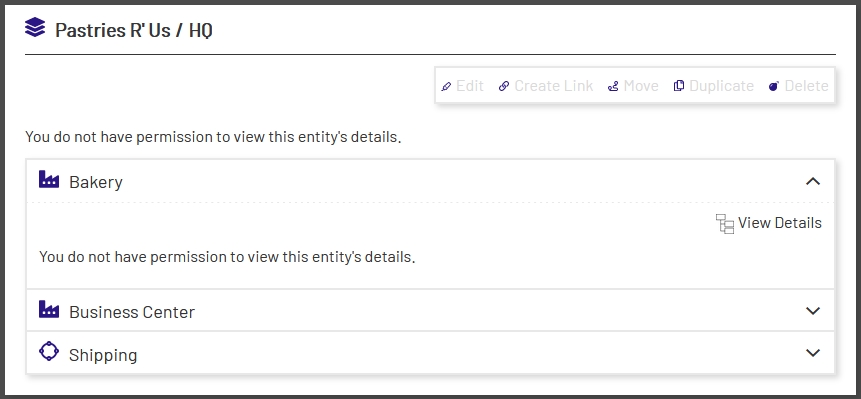
Note that user permissions are of particular importance in Enterprise Explorer, and can be set at a very granular level. Depending on a user's permissions, create and edit options may be disabled and entity details may be hidden. The user will always be able to navigate 'down' through the entity to view its children though, as they may have different permissions further down the tree: