This feature allows HMI designers to configure a diagram shape to monitor a tag's alarms and display an indicator if the tag is in an alarm state.
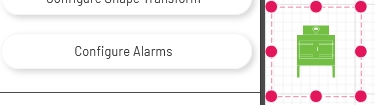
To enable this feature, drag a shape onto the canvas, then click the 'Configure Alarms' button in the left panel.
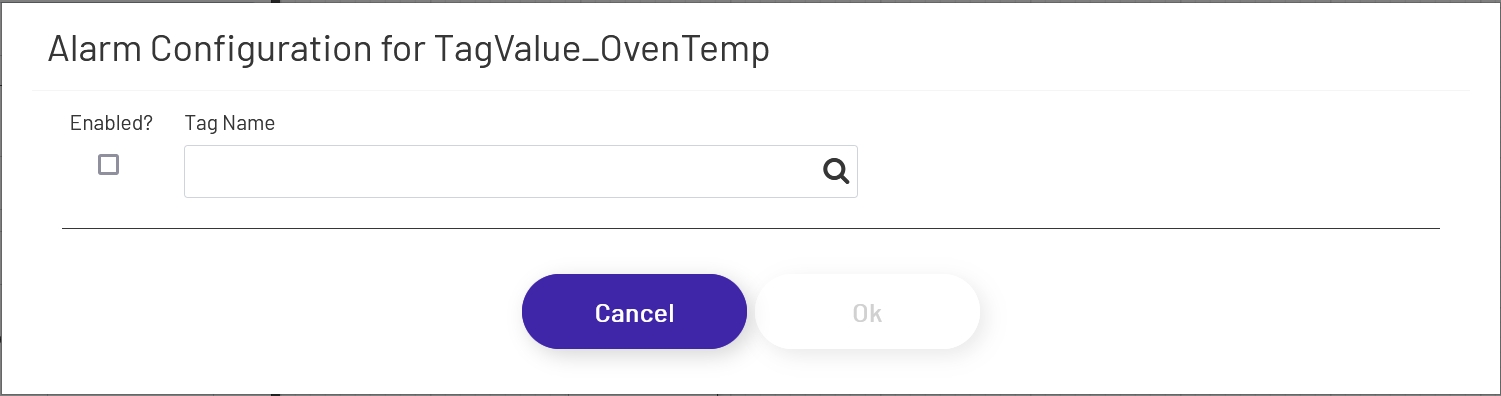
Check the the box to enable alarm monitoring, and choose the tag to monitor:
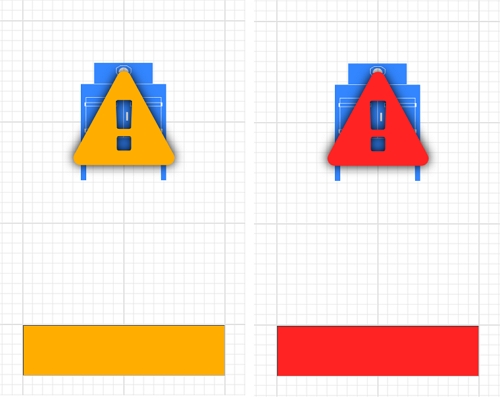
When the tag is in an alarm state, an indicator will display. High and Low alarms will be indicated by yellow-orange flashing, and HighHigh and LowLow alarms by red-yellow flashing. For input shapes, the background colors will flash. Machine icons, basic shapes, etc. will get an alarm icon overlay:
Note that alarm monitoring is available on basic shapes, machine icons, and most HMI shapes, but not some of the more complex shapes like trends and gauges.