Job transactions are probably one of the main activities on a shop floor. Manufacturing Hub supports five job types and each of these job types supports most of the common transactions found in ERP and MES systems. All job types support any number of operators running the same Job and Operations at the same time. The same is true for Team Jobs, multiple Teams may run the same Job and Operation concurrently. Below are the job types and transactions that each support.
Job Transaction Types
Depending on the job type selected, it will support one or all of the transactions listed below. The transaction buttons for all but the Multi Job, Machine Job, and Job Move transaction are located below the Job Operations List. For the Multi Job transaction these buttons are located at the bottom of the Jobs List screen.
-
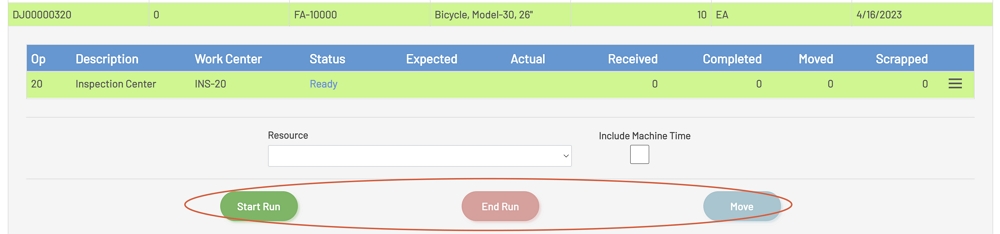
Start Run: Starts a job run for the operation. Starting a job run will log the operator that initiated the run and the start time for the run.
-
End Run: Ends the run for the operation. Ending a run logs the operator that ended the run, the date and time the run was completed, the quantities completed (if the run had any quantities), and any scrap that the job may have incurred. The completion of this transaction will typically push all the collected information back to the ERP system to automatically create the ERP transaction for the associated information. If the operation to be completed is the last operation, then the employee will be prompted to select a warehouse and location from the list on the completion screen.
-
Move: A Move transaction will move items to the next step in the process. If the operation is the last operation in the list, then the employee will be prompted to select a warehouse and location from the list on the complete move screen. Move transactions will log information for the employee and push that information back to the ERP. This transaction does not typically log labor time for the employee.
-
Start Setup: A Start Setup transaction is used to capture setup time for a job and operation. This type of transaction will capture information about the employee that initiated the transaction as well as the time that the transaction was started.
-
End Setup: An End Setup transaction is used to end the setup for a job and operation. This type of transaction will capture information about the employee that ended the transaction as well as the time that the transaction was completed. The completion of this type of transaction will create a transaction in the ERP system. This type of transaction does not typically have a quantity associated with it.
-
Start Machine: A Start Machine transaction is used to capture machine time for a job and operation. This type of transaction will capture information about the time the transaction was started.
-
End Machine: An End Machine transaction is used to capture the completion of a machine transaction for a job and operation. This type of transaction will capture information about the time the transaction ended as well as any quantities for the transaction, if there are any quantities for the transaction. Quantities for the transaction include completion and scrap. The completion of this transaction will create a transaction in the ERP system.
Job Transaction Buttons
Job Buttons
Job buttons on the main Manufacturing Hub screen can be hidden on a per Workstation basis so that each Workstation will only show the transaction types necessary for that Workstation. Anyone with admin privileges in Prophecy can modify the Workstation setup. Please reference Manufacturing Hub Settings section for more details.
Standard Job
A 'Standard Job' is a basic job type that supports a Start Run for an operation, End Run for an operation, and Moves for operations.
To perform any of these transactions for a 'Standard Job', click the 'Standard Job' button on the main Manufacturing Hub page. If the logged-in employee has a 'Standard Job' in process, then this button will be highlighted in green.
From there, select a job from the Jobs List and then select an operation from the Job Operations List. If the operation has not been started, then the 'Start Run' and 'Move' buttons should be enabled to allow either one of these transactions to be started. If the operation has been started, then the 'End Run' and 'Move' buttons should be enabled.
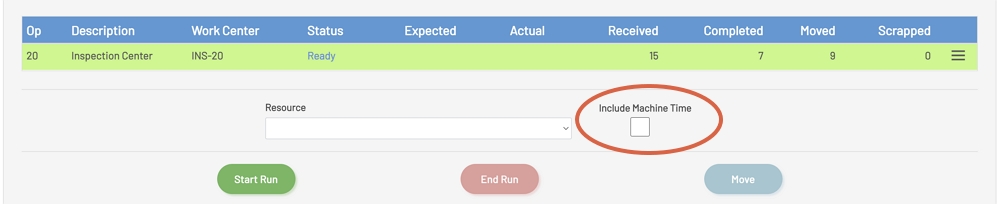
When performing any of the transactions for this job type, the 'Resource Group' can be optionally selected. The 'Include Machine Time' check box can also be optionally selected when Starting or Ending a Run.
This job type only allows for one operation to be started against the job. An employee can only have one operation active for a Standard Job.
Active Standard Job
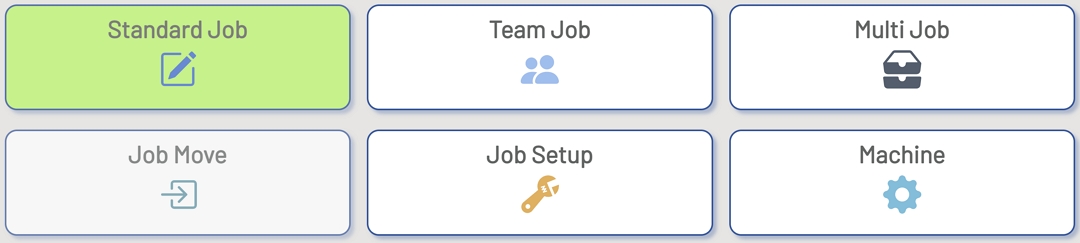
NOTE: The employee performing the operation must have the Standard Job permission assigned to them by a supervisor before they can perform any transactions against this job type.
Team Job
A 'Team Job' is a job type that supports a Start Run for an operation, an End Run for an operation, and Moves for operations for a team of employees. When a 'Team Job' is completed, all employees who are part of the team and who are not actively logged into another job will get an equal amount of labor applied to the transaction, assuming that all employees were logged in and not running other jobs when the Team job started. Otherwise, the employee will get credit for the time they were active on the job. If Clock transactions are enabled in the system, only employees who have an active shift and who are not currently running another job will get labor booked for the transaction. If the employee has a 'Team Job' in process, then this button will be highlighted in green.
To perform any of these transactions for a 'Team Job', click the 'Team Job' button on the main Manufacturing Hub page.
From there, select a job from the Jobs List and then select an operation from the Job Operations List. If the operation has not been started, then the 'Start Run' and 'Move' buttons should be enabled to allow either one of these transactions to be started. If the operation has been started, then the 'End Run' and 'Move' buttons should be enabled.
When performing any of the transactions for this job type, the 'Resource Group' can be optionally selected. The 'Include Machine Time' check box can also be optionally selected when Starting or Ending a Run.
This job type only allows for one operation to be started against the job. A team can only have one operation active for a Team Job.
Active Team Job
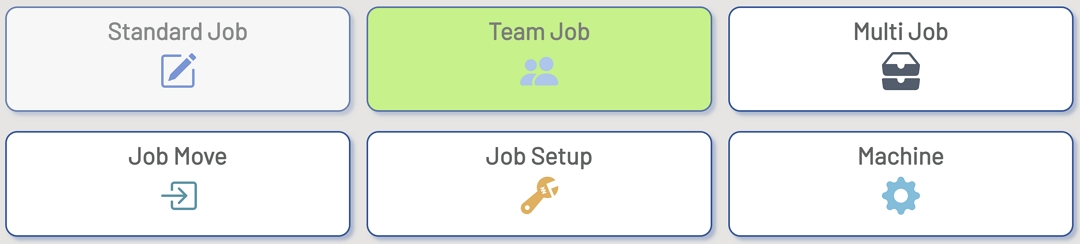
NOTE: The employee performing the operation must have the Team Job permission assigned to them by a supervisor before they can perform any transactions against this job type and must be a member of a Team.
Multi Job
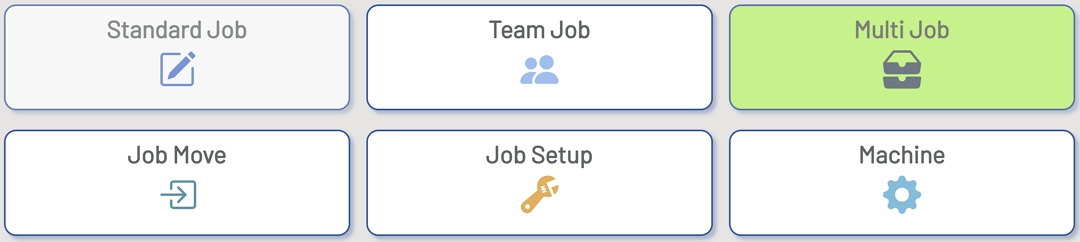
A 'Multi Job' is a job type that supports a Start Run for an operation, End Run for an operation, and Moves for operations for an employee. When a 'Multi Job' is completed, labor is equally divided by the count of jobs being completed. If the logged-in employee has a 'Multi Job' in process, then this button will be highlighted in green.
To perform any of these transactions for a 'Multi Job', click the 'Multi Job' button on the main Manufacturing Hub page.
From there, select a job from the Jobs List and then select an operation from the Job Operations List. If the operation has not been started, then the 'Start Run' and 'Move' buttons should be enabled to allow either one of these transactions to be run. If the operation has been started, then the 'End Run' and 'Move' buttons should be enabled.
When performing any of the transactions for this job type, the 'Resource Group' can be optionally selected. The 'Include Machine Time' check box can also be optionally selected when Starting or Ending a Run.
This job type only allows a single operation to be started for multiple jobs. 'Multi Job' allows for multiple operations to be started and ended at the same time and also allows for a job and operation to be started, added, and ended individually. To select multiple jobs and operations, click on the job number and then select an operation. Repeat the previous steps for all jobs and operations that need to be started.
Active Multi Job
NOTE: The employee performing the operation must have the Multi Job permission assigned to them by a supervisor before they can perform any transactions against this job type.
Job Move
A 'Job Move' is a job type that supports moving quantities to the next operation.
To perform a Move transaction for a Job, click the 'Job Move' button on the main Manufacturing Hub page.
When performing a 'Job Move', the 'Resource Group' can be optionally selected.
This transaction type only allows a single operation to be selected for multiple jobs. 'Job Move' allows for multiple operations to be selected at the same time and also allows for a job and operation to be moved individually. To select multiple jobs and operations, click on the job number and then select an operation. Repeat the previous steps for all jobs and operations that need to be started.
NOTE: The employee performing the operation must have the Job Move permission assigned to them by a supervisor before they can perform any transactions against this job type.
Job Setup
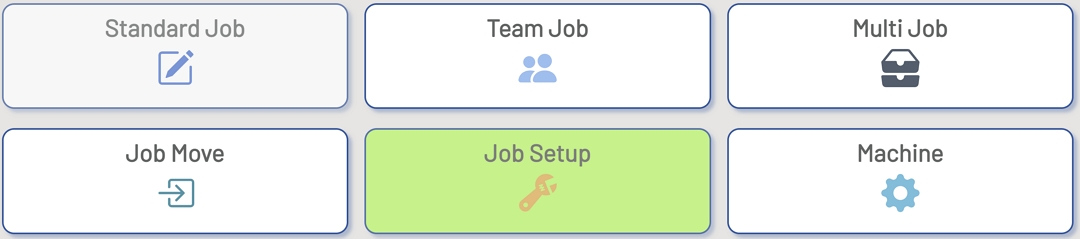
A 'Job Setup' is a job type that supports a Start Setup for an operation and an End Setup for operation for an employee. If the logged-in employee has a 'Job Setup' in process, then this button will be highlighted in green.
To perform any of these transactions for a 'Job Setup', click the 'Job Setup' button on the main Manufacturing Hub page.
From there, select a job from the Jobs List and then select an operation from the Job Operations List. If the operation has not been started, then the 'Start Setup' button should be enabled to allow the transactions to be started. If the operation has been started, then the 'End Setup' button should be enabled.
When performing any of the transactions for this job type, the 'Resource Group' can optionally be selected. The 'Include Machine Time' check box can also be optionally selected when Starting or Ending a Setup.
This job type only allows for one operation to be started against the job. A 'Job Setup' can only have one operation active at a time.
Active Job Setup
NOTE: The employee performing the operation must have the Job Setup permission assigned to them by a supervisor before they can perform any transactions against this job type.
Machine
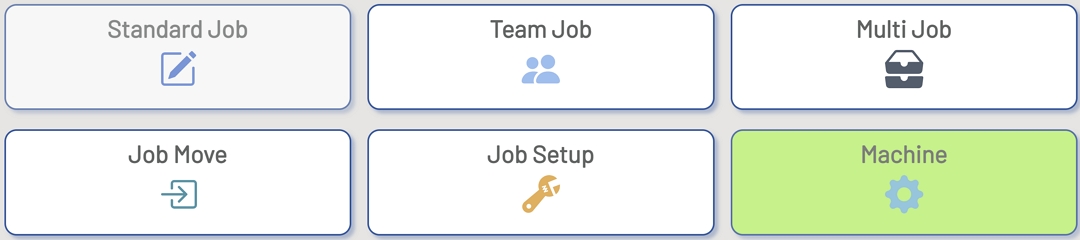
A 'Machine' is a basic job type that supports a Start Machine and End Machine transaction for an operation. If the logged-in employee has a 'Machine' in process, then this button will be highlighted in green. A Machine transaction can be started and ended while other labor transactions are in process. A machine transaction can also continue to run after an employee is clocked out. When clocking out while a Machine Job is running, a confirmation message will be displayed asking if the operator would like to leave the transaction running. This can be helpful if a machine will be left running unattended to support lights out manufacturing machine operations.
To perform any of these transactions for a 'Machine', click the 'Machine' button on the main Manufacturing Hub page.
From there, select a job from the Jobs List and then select an operation from the Job Operations List. If the operation has not been started, then the 'Start Machine' button should be enabled to allow this transaction to be started. If the operation has been started, then the 'End Machine' button should be enabled.
When performing any of the transactions for this job type, the 'Resource Group' can be optionally selected.
This job type only allows a single operation to be started for multiple jobs. 'Machine' allows for multiple operations to be started, added, and ended at the same time and also allows for a job and operation to be started and ended individually. To select multiple jobs and operations, click on the job number and then select an operation. Repeat the previous steps for all jobs and operations that need to be started.
Active Machine
NOTE: The employee performing the operation must have the Machine permission assigned to them by a supervisor before they can perform any transactions against this job type.
Resource Group Selection
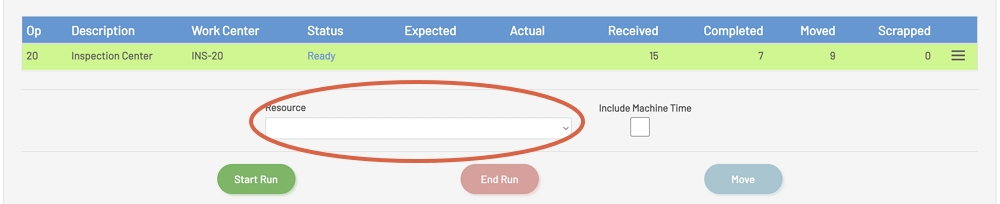
The 'Resource Group' drop-down is a list of all resources available at a Work Center. This field is optional for all job transactions. Selecting a resource can add additional context to the transaction if desired.
Resource Group
Include Machine Time
The 'Include Machine Time' check box is available for all transactions except the 'Machine' and 'Job Move' transaction. When this box is checked and the transaction is completed, a transaction for the total 'Machine' time for the operation is pushed to the ERP system along with the information for the main transaction that is being completed.
Include Machine Time