Manufacturing Hub (SFP) is Prophecy's Manufacturing Hubcess automation component. Manufacturing Hub provides a wide variety of tools for collecting shop floor data, as well as moving that data back to ERP systems. Aside from the automation component, it also provides a clean, easy-to-use, easy-to-understand, and lightning-fast interface for shop floor operators and supervisors to capture and view shop floor data in real-time.
Workstations
Manufacturing Hub uses the concept of Workstations. Workstations are used in Manufacturing Hub to help identify an area where work is being done. Please refer to the Workstations section of this document for more information on Workstations and Workstation configuration.
Modes
Manufacturing Hub offers two modes of operation, Kiosk Mode and User Mode. These modes are assigned and set up on a per 'Workstation' basis. Both offer a slightly unique set of capabilities. See the Modes section of this document for more details.
Top Menu
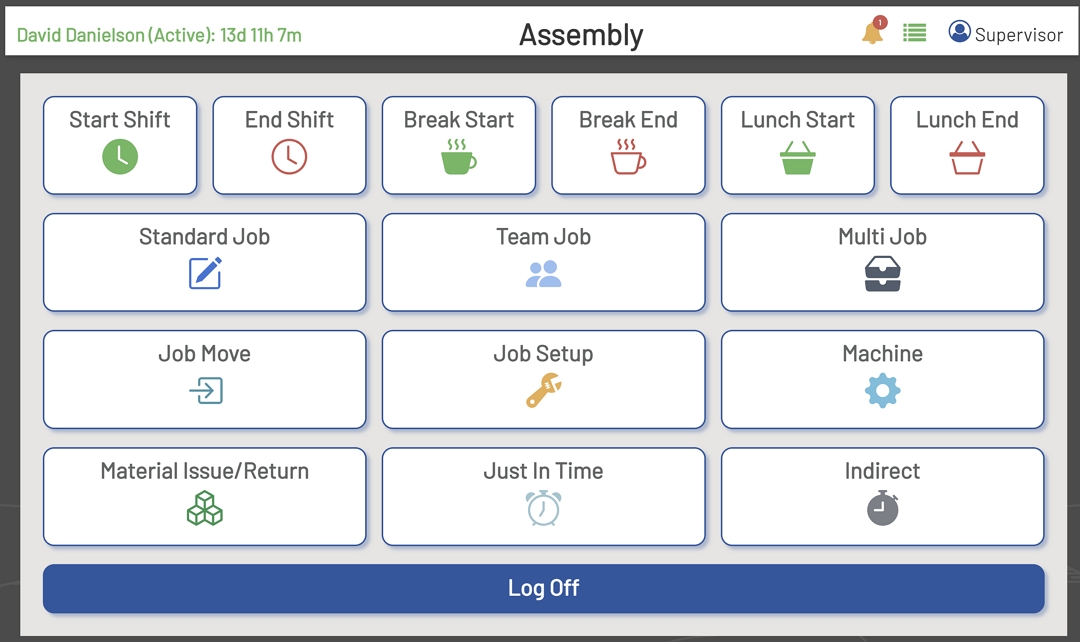
The Top Menu is used to Identify the current Workstation an employee is logged into. The Top Menu will also display the active and break times for the employee that is logged into the Workstation. Aside from the previously mentioned display items, The Top Menu also contains the operational menu items below:
-
Alerts: Alerts provide a way for employees to send Alerts to supervisors as well as read Alerts that supervisors have sent to Workstations.
-
Active Jobs: The Active Jobs operation opens a window displaying relevant information pertaining to the active job for the employee that is currently logged into the Workstation.
-
Supervisor: The Supervisor function provides a link to the Supervisor page. You must be a Prophecy admin or set up as a Supervisor in Manufacturing Hub to access the Supervisor page.
Transactions
Manufacturing Hub offers most of the common transactions related to processes occurring on the factory shop floor. But Manufacturing Hub offers them in a more unique and streamlined way than most traditional MES (Manufacturing Executions Systems) do. Below is a list of the main transactions offered in Manufacturing Hub:
-
Shift Start: This will start the shift for the employee and is used for tracking actual times against jobs. This information can be pushed back to the ERP system, assuming that the ERP implementation supports it.
-
End Shift: This will end the shift for the employee. This information can be pushed back to the ERP system, assuming that the ERP implementation supports it.
-
Break Start: Starting a break in will start a break for an employee. This information can be pushed back to the ERP system, assuming that the ERP implementation supports it.
-
Break End: Ending a break will end the break for an employee. This information can be pushed back to the ERP system, assuming that the ERP implementation supports it.
-
Lunch Start: Starting a lunch break will start a lunch break for an employee. This information can be pushed back to the ERP system, assuming that the ERP implementation supports it.
-
Lunch End: Ending a lunch break will end the lunch break for an employee. This information can be pushed back to the ERP system, assuming that the ERP implementation supports it.
-
Standard Job: A Standard Job provides functionality for starting a run, ending a run, and moving items to the next operation for an employee, job, and operation.
-
Team Job: A Team Job provides functionality for starting a run, ending a run, and moving items to the next operation for a team of employees, a job, and an operation.
-
Multi Job: A Multi Job provides functionality for starting a run, ending a run, and moving items to the next operation for a single operation on multiple jobs. Multiple jobs can be transacted at the same time or a single job and operation can be moved by itself.
-
Job Move: A Job Move provides functionality for moving quantities to the next operation for a single operation on multiple jobs. Multiple jobs and operations can be transacted at the same time or a single job and operation can be moved by itself.
-
Job Setup: A Job Setup provides functionality for an employee to start and end the setup for a job and operation.
-
Machine: A Machine transaction provides functionality for starting a run, ending a run, and moving items to the next operation. Multiple jobs can be transacted at the same time or additional jobs can be added for an operation in addition to currently running jobs for an employee.
-
Material Issue\Return: The Material Issue\Return allows materials to be moved from inventory and from jobs back to inventory.
-
JIT: A Just In Time transaction allows an operator to complete assembly items that have a standard cost and standard BOM directly to inventory without using a job transaction.
-
Indirect: An Indirect transaction allows an operator to capture time and reasons for time clocked in that was not spent directly against jobs.
Log On\Off
The Log On\Off button at the bottom of the screen allows an additional way for employees to log on or log off from the Workstation. Clicking any of the Transaction buttons will also prompt an employee to log in, depending on the mode set for the Workstation. Logging In and Logging Off will not automatically Start or End the shift for an employee.
Main Screen