Indirect transactions allow employees to log time for activities, such as meetings, that do not go directly toward production. Indirect transactions can be a convenient way to keep track of all the time for an employee throughout a shift. Shop Floor Pro allows employees to log Indirect time as well as allows supervisors to enter Indirect time for their employees. This can be useful if an employee forgot to create an entry for their Indirect time. To start an Indirect transaction, click the Indirect button on the Main Shop Floor Pro page.
Active Indirect

Employee Indirect Entry
Starting an Indirect
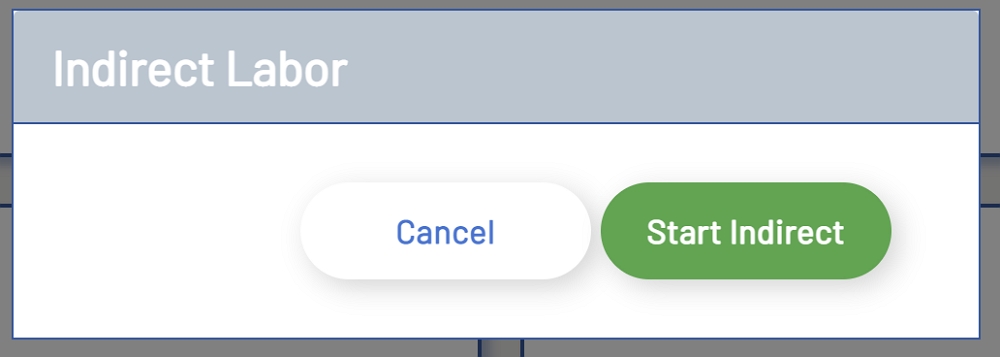
When an employee that is not a supervisor opens the Indirect transaction, they will only have the option to Start Indirect or Cancel out of the form. Once an employee has started an Indirect transaction, the form will close, and the Indirect transaction button will turn green to show that the employee has an Indirect transaction in process. If the Workstation is in Kiosk mode, then the window will close and the employee will be automatically logged out.
Start Indirect (Employee)
Ending an Indirect
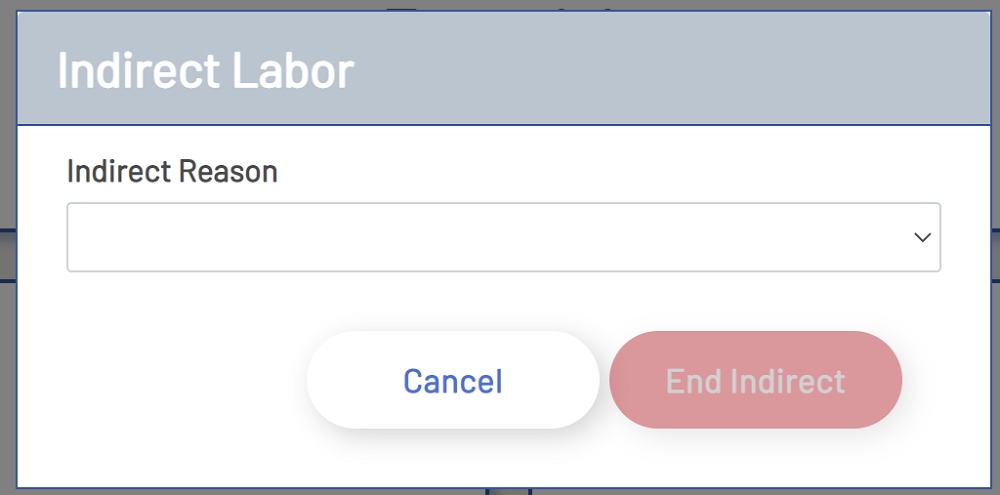
To end an Indirect transaction, click the Indirect transaction button on the main Shop Floor Pro page. If this is an employee ending an Indirect transaction, the employee will have a drop-down list with all Indirect reasons that have been set up in the ERP system. Once a reason has been selected, the End Indirect button will be enabled. Clicking the End Indirect button will create an Indirect transaction in the ERP system for the employee.
End Indirect (Employee)
Supervisor Indirect Entry
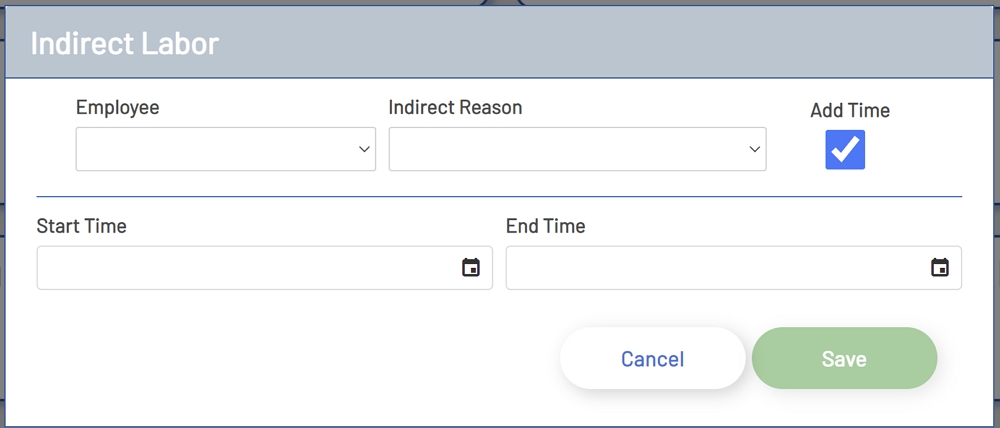
When a supervisor opens the Indirect transaction, they will get a drop-down list of all their employees. The list will include their name as well, in case they want to enter an Indirect transaction for themselves. They will also have a checkbox labeled 'Add Time'. Clicking the 'Add Time' checkbox will display the Indirect reasons list, as well as a new area of the screen below the employee’s list. This area will contain an option to enter a Start and End Time for the transaction. This will allow the supervisor to select an employee, select an Indirect reason, a Start Time, and an End Time for the Indirect transaction. From here the supervisor can then click the Save button to push the transaction to the ERP system.
Supervisor Indirect
***Note: A supervisor can also simply select their name from the employees drop-down and start an Indirect transaction for themselves. Ending the Indirect is the same process outlined in Ending an Indirect outlined above.