Label printing is a very common activity in manufacturing processes and Shop Floor Pro offers a full integration with BarTender. The Shop Floor Pro feature supports printing two types of labels, the Completion Label and the Quality Label. Shop Floor Pro can be configured to use one, both, or neither of these labels. Workstations can also be set up to use default labels and printers. Label printing can be turned off and on in the Shop Floor Pro Settings section by any user with admin privileges in Prophecy. Label templates and label printers can be set up in the Bartender section in Prophecy.
Labels
Each label has a common set of fields that it supports as well as fields that are unique to each label. All these fields will be populated automatically from information in Shop Floor Pro. Reference the Bartender document to see a list of supported fields.
Selecting Labels
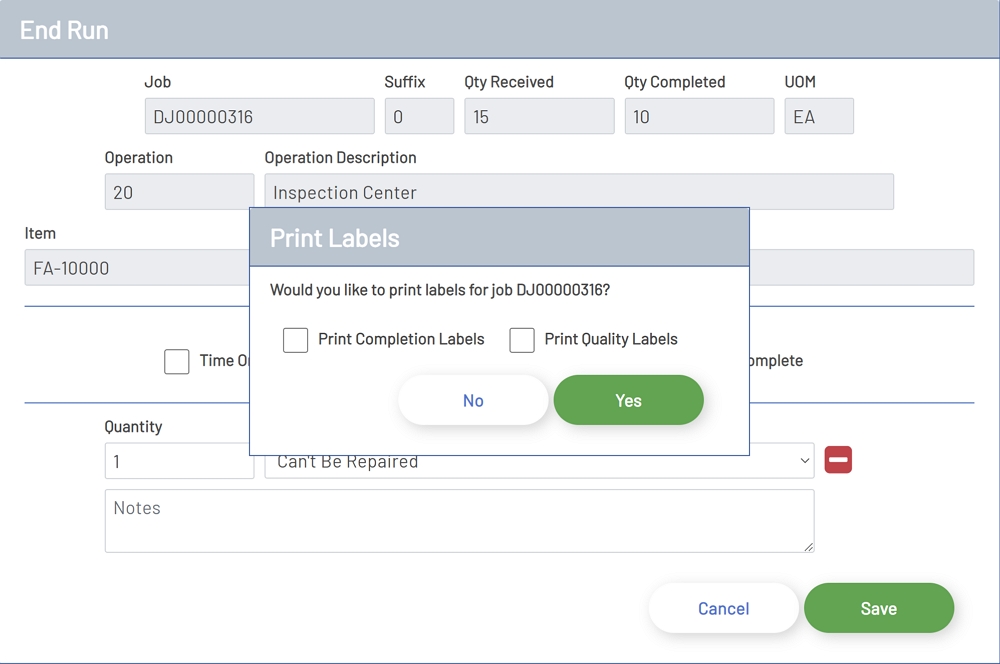
When BarTender label printing has been enabled, the employee will receive a prompt when completing a transaction that has a quantity. For instance, if Completion labels and Quality Labels are enabled, and the completion quantity and scrap quantity are greater than zero, then the prompt will have the option to print Completion and Quality labels. If only one of the fields has a quantity, then only an option for that type of label will have the option to be printed. If the transaction is a 'Time Only' transaction then the employee will not be presented with an option to print labels.
Label Selection
Printing Labels
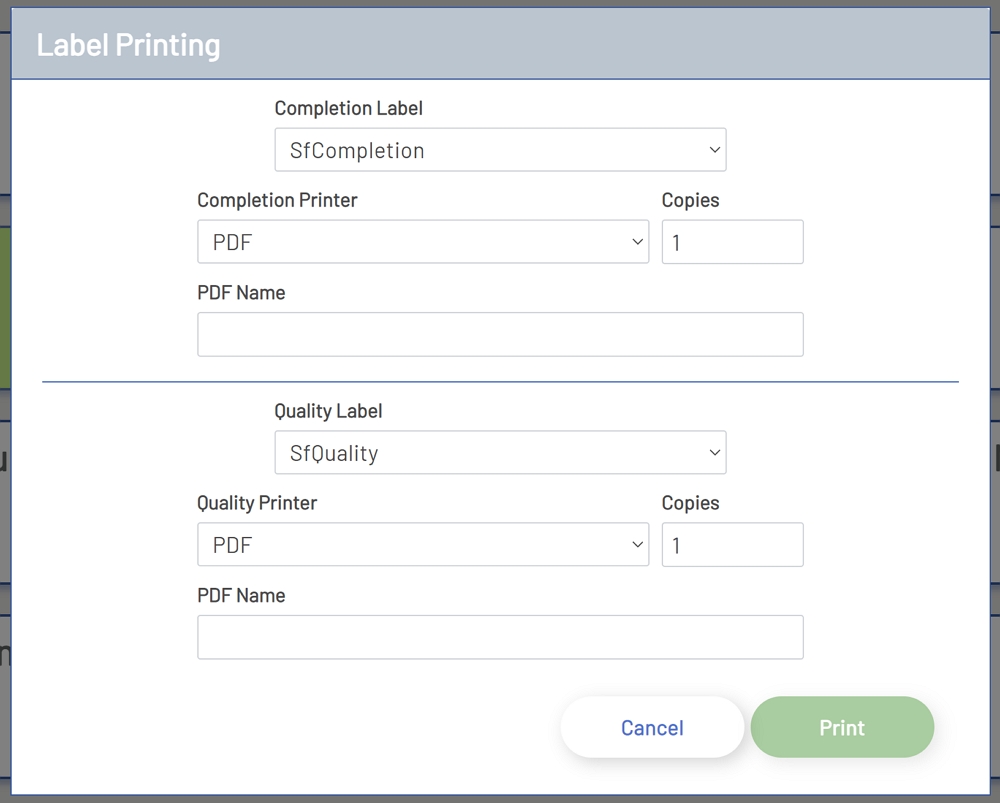
After a label selection has been made, another screen will open to allow the entry of fields necessary to print labels. The window will have an area for one or both of the label types selected, this will depend on the selection made in the previous section. The following fields are available for each label type.
-
Completion Label: This is a drop-down field that is populated with all the available completion labels that have been set up. If the Workstation has a default label set for it, then the drop-down will be automatically populated with this label. Other label choices can be made if needed.
-
Quality Label: This is a drop-down field that is populated with all the available quality labels that have been set up. If the Workstation has a default label set for it, then the drop-down will be automatically populated with this label. Other label choices can be made if needed.
-
Completion Printer: This is a drop-down field that is populated with all the available completion printers that have been set up. If the Workstation has a default printer set for it, then the drop-down will be automatically populated with this printer. Other printer choices can be made if needed.
-
Quality Printer: This is a drop-down field that is populated with all the available quality printers that have been set up. If the Workstation has a default printer set for it, then the drop-down will be automatically populated with this printer. Other printer choices can be made if needed.
-
Copies: The number of copies to print for the label. The default is one.
-
PDF Name: This option will only be available if the printer type selected is PDF.
Once all required selections have been made, the Print button will be enabled.
Label Printing