Shop Floor Pro allows teams of employees to perform work on jobs. But before a Team Job can be run, a team must be created. Teams can be created, edited, and removed in the Manage Teams page in Shop Floor Pro.
Viewing Teams
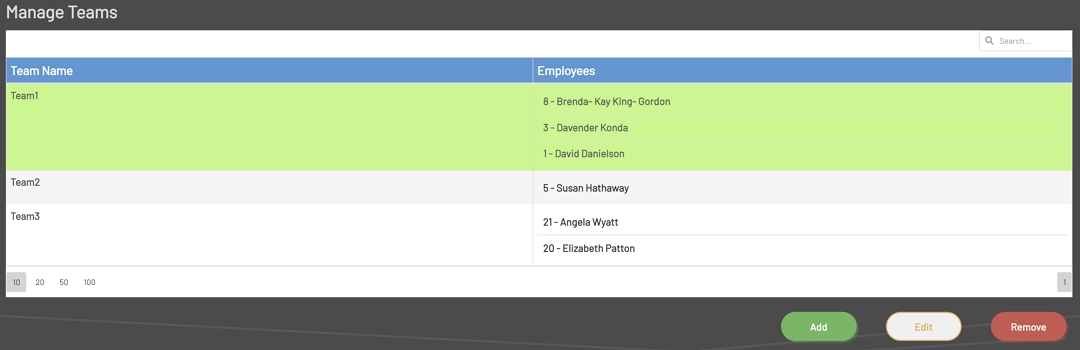
The first page that shows after selecting 'Manage Teams' from the Supervisor Menu is the list of Teams. The Teams list will display the Team Name on the left and all employees that are part of that team to the right.
Manage Teams
Adding a Team
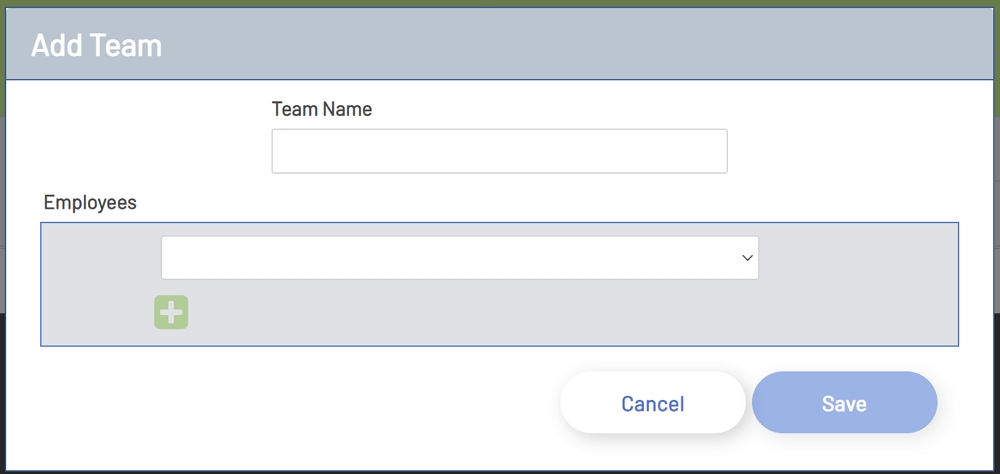
To add a Team, click the Add button at the bottom of the Team's List. Once Add has been clicked, a new window will open. In this window add an entry for the Team Name. In the Employees section below, select an employee from the employee’s drop-down list.
To add additional employees, click the green plus button below the previously added employee. This will add another drop-down populated with all available employees. Once an employee has been added to a team, the employee’s name will be disabled for selection again for that team. This is done to ensure the same employee is not entered twice per team.
To remove an employee that has been added, click the red minus button to remove the employee.
Add Team
Note: An employee can only be assigned to one team at a time.
Editing a Team
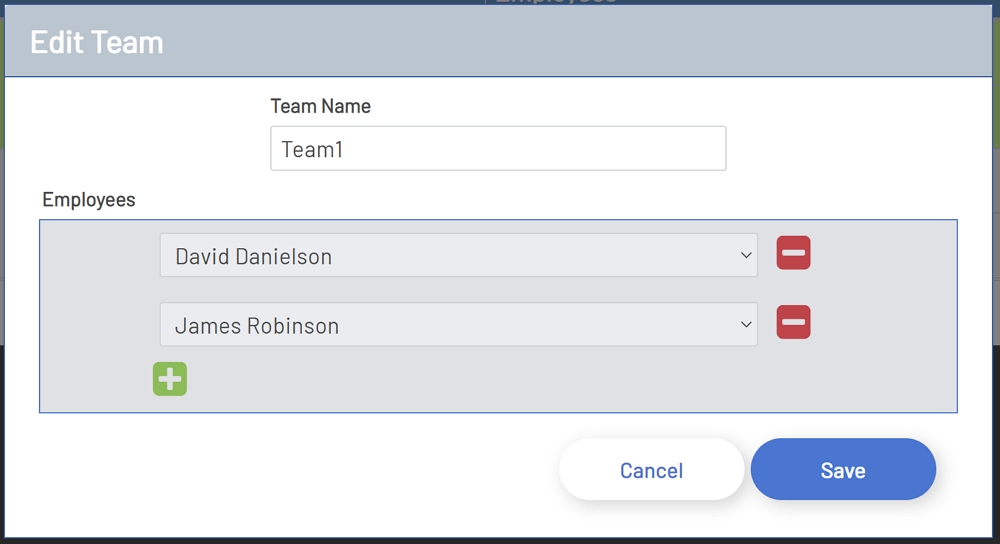
To edit an existing Team, click the Team name in the Teams List. This will enable the Edit button at the bottom of the Teams list. Clicking the Edit button will open another window with information about the Team.
To edit the Team name, simply change the name in the Team Name input.
To add another member to a Team, click the green plus button below the name of the last Team member. Clicking the plus button will add a new drop-down list populated with all available employees. All employees that are members of the current Team will be disabled for selection.
To remove a member from a Team, click the red minus button to the right of the Team member’s name. This will remove the employee.
Edit Team
Note: An employee can only be assigned to one team at a time. Note: Changes will not be persisted until the Save button has been clicked.
Removing a Team
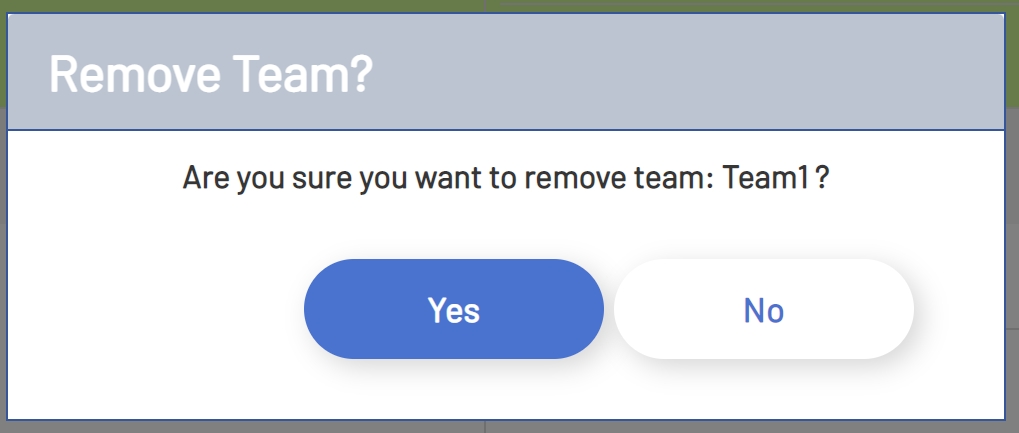
To remove a Team, click the Team name in the Teams list. Clicking the Team name will enable the Remove button at the bottom of the Teams list. Clicking the Remove button will not immediately remove the Team. A prompt will be displayed asking to confirm the removal of the Team. Clicking Yes will permanently remove the Team and unassign all employees from the Team.
Remove Team