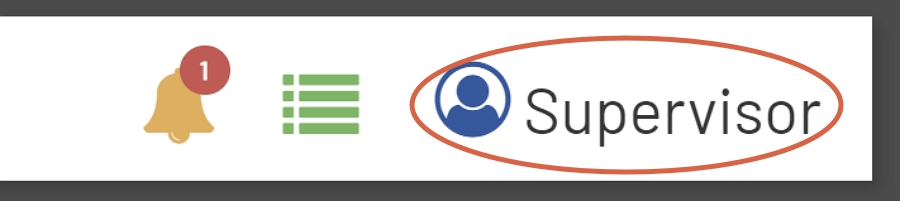
The Top Menu of Shop Floor Pro contains information pertaining to employee status, current Workstation, as well as operational links. Below is a list of the Top Meu from left to right.
Top Menu

Status
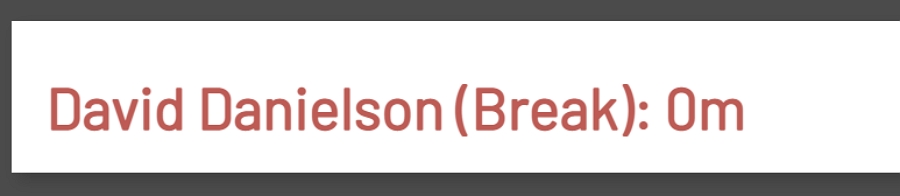
The left section of the Top Menu displays the status of the logged-in employee. This section will display two statuses, Active shift time and Break duration. Active statuses will be displayed in green text and the break status will be displayed in red text. Active shift time will display the total time an employee has been on the shift minus the duration of all breaks for the day.
Active Status

On Break
Workstation
The center area of the Top Menu displays the name of the Workstation that has been selected after launching the Shop Floor Pro feature.
Workstation

Alerts
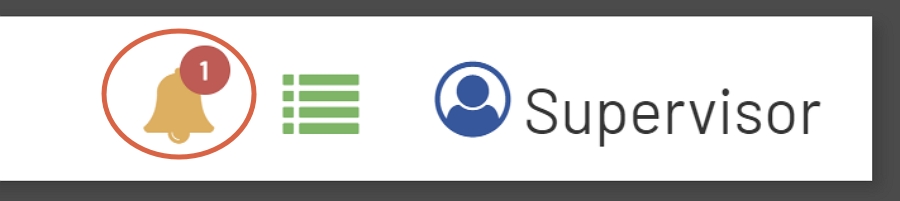
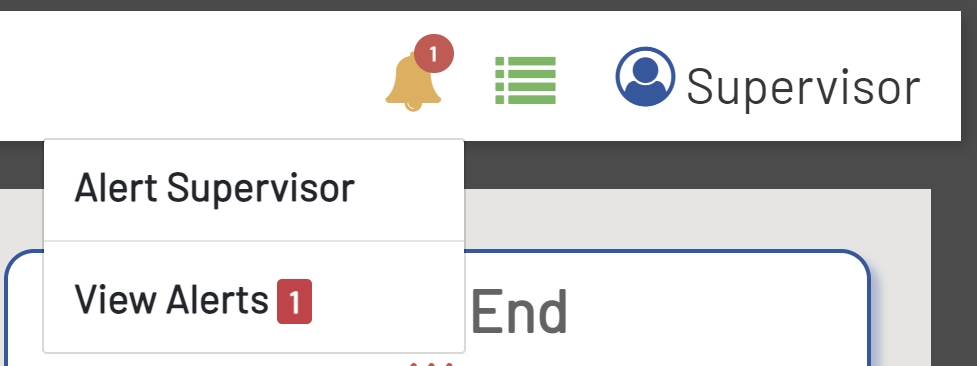
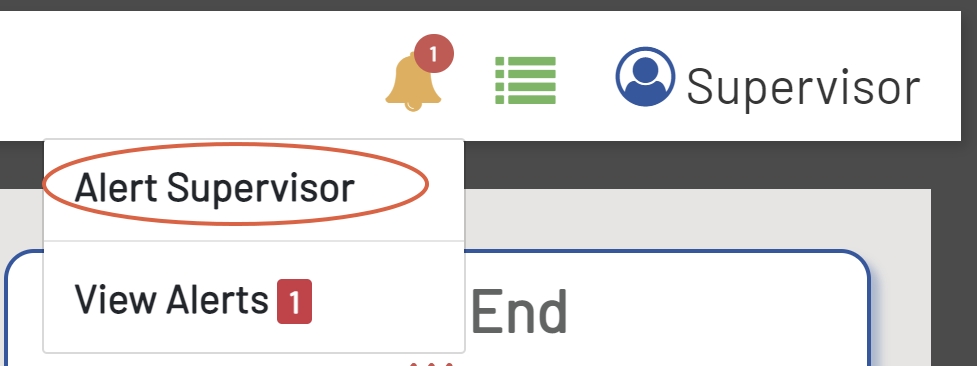
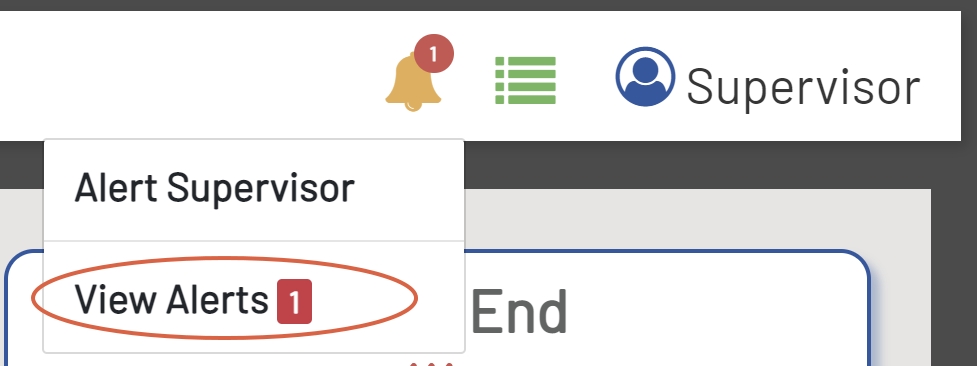
At the far right of the Top Menu, there are three buttons\images. The first of these buttons is the Alerts Menu (the orange bell). The Alerts feature allows employees to send alerts to their supervisors, as well as read alerts sent to the Workstation from supervisors. Clicking the orange bell will open a drop-down menu with two options. The first option is 'Alert Supervisor' and the second is 'View Alerts'.
Alerts
Alerts Drop-Down
Alert Supervisor
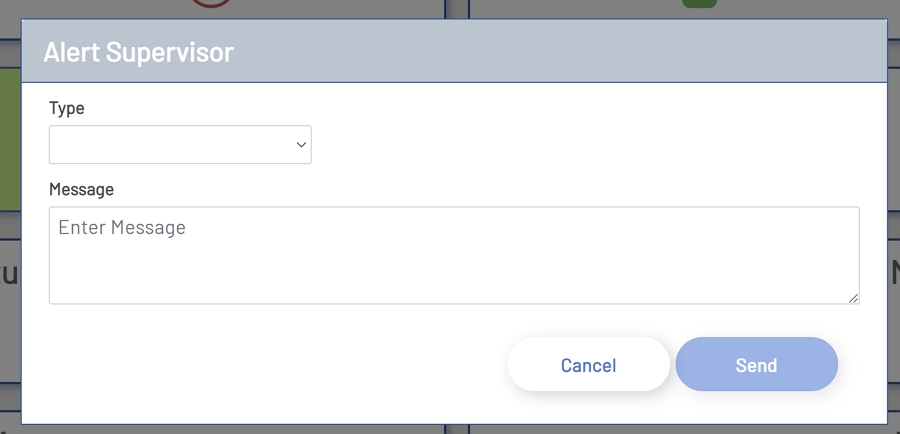
Clicking the 'Alert Supervisor' button will open another form. This form contains an area to enter a message as well as the two delivery methods below:
-
Email: Selecting the 'Email' option will allow the employee to send an email to the email address of their assigned supervisor. The system will automatically pull this information from the employee record.
-
Text: Selecting the 'Text' option will allow the employee to send a text to the phone number of their assigned supervisor. The system will automatically pull this information from the employee record.
Alert Supervisor
Alert Supervisor Form
Note: Sending emails and texts requires an active subscription to Twillio. Please reach out to the Prophecy team if assistance is needed to turn this feature on.
View Alerts
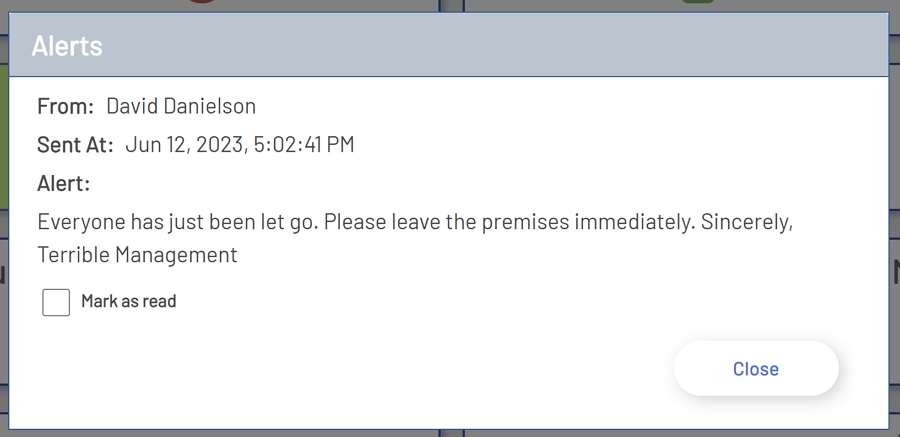
The 'View Alerts' option allows employees to read alerts sent to Workstations by supervisors. When there is an Alert for a specific Workstation, the orange bell icon will display a count of the unread alerts. To view 'Alerts', click on the 'View Alerts' option. This will open another window displaying all alerts that have been sent to the Workstation. The Alerts window contains the following information:
-
From: This is the name of the supervisor that sent the alert.
-
Sent At: This is the day and time the alert was sent.
-
Alert: This is the message that was sent.
-
Mark as read: This allows the employee to acknowledge the alert and remove it from the active alerts.
View Alerts
View Alerts Form
Active Jobs
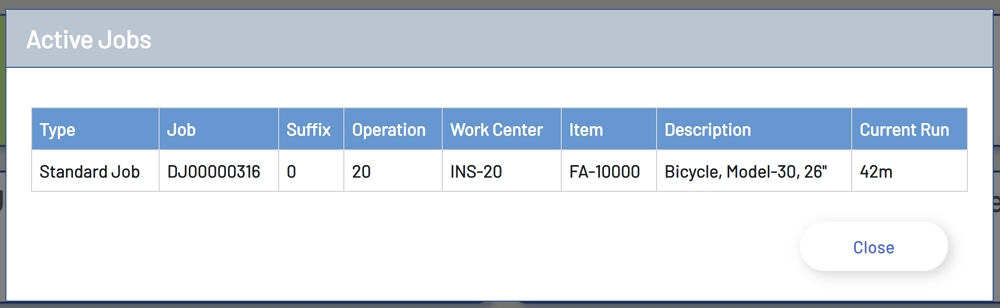
The 'Active Jobs' menu item allows an employee to view data regarding the jobs they currently have in process. Opening the 'Active Jobs' function will display the following pieces of information for each active job:
-
Type: This is the job transaction type that the job was started against.
-
Job: This is the job number that is currently in process.
-
Suffix: This is the suffix for the current job in process.
-
Operation: This is the operation for the current job in process.
-
Work Center: This is the work center for the current job in process.
-
Item: This is the top-level item for the current job.
-
Description: This is the description of the top-level item of the current job.
-
Current Run: This displays the current run duration for the most recent transaction against the job listed.
Active Jobs
Active Jobs Form
Supervisor
The 'Supervisor' feature is an area where supervisors can log in and perform administrative tasks, such as creating teams, adding employee permissions, viewing employee statuses, and sending Workstation alerts. Please refer to the Supervisor portion of this document for more details.
Supervisor