Shop Floor Pro supports starting and ending shifts, starting and ending breaks, and starting and ending lunch breaks. Shift Start and End Shift, as well as Lunch\Breaking In and Out, are optional and can be turned off or on in the Admin Section under Shop Floor Pro Settings. If Shift Start and End Shift transactions are turned off in Shop Floor Pro, then the employee will not be prompted to Start a Shift before starting a transaction. Otherwise, an employee must have started a shift before they will be allowed to perform any transactions.
Clock Transactions

Note: Turning off the Shift Start and End will cause the system to not log employee shift times that are used in some of the Prophecy reports and dashboards.
Note: Clock transactions use the Time and Attendance Error Processing data collection form in CSI. Auto Posting can be turned on for this form.
Shift Start
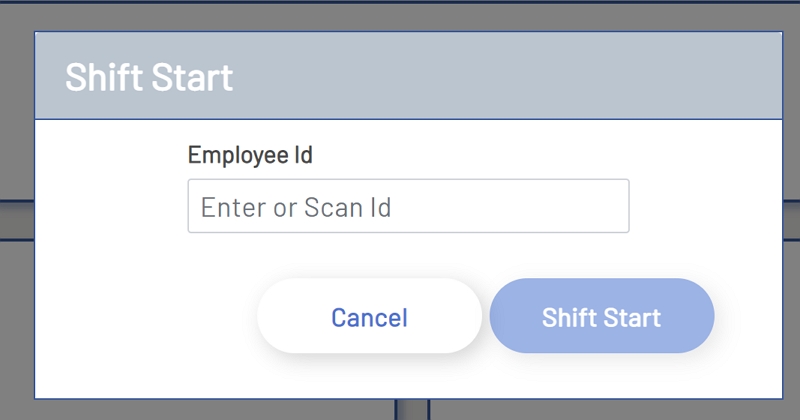
The 'Shift Start' transaction starts the shift for an employee. To start a shift, click the 'Shift Start' button on the Shop Floor Pro main page. The user will then be prompted to enter an employee Id. Enter the employee Id and then click the 'Start Shift' button at the bottom right of the window. Once a shift has started, the 'Active' time for the employee will be displayed in the top left of the Shop Floor Pro top menu.
If the Start\End Shift option is configured, then an employee must start a shift before starting a transaction. The start time for the shift is also pushed back to the ERP system, this assumes that the ERP system supports this type of transaction.
Shift Start
Active Shift

Shift End
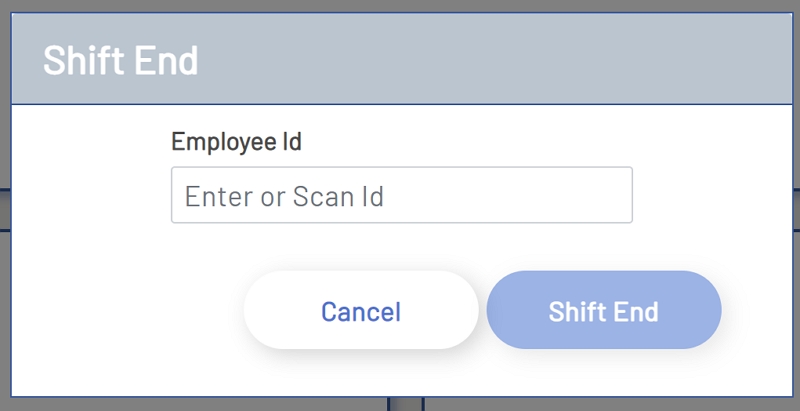
The 'Shift End' transaction ends the shift for an employee. To end a shift, click the 'Shift End' button on the Shop Floor Pro main page. The user will then be prompted to enter an employee Id. Enter the employee Id and then click the 'End Shift' button at the bottom right of the window. Once a shift has ended, the 'Active' time for the employee will be removed from the top left of the Shop Floor Pro top menu.
If this option is configured, then an employee must end any active transactions before ending a shift, unless the transaction is a Machine Transaction. The end time for the shift is also pushed back to the ERP system, this assumes that the ERP system supports this type of transaction.
Shift End
Break Start
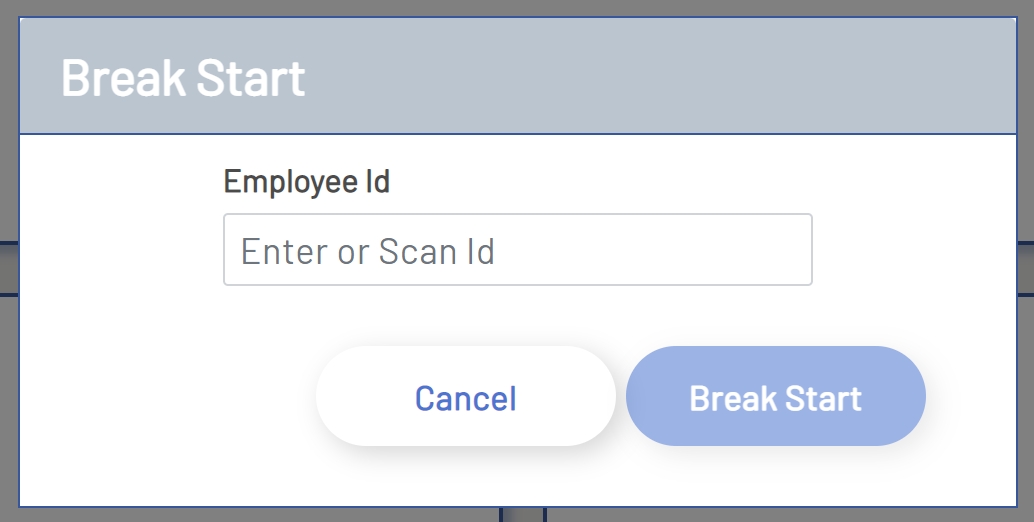
The 'Break Start' transaction starts a break for an employee. To start a break, click the 'Break Start' button on the Shop Floor Pro main page. The user will then be prompted to enter an employee Id. Enter the employee Id and then click the 'Break Start' button at the bottom right of the window. Once a break has started, the 'Break' duration for the employee will be displayed in the top left of the Shop Floor Pro top menu.
If this option is configured, then an employee must end the break before resuming any transactions. The start time for the break is also pushed back to the ERP system, this assumes that the ERP system supports this type of transaction.
Break Start
On Break

Break End
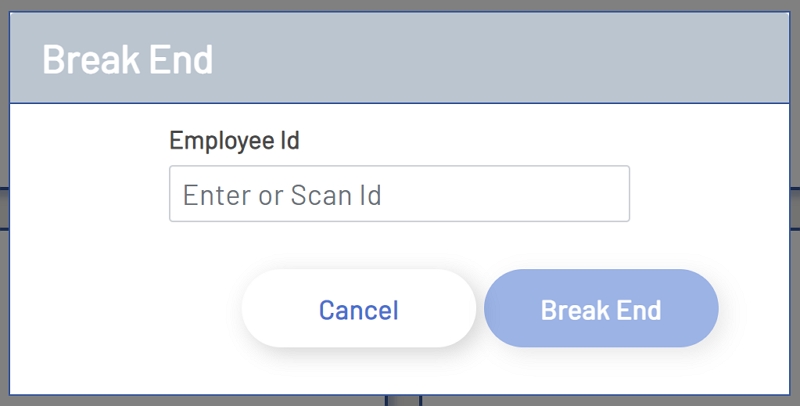
The 'Break End' transaction ends the break for an employee. To end a break, click the 'Break End' button on the Shop Floor Pro main page. The user will then be prompted to enter an employee Id. Enter the employee Id and then click the 'Break End' button at the bottom right of the window. Once the break has ended, the 'Active' time for the employee will be displayed in the top left of the Shop Floor Pro top menu. The end time for the break is also pushed back to the ERP system, this assumes that the system supports this type of transaction.
Break End
Active Shift
Lunch Start
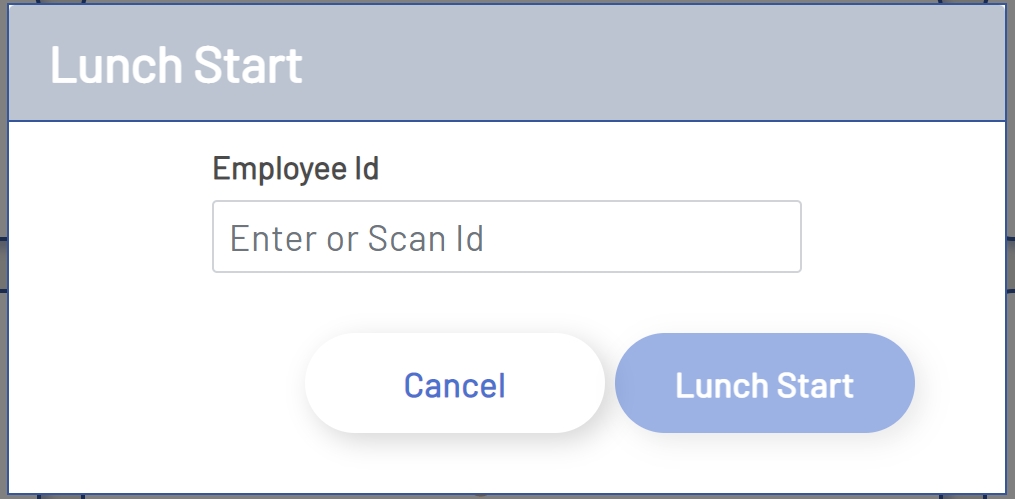
The 'Lunch Start' transaction starts a lunch break for an employee. To start a lunch break, click the 'Lunch Start' button on the Shop Floor Pro main page. The user will then be prompted to enter an employee Id. Enter the employee Id and then click the 'Lunch Start' button at the bottom right of the window. Once a lunch break has started, the 'Lunch' duration for the employee will be displayed in the top left of the Shop Floor Pro top menu.
If this option is configured, then an employee must end the lunch break before resuming any transactions. The start time for the lunch break is also pushed back to the ERP system, this assumes that the ERP system supports this type of transaction.
Lunch Start
On Lunch

Lunch End
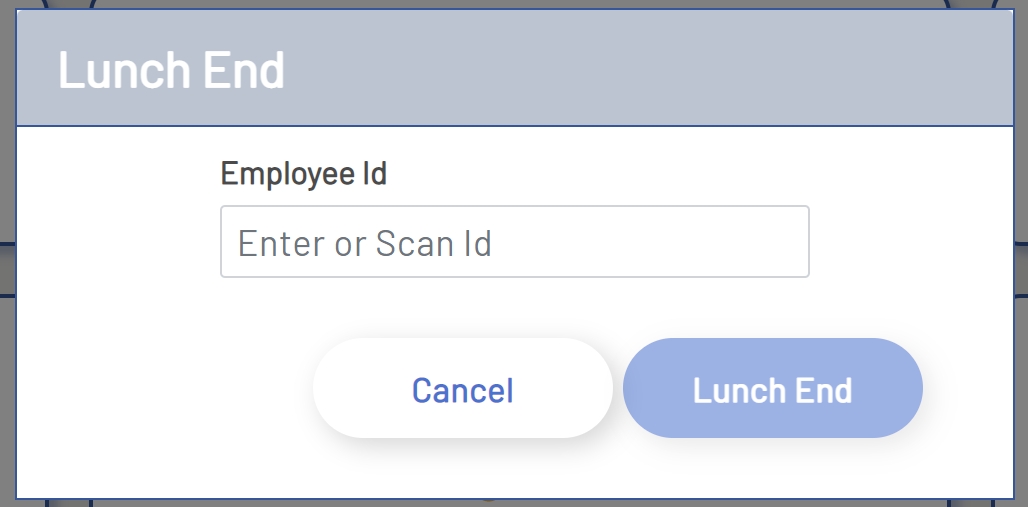
The 'Lunch End' transaction ends the lunch break for an employee. To end a lunch break, click the 'Lunch End' button on the Shop Floor Pro main page. The user will then be prompted to enter an employee Id. Enter the employee Id and then click the 'Lunch End' button at the bottom right of the window. Once the lunch break has ended, the 'Active' time for the employee will be displayed in the top left of the Shop Floor Pro top menu. The end time for the lunch break is also pushed back to the ERP system, this assumes that the system supports this type of transaction.
Lunch End
Active Shift