Shop Floor Pro has a number of configurable options available. These options help to make Shop Floor Pro flexible for multiple manufacturing scenarios. Below are all the available settings for Shop Floor Pro.
Shop Floor Pro Settings
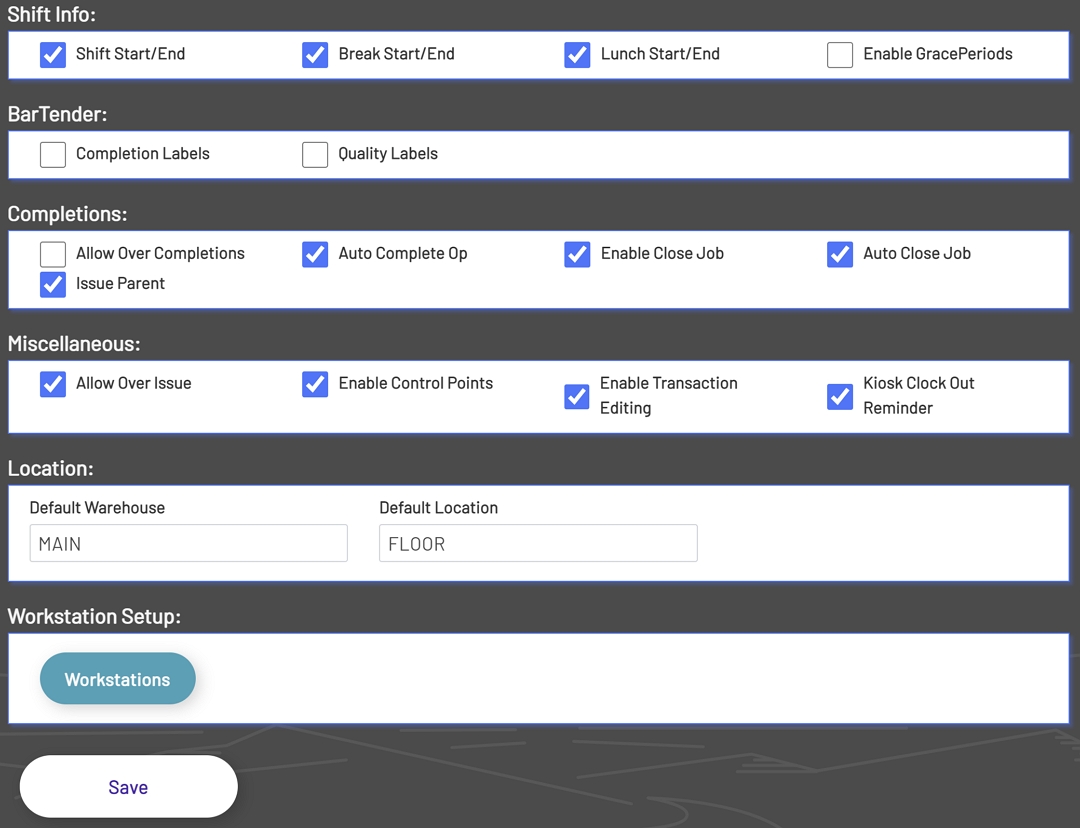
Note: After any setting is changed, the Save button at the bottom of the screen must be clicked for the changes to take effect.
Shift Info
The Shift Info section has the following two optional fields:
-
Shift Start\End: This dictates whether or not the Shift Start and Shift End buttons will be displayed in Shop Floor Pro. If this option is disabled, then employees will not be required to start shifts before starting a transaction and will not be required to end transactions before completing shifts. Another downside to turning this option off is, shift data will not be collected that can be useful in Shop Floor Pro reporting. This option is enabled by default.
-
Break Start\End: This dictates whether or not the Break Start and Break End buttons will be displayed in Shop Floor Pro. This option is enabled by default.
Shift Info

BarTender
The BarTender section has the following two optional fields:
-
Completion Labels: Enabling this option will cause the employee to be prompted to print completion labels after each completion transaction if the transaction has a completion quantity. This option is disabled by default.
-
Quality Labels: Enabling this option will cause the employee to be prompted to print quantity labels after each completion transaction if the transaction has a scrap quantity. This option is disabled by default.
BarTender

NOTE: The use of BarTender requires a license for BarTender label printing software.
Completions
The Completions section has the following optional field:
- Allow Over Completions: Enabling this option will allow quantities transacted to exceed the quantity received for an operation. This option is disabled by default.
Completions

Location
The Location section has the two following fields:
-
Default Warehouse: This is the fallback warehouse for a transaction when the transaction is being completed or moved to inventory. This field requires an entry before Shop Floor Pro can be used.
-
Default Warehouse: This is the fallback location for a transaction when the transaction is being completed or moved to inventory. This field requires an entry before Shop Floor Pro can be used.
Location

Workstation Setup
This Workstation button at the bottom of the Shop Floor Pro Settings page will open a new area displaying all Workstations that are available in the Shop Floor Pro installation with information about each Workstation. Each Workstation can have its own unique setup with different combinations of options.
Manage Workstations
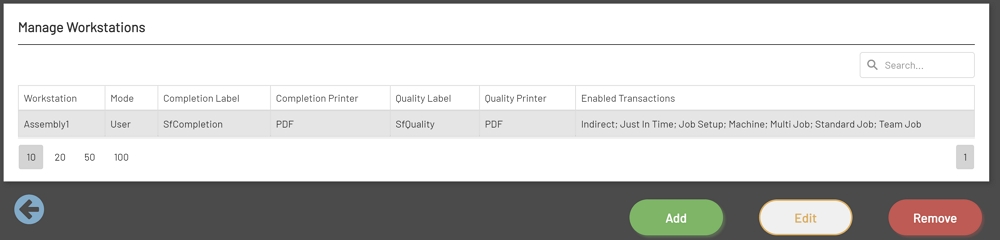
Note: Shop Floor Pro requires at least one WorkStation to be setup before it can be used.
Adding Workstations
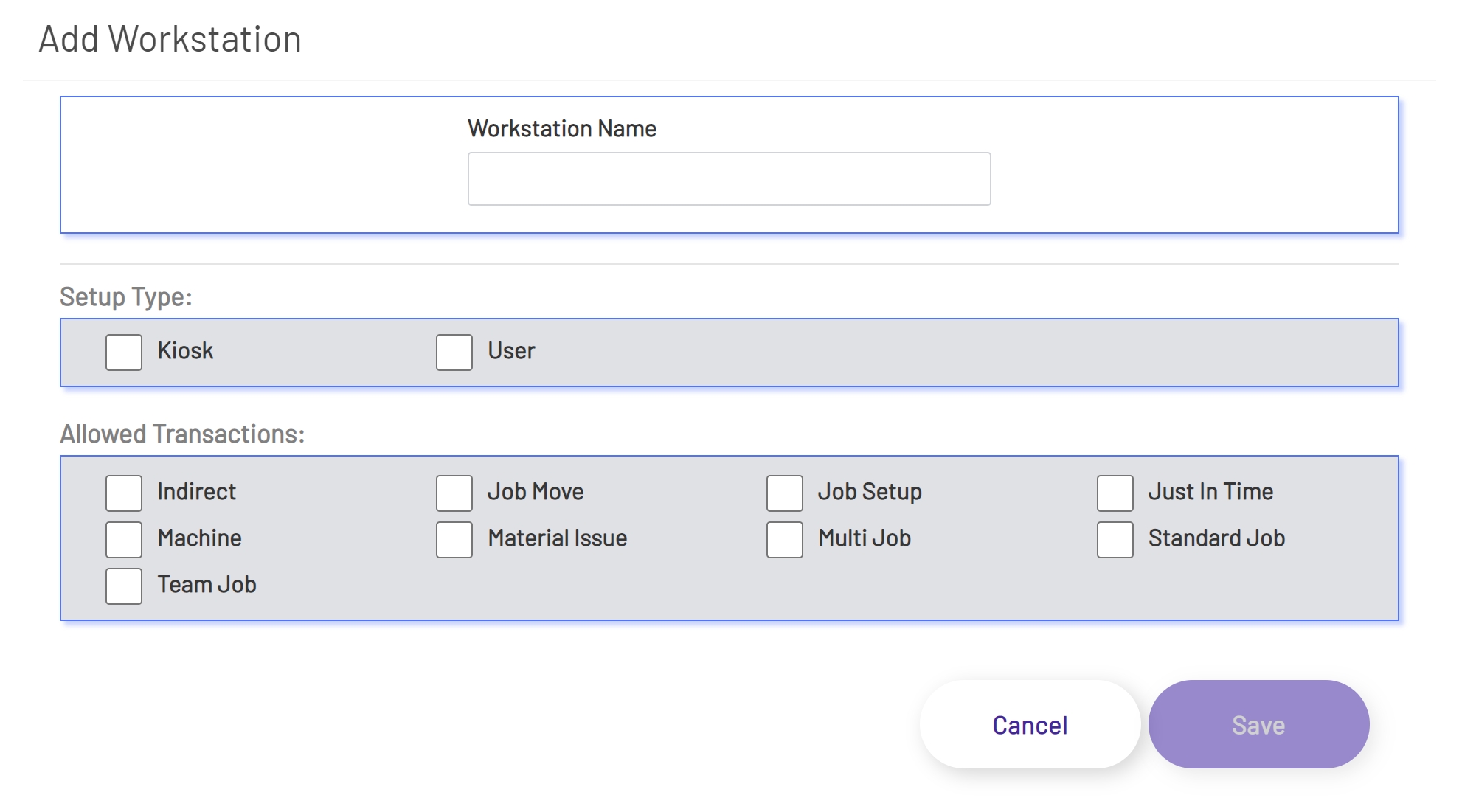
To Add a new Workstation, click the green Add button below the Workstation grid. Clicking the Add button will open a new window with the following fields:
-
Workstation Name: Enter a name for the Workstation. It is recommended that the Workstation be named similarly to the area where work is being done. This is a required field.
-
Completion Label: This is the default completion label printer that will be selected on the label printing page in Shop Floor Pro. Printers must be set up in the BarTender section of Prophecy before the drop-down will show any labels. This field will be hidden if the Completion Labels option is not selected in the BarTender option in the Shop Floor Pro Settings section. This is an optional field.
-
Printer: This is the default completion label printer that will be selected on the label printing page in Shop Floor Pro. Printers must be set up in the BarTender section of Prophecy before the drop-down will show any printers. This field will be hidden if the Completion Labels option is not selected in the BarTender option in the Shop Floor Pro Settings section. This is an optional field.
-
Quality Label: This is the default quality label that will be selected on the label printing page in Shop Floor Pro. Labels must be set up in the BarTender section of Prophecy before the drop-down will show any labels. This field will be hidden if the Quality Labels option is not selected in the BarTender option in the Shop Floor Pro Settings section. This is an optional field.
-
Printer: This is the default label that will be selected on the label printing page in Shop Floor Pro. Printers must be set up in the BarTender section of Prophecy before the drop-down will show any printers. This field will be hidden if the Quality Labels option is not selected in the BarTender option in the Shop Floor Pro Settings section. This is an optional field.
-
Setup Type: There are two setup options available for each Workstation.
-
Kiosk: Kiosk mode will require that an employee enter an employee Id every time a transaction is entered. This is ideal when there will be a number of employees processing transactions at a single Workstation.
-
User: User mode will only require an employee to log in to a Workstation when Shop Floor Pro is launched. The employee Id in this mode will be retained until the employee logs out. This mode streamlines transaction processing by minimizing button clicks. This is ideal when a single operator will be doing transactions at a single WorkStation for most of the shift.
-
-
Allowed Transactions: Transaction buttons on the Shop Floor Pro main page can be hidden to create Workstations that only show the necessary transactions needed for the specific work area. At least one transaction must be enabled per Workstation.
After the Workstation has been configured, click the Save button at the bottom of the window to save changes.
Add Workstation
Editing Workstations
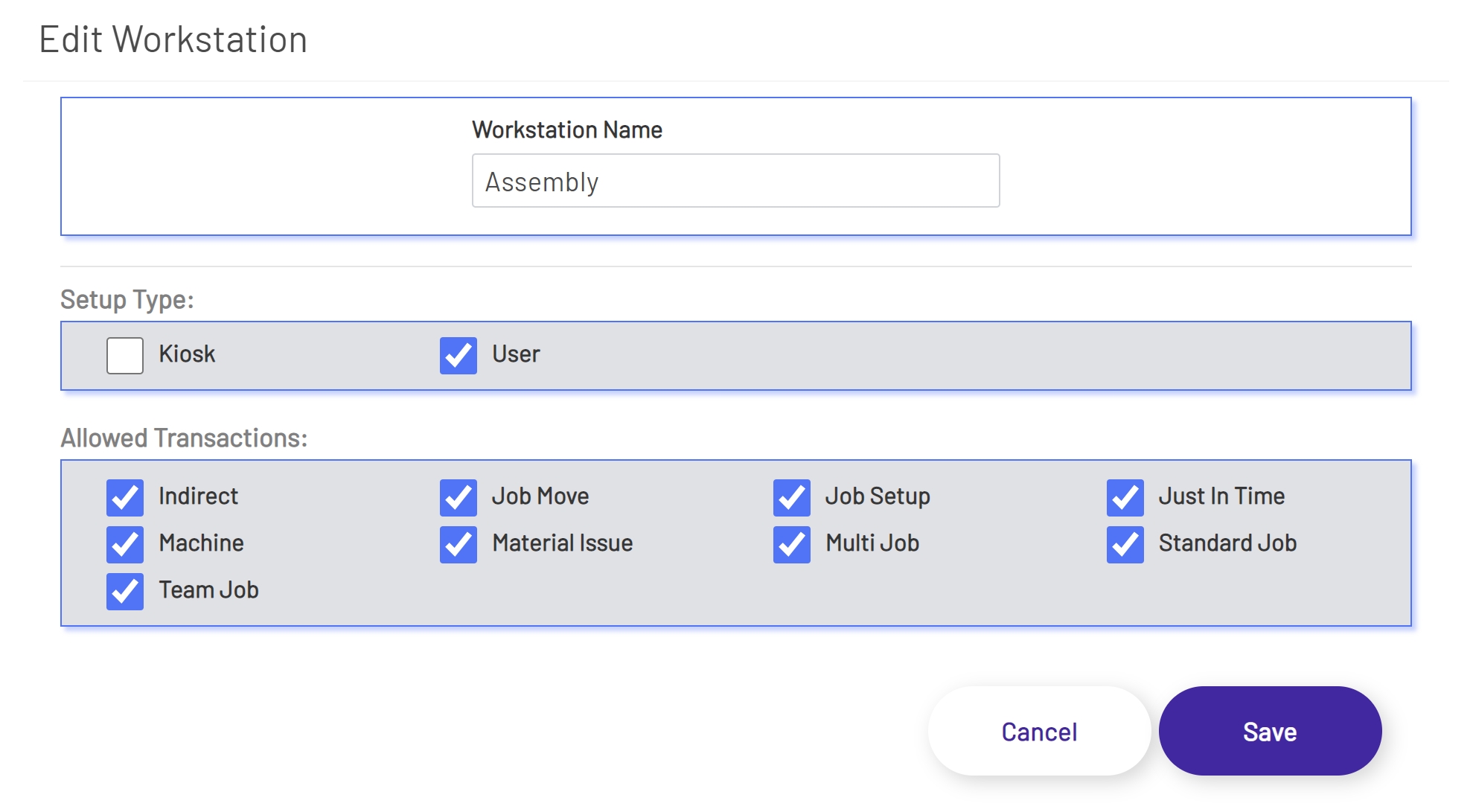
To Edit a Workstation setup, select a Workstation from the Workstation grid. Once a Workstation has been selected the Edit button below the grid will be enabled. Click the edit button and edit any of the fields from the list above.
After the Workstation has been configured, click the Save button at the bottom of the window to save changes.
Edit WorkStation
Removing Workstations
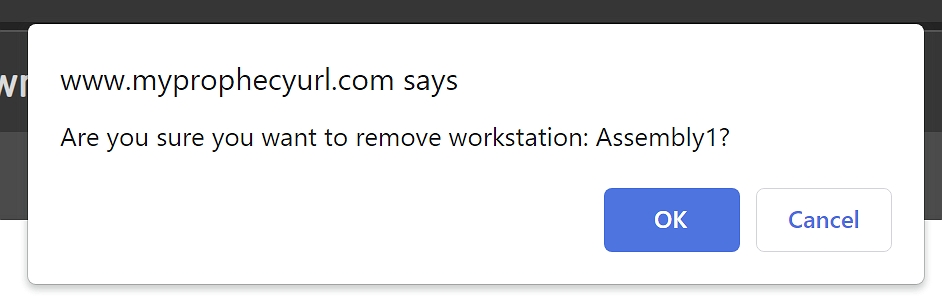
To Remove a Workstation, select a Workstation from the Workstation grid. Once a Workstation has been selected the Remove button below the grid will be enabled. Click the Remove button. The Workstation will not be removed immediately. A prompt will show asking if the Workstation should be removed. Once the Workstation is removed, the Workstation will no longer be available in the Workstations list in Shop Floor Pro.
Remove WorkStation