HMIs can be used for simple "read only" Andon-style boards, or for allowing operators to submit values to the Data Acquisition Engine or CSI (through Mongoose). The shapes described here are used for displaying data. For buttons allowing operators to perform actions, see here.
Tag Value 
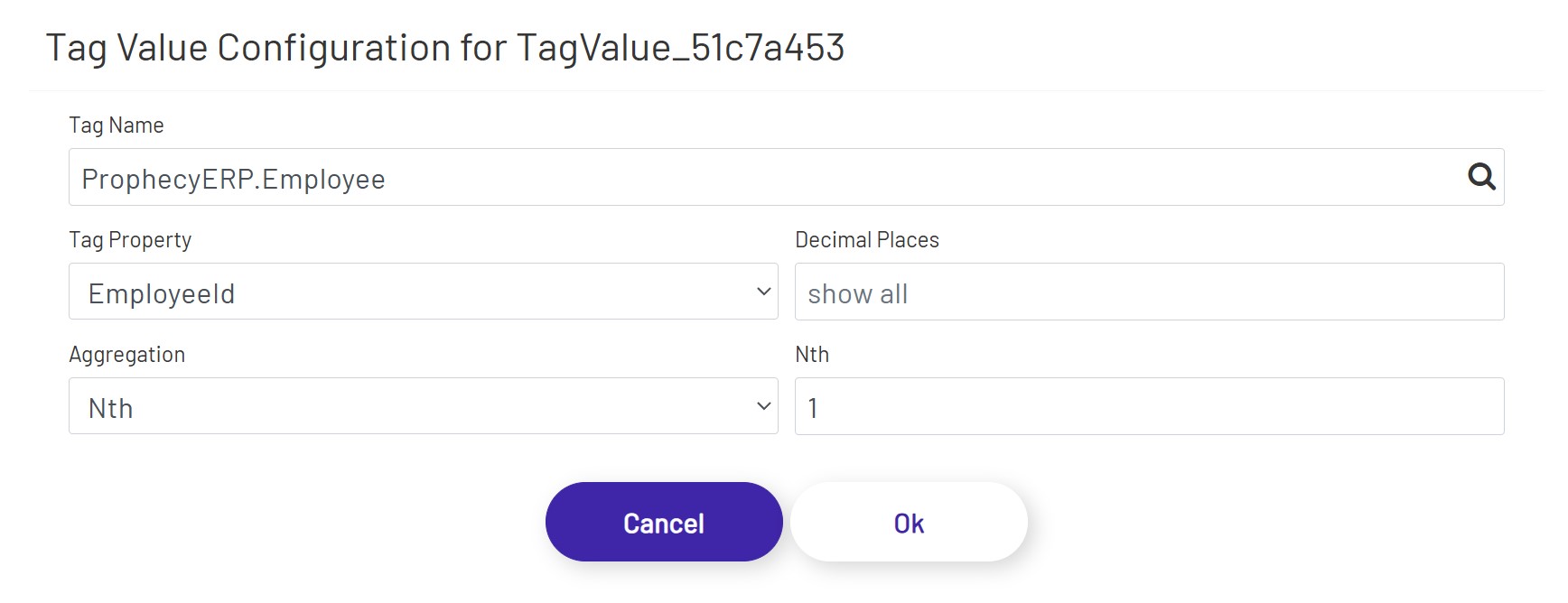
The first element is used to display a value from the selected tag on the diagram. That value is updated every second. Once the shape is dragged onto the canvas, click the 'Configure Tag Value Display' button in the left panel to set it up:
- Tag Name: This is the name of the tag you want to show the value of.
- Tag Property: This is the name of the tag property you are showing the value of, usually 'Value'. Note that some of the properties in this dropdown depend on features being enabled on that tag. For example, choosing to display an alarm limit value will not work if that alarm limit isn't enabled on the tag.
- Decimal Places: For numeric tag values, it is not always preferable to show the value to the full level of precision. It will rarely be important for an operator to know that a value is exactly 37.8427144109. Setting a number of decimal places to truncate the value to in this field will trim that to a value like 37.842. Note that this is a simple truncation - no rounding is done.
Trend Graph 
See here for details on the Trend shape.
Gauges 

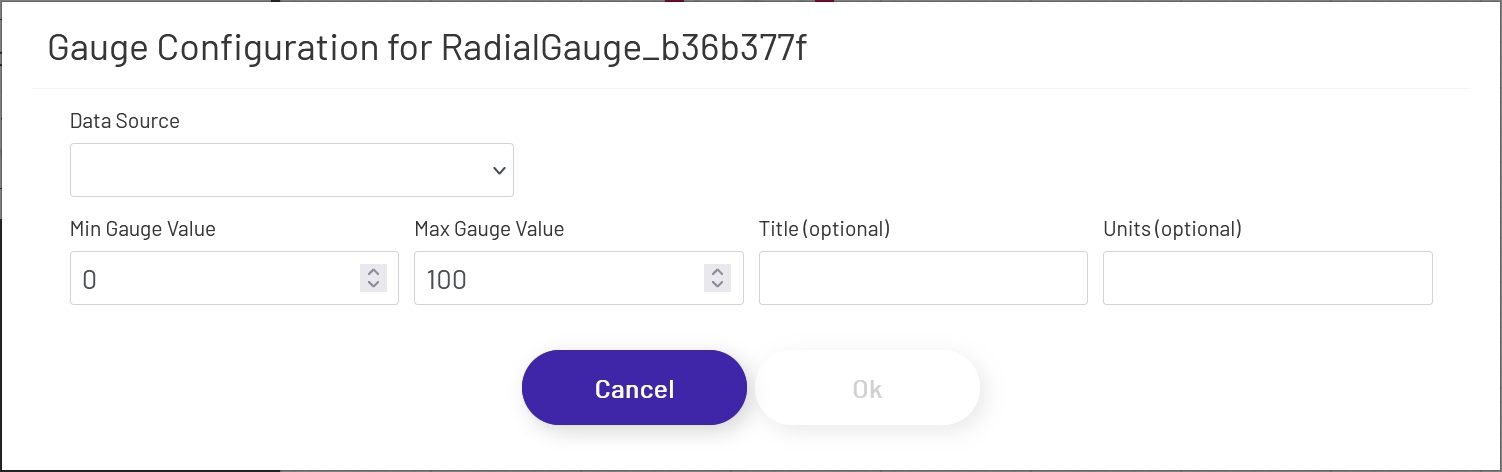
Gauges allow you to display numeric values in an easy to read graphical format. Radial gauges are always circular and will retain their aspect ratio as you drag and resize the shape on the canvas. Linear gauges will switch between vertical and horizontal display, depending on which axis is larger as you resize it. Once you have the gauge sized and positioned how you want, click the 'Configure Gauge' button in the left-hand panel and set it up:
- Data Source: This sets the source of the value displayed in the gauge, which can (among other things) affect how often the value refreshes. If a Data Point is being used, see here for details on how to configure that portion of the form.
- Tag Name: If 'Data Source' is set to 'Tag', this is the name of the tag whose data the gauge will display. Click the magnifying glass icon to open the tag selector window.
- Tag Property: This is the name of the tag property you are display the value of, usually 'Value'.
- Min Gauge Value: This sets the minimum value expected by the gauge. If the actual value goes below this, the needle will 'bottom out' but the numeric value shown in the gauge will continue to update.
- Max Gauge Value: This sets the maximum value expected by the gauge. If the actual value goes above this, the needle will 'max out' but the numeric value shown in the gauge will continue to update.
- Title: If a title is provided, it will display near the top of the gauge.
- Units: If a value is provided, it will display near the bottom of the gauge.
Pie Charts 
See here for details on the Pie Chart shape.
Bar Gauges 
See here for details on the Bar Gauge shape.
Mongoose Value Display 
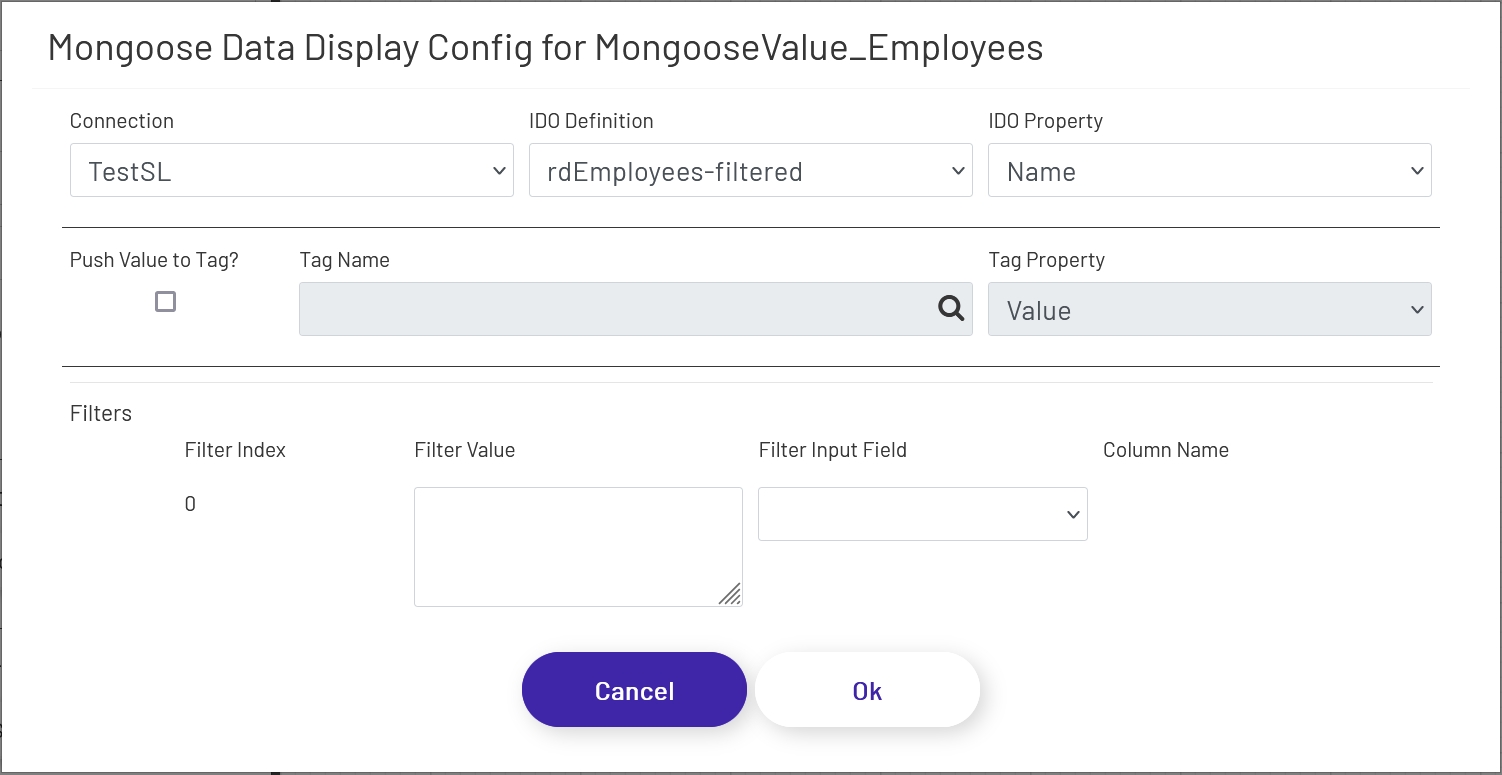
This shape displays a single value from a Mongoose IDO call. The value will update when the diagram is first loaded, and any time an associated update button (see here) is clicked. To configure this shape, drag the element onto the canvas and then click the 'Configure Mongoose Data Display' button in the left panel:
- Connection: Choose the Mongoose connection this button should make its IDO calls through. Most sites will only have one, in which case the option will be selected automatically.
- IDO Definition: Choose the name of the IDO Definition you want to display a returned value from.
- IDO Property: Choose the name of the IDO Property in the definition selected above whose value you want to display. This must be a single value able to be displayed in simple text, after any filters are applied (see below). If a list of values needs to be displayed, use the Mongoose dropdown shape (see below).
- Push Value to Tag?: If this is checked, the value displayed in this Mongoose shape will be pushed into the specified Tag Name and Tag Property in the Data Acquisition Engine whenever the value in this shape is updated.
- Tag Name: The tag to push values to when this shape updates, if 'Push Value to Tag?' is checked.
- Tag Property: The tag property to push values to when this shape updates, if 'Push Value to Tag?' is checked.
If filters were set up on the IDO, a row for each will be listed in this section of the form. The 'Filter Index' is the number that will be replaced with the value specified for each filter row (see the linked page above for more info). Each row can specify either a predefined value set by the diagram designer, or a 'live' value provided by the operator.
- Filter Value: If you want to use a predefined value, put it here. This field also supports tokens.
- Filter Input Field: If you want the filter value to come from a user input field on the diagram, choose its name from this dropdown.
- Column Name: If the shape chosen for a Filter Input Field is a grid (see below), choose the column the filter value should come from. The user will select that value by clicking on a row in the grid.
Mongoose Grid 
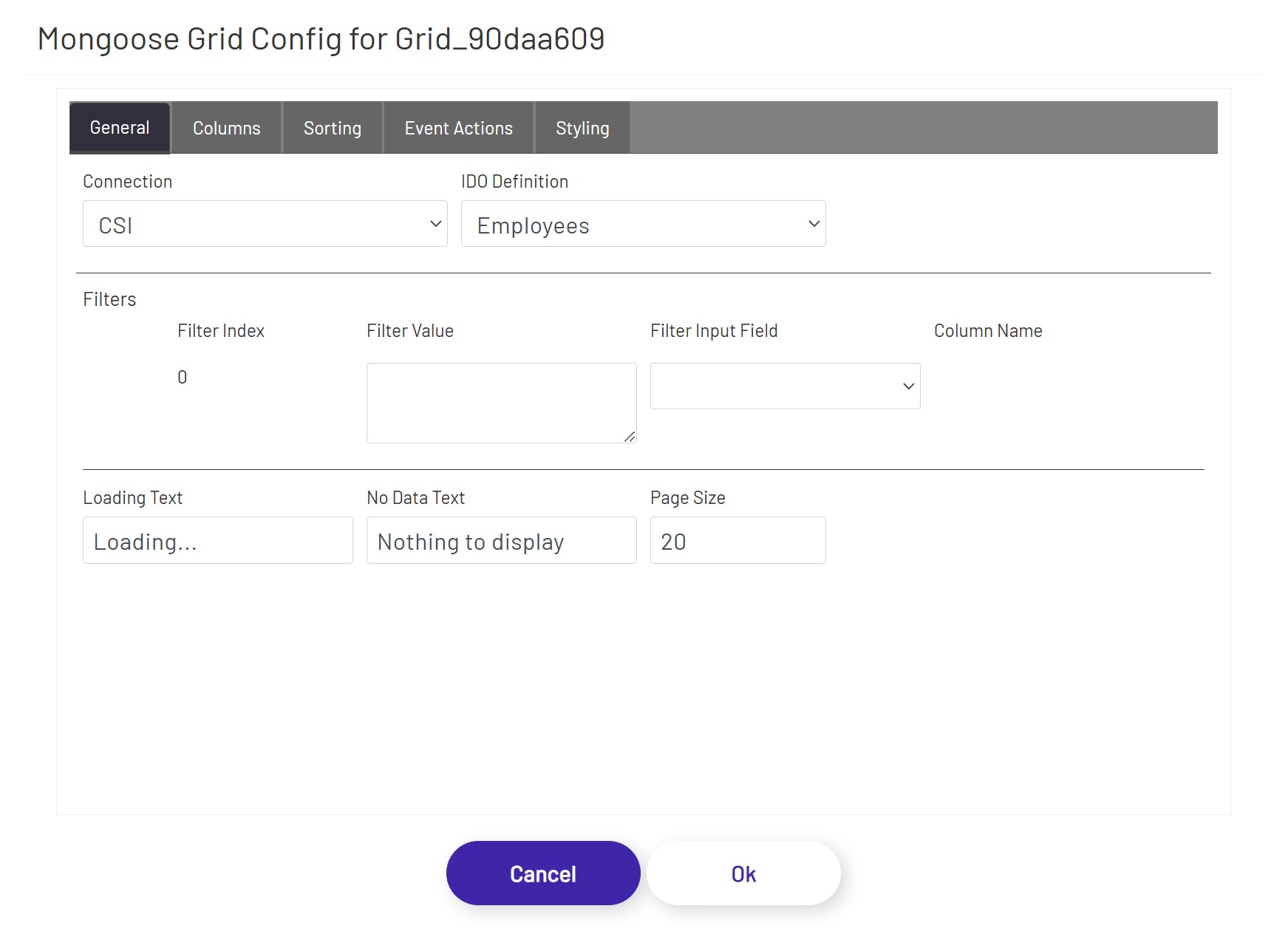
This shape allows users to see a grid of information, and select rows to use as inputs for other shapes if necessary. There are built-in paging controls, and other inputs on the diagram can be used to filter down the results shown in the grid. To configure one of these grids, drag it onto the canvas and then click the 'Configure Mongoose Grid' button in the left panel:
- Connection: Choose the Mongoose connection this grid should make its IDO calls through. Most sites will only have one, in which case the option will be selected automatically.
- IDO Definition: Choose the name of the IDO Definition you want to display returned values from.
If filters were set up on the IDO, a row for each will be listed in this section of the form. The 'Filter Index' is the number that will be replaced with the value specified for each filter row (see the linked page above for more info). Each row can specify either a predefined value set by the diagram designer, or a 'live' value provided by the operator in another shape.
- Filter Value: If you want to use a predefined value, put it here. This field also supports tokens.
- Filter Input Field: If you want the filter value to come from a user input field on the diagram, choose its name from this dropdown.
- Column Name: If the shape chosen for a Filter Input Field is another grid, choose the column the filter value should come from. The user will select that value by clicking on a row in the other grid.
There are 3 general settings for the grid:
- Loading Text: If the IDO call is taking more than a couple of seconds to return results and populate the grid, this text will display in an overlay over the grid shape.
- No Data Text: This will display at the top of the grid shape if no rows were returned to display in the grid.
- Page Size: How many rows of data to show per page. Depending on this value and the size of the grid shape on the diagram, the user may have to scroll up and down or click between pages to see all results.
Each property set up on the IDO will also display on this form. The diagram designer can choose which column(s) appear in the grid, and configure some basic information for each:
- Show?: Uncheck this box if the property doesn't need to be displayed in the grid at all.
- Column Header: This will be the label at the top of the column in the grid. It defaults to the name of the property from the IDO.
- Width (percent): Use this value to control how wide each column appears in the grid. These values should add up to 100 for the properties that have 'Show?' checked.
Data Point Value 
Data Point Value shapes are used to display the value of Data Points on diagrams. Once the shape is dragged onto the canvas, click the 'Configure Data Point Display' button in the left panel to set it up. See here for an explanation of the different parts of the form.
DB Grid 
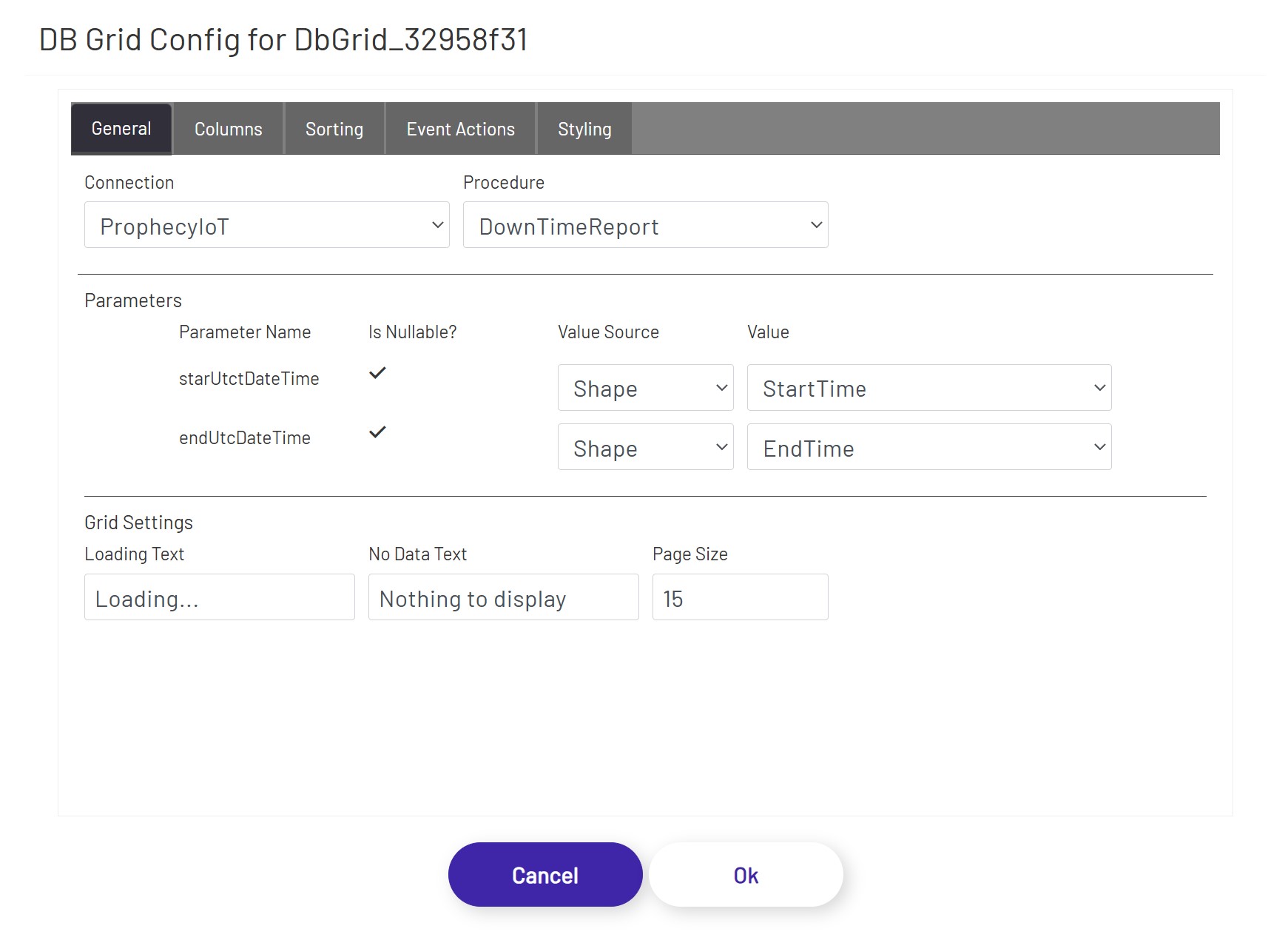
The DB grid shape let's users execute stored procedures from any database, and render the resulting tabular data in a grid. The grid offers some built-in features such as being able to page through the records, be able to sort by any column, filtration capabilities, and the ability to select rows and use the column values as inputs for other shapes, if necessary. To configure an instance of this shape, drag and drop it on to the canvas, and click the 'Configure DB Grid' button in the left panel. If the user is reconfiguring an existing instance, the previously saved settings will be populated in the grid, but if this is the first configuration, the grid will sequentially show the options as the prerequisites are being completed:
- Connection: Choose the database connection this grid should use for stored procedure execution. This grid control allows users to store and retrieve data from an abitrary number of databases, and let's the user execute stored procedure based logic against any of those as long as the connections are configured in the admin section. Once a connection is selected, the configuration dialog will populate the Procedure drop down with all the available stored procedures in that database.
- Procedure: Choose the stored procedure to execute. The procedure could be one that takes no inputs but returns a set of data, one that takes input but does not return anything back (in which case, nothing will be rendered in the grid), one that doesn't take any inputs nor returns an output but executes logic inside the database, or any hybrid between those options and combinations.
Once the options above have been populated, the dialog will then render the Parameters section to allow the user to be able to set the stored procedure inputs. The DB grid shape can automatically detect the inputs expected by a stored procedure, and all the properties have to be populated before moving on to the next stage. In case the selected stored procedure does not have any input parameters, the dialog proceeds to the next set of options once the procedure is selected.
The inputs for each parameter should come from another shape, and is the only available option under Value Source. After picking Shape as the Value Source, pick the control that will be feeding the value into the parameter using the Value drop down.
If the stored procedure does not have any input parameters or after all the input parameters have been configured, the dialog then displays the next 2 sections that let's the user control grid properties as well as setting up the output columns.
The following configuration options are available under the Grid Settings section:
- Loading Text: If the stored procedure call is taking more than a couple of seconds to return results and populate the grid, this text will display in an overlay over the grid shape.
- No Data Text: This will display at the top of the grid shape if no rows were returned to display in the grid.
- Page Size: How many rows of data to show per page. Depending on this value and the size of the grid shape on the diagram, the user may have to scroll up and down or click between pages to see all the results.
If the stored procedure returns data as output, the necessary subset of columns can be bound to the grid. The form of the output data of a stored procedure cannot be pre-calculated, and the column bindings have to be specified manually:
- Column Name: The name of the column as it appears inside the stored procedure.
- Column Header: The preferred label to be displayed at the top of the grid as the column header.
- Data Type: By default, all data will be intepreted and be rendered as Text, but by changing the data type (if the output from the stored procedure for that column is guaranteed to be in the grid data type that is being selected), the grid can use that information to render the data differently. For example, if BLOB data type is selected, the grid expects the stored procedure column output to be a base-64 encoded string of a file (content). If BLOB is selected, instead of rendered the returned base-64 encoded string, the grid cell will display a button that'll let the user either open or download the file content (depending on browser type, version, settings, etc. - if the browser can handle the file format, it will be opened in a separate tab, and if the browser cannot handle the file format, the user will be prompted to download the file).
- Width (percent): Use this value to control how wide each column appears in the grid. These values should add up to 100.