Diagram shapes can be configured to change size, shape, and angle dynamically based on the value of tag properties. This can be useful for indicating machine status, component/fluid levels, etc. While gauges can give a nicer-looking readout sometimes, shape transforms can be applied to a wider variety of shapes and positioned more flexibly. Note that this feature only works on Machine, Basic, and Flow shapes, and the transforms update at 1-second intervals.
To set up these dynamic shape changes, select a shape on the diagram canvas, then click the 'Configure Shape Transform' button in the left panel:
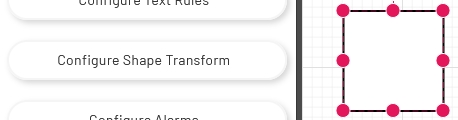
That will open a popup window to configure the shape's transform settings:
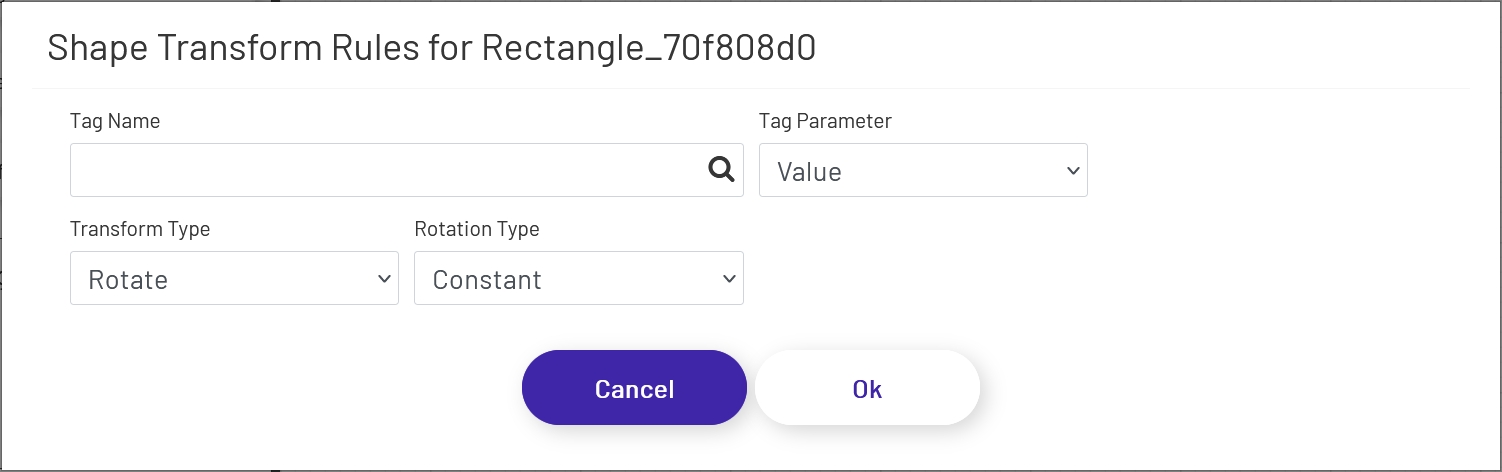
Each rule is made up of several parts:
-
Tag Name: The tag this rule is going to monitor to determine if the shape should transform.
-
Tag Parameter: The parameter of the tag set above that this rule will look at. This is chosen from a list of parameters like Value, alarm limits, etc. Note that some of the options in this dropdown won't provide useful data for a transform, so make sure you're using a parameter with a numeric value, or booleans in the case of Rotate transforms (see below).
-
Transform Type: This determines how the shape will transform depending on the monitored tag value. Note that most of the transform types are 1:1 for value:pixel. For example, the shape in the screenshot above is 200px tall to start, but if the tag value it's monitoring grows to 3000, the shape will get that large/wide based on the transform type. It's important to keep in mind the expected range of tag values when drawing your shapes on the diagram. If a tag value goes into the negatives, the shape will actually transform to extend below or to the left of the starting position, depending on the transform type.
- XAxisOnly: The shape will grow/shrink from left (low value) to right (high value)
- YAxisOnly: The shape will grow/shrink up (high value) and down (low value)
- XAndYAxis: The shape will expand (high value) and contract (low value) around its center point
- Rotate: The shape will rotate around its center point
-
Rotation Type: This option only appears if the Transform Type above is set to Rotate. There are 2 values:
- Constant: This type should be based on a boolean tag value. If the value is true, the shape will rotate clockwise 20 degrees every second. If false, the shape doesn't move.
- Gauge: This will cause the shape to rotate around its center point relative to a numeric tag value. Since this is a circular rotation, the expected valid range is 0 - 360. The gauge will continue to rotate outside of those bounds, but it may become difficult to quickly interpret the tag value. For example, if the gauge is pointing at 30 degrees, that could mean that the tag value is 30, or it could be 390. For tag values that may regularly exceed the 0 - 360 range, it might be more appropriate to use a gauge.