Configuring aggregation rules can get pretty complicated. If you haven't already, make sure to read these definitions.
Notes
Some general things to keep in mind when building aggregations, before getting into specifics:
- Each tag can only be used once per aggregation
- Condition groups are "OR'd" together, and tag rules are "AND'd" together.
- If any condition group is set up in a way that it will always be true, the aggregation will never fire.
- The aggregation engine is unable to distinguish between normal string values (text) and datetime values logged by the Data Acquisition Engine. When setting the parameter data type (see below), datetime tags should have the data type set to 'string'.
See the information on Rule Evaluation here for more details.
General Settings
Aggregation rules have a few pieces of basic information that always have to be set:
- Name: The aggregation name will display in the dropdown on the main aggregations page, and in Enterprise Explorer in the Aggregations group. If you're hooking up a Dashboard to output from an aggregation, the table name you'll want to connect it to will be based on this name, though it will have some special characters and numbers in it.
- Description: This is only for display/internal purposes, and is optional.
- Triggers Events: If this box is checked, when the aggregation fires it will cause an Event to be created, which can be useful for getting aggregation data into external systems.
- Enabled: If the Aggregation Engine encounters an unrecoverable error while processing an aggregation, it will disable the aggregation to prevent a processing backlog or future errors. Fortunately, this value can be edited through the Prophecy application. To re-enable a failed Aggregation simply check the Enabled Check Box. It is possible that the Aggregation will continue to fail due to a larger issue. If this is the case, work with the Prophecy Consulting Group to troubleshoot and resolve the issue. There may also be times when the Aggregation needs to be paused or turned off completely. To disable or pause an Aggregation, simply un-check the Enabled Check Box.
- Last Ran: This is the time and date that the Aggregation Engine last processed the aggregation. Generally that should be roughly every 30 seconds.
- Last DAE Log Date Processed: This value is only helpful for troubleshooting aggregations that aren't processing correctly. It represents the timestamp of the last row tag data logged by the Data Acquisition Engine that the Aggregation Engine tried to process.
Condition Groups
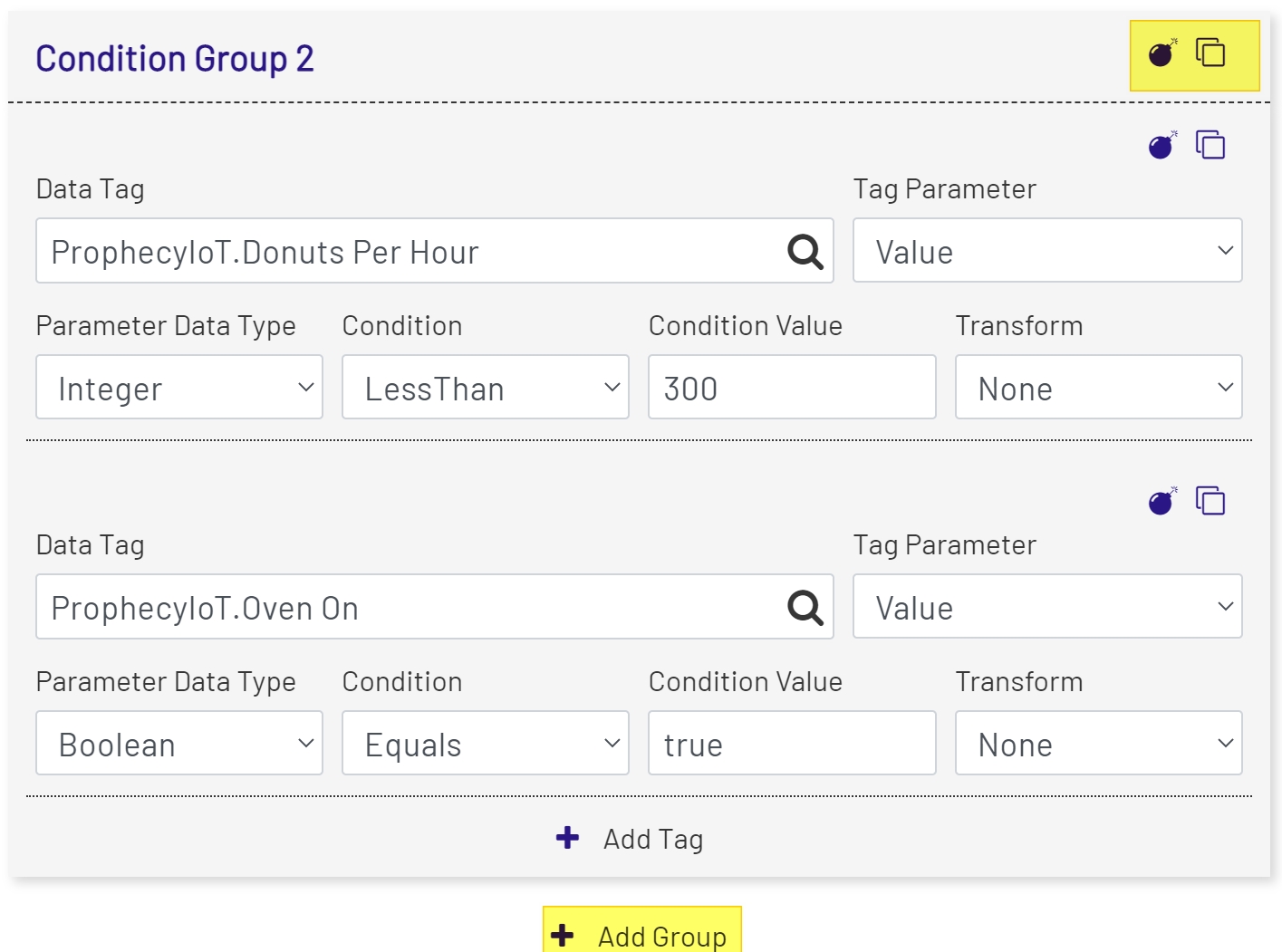
A condition group is a collection of tag conditions that have to be met for a group to evaluate as true when the aggregation processes. Remember that when the aggregation runs, it will be considered true if any single condition group is true. The buttons at the upper right of each group allow you to delete or clone the current group (including all of the tag rules it contains). Underneath the last configured group is an option to add another.
Tag Rules
Within each condition group is one or more tag rules. These are what each row of logged data are evaluated against when an aggregation runs. The buttons at the upper right allow the user to add delete or duplicate the current tag rule, and another tag can be added below the last configured one:
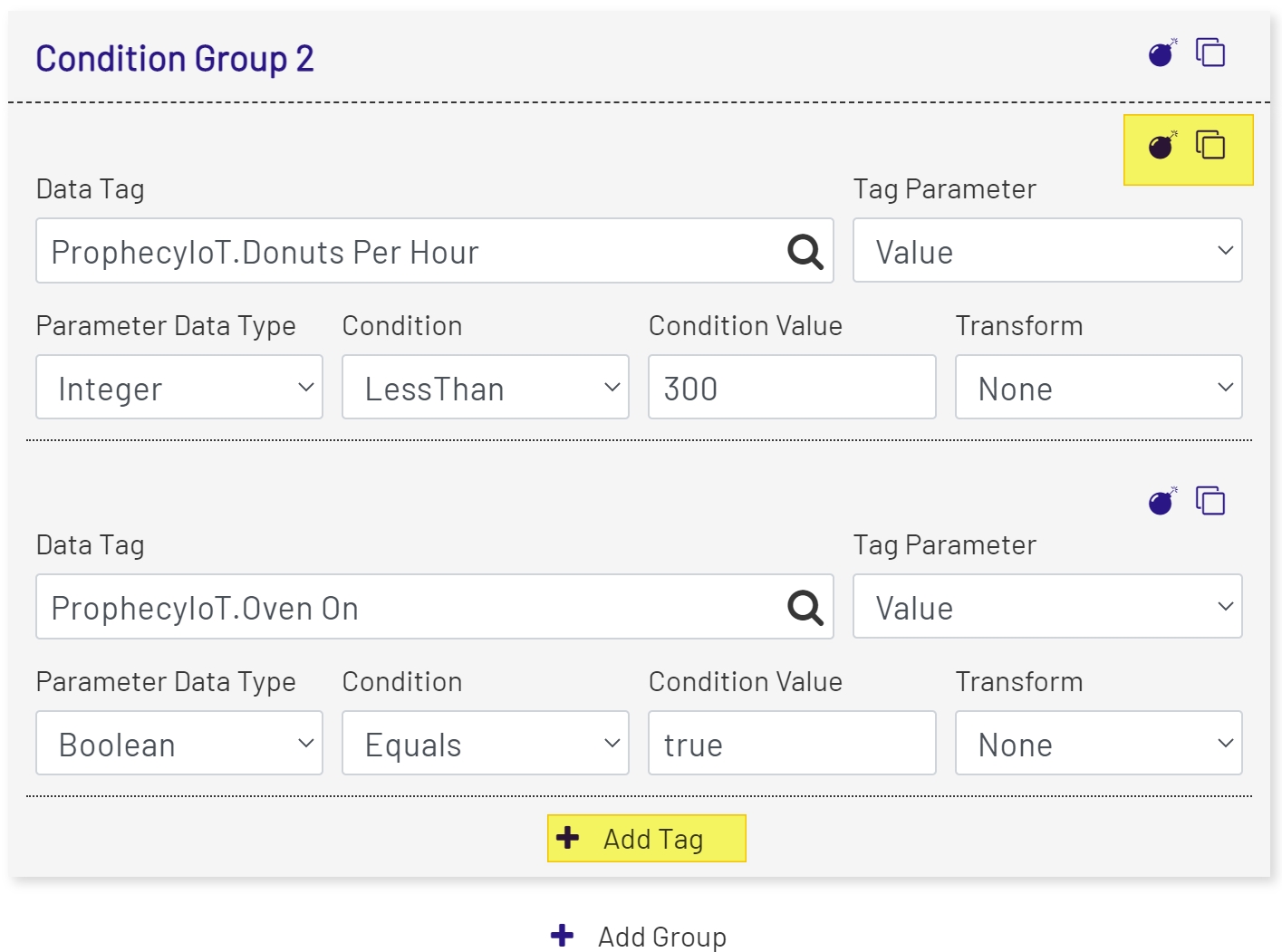
Remember that for a condition group to be true, every tag rule inside of it must be true. The parts of a tag rule are:
- Data Tag: The name of the tag that this tag rule will evaluate. The tag must already exist and be configured properly in the Data Acquisition Engine before the aggregation is created, or the aggregation may not run properly.
- Tag Parameter: Which tag parameter to evaluate the tag rule against when the aggregation runs. This will usually be 'Value', but tags in the Data Acquisition Engine have many parameters available. Note that some of the options in this dropdown depend on features being enabled on the selected tag. For example, choosing to test a rule against an alarm limit value will result in an error if the alarm limit isn't enabled on the tag.
- Parameter Data Type: This is the data type of the tag parameter being evaluated by the rule. In most cases, Prophecy will preselect the correct data type to match the value returned by the Data Acquisition Engine. In the case of 'Value', the user will have to select the data type, as that can vary by tag. This setting determines which Conditions and Transforms are available (see below). If this is set incorrectly for the 'Value' property, it's likely that the aggregation won't run properly and will be disabled.
- Condition: This is the comparison the aggregation engine will make between the logged value it pulls out of the logging table and the tag rule you configure. The available options vary based on the Parameter Data Type set above. More information on the different conditions can be found below.
- Condition Value: If the condition you chose above requires a value to compare against (not all do), it goes here.
- Transform: The transform determines what will be written to the aggregation data table for this tag value if the aggregation evaluates to true. See below for more detail on the various options.
- Transform Value: If the transform you chose above requires a value (not all do), it goes here.
Conditions
The conditions available will change depending on the parameter data type you set for the tag rule. These conditions are the most basic part of the aggregation processing. Each time the Aggregation Engine processes a rule, if it comes to a row where all of the tag conditions in a group are met, the aggregation fires and an aggregation data row will be written.
It may be helpful to think of all conditions as variations on the 'change' condition (see below). When the logged tag data "changes" to become true - by satisfying all of the configured conditions - the aggregation fires.
The condition options are split into two groups:
-
Available to all data types:
- Change: Checks if the logged tag value is different than it was on the last row.
- DoesNotEqual: Checks if the logged tag value is different than what you entered in the Condition Value field.
- Equals: Checks if the logged tag value is the same as what you entered in the Condition Value field.
- None: If this is selected, the tag value for this tag rule won't be evaluated at all. This is useful if you want to include a tag value in aggregation data but don't need to evaluate it. You can set this Condition to 'none', and use other tag rules to do the filtering you need.
-
Only available to numeric data types:
- GreaterThan: Checks if the logged tag value is greater than the numeric value you entered in the Condition Value field.
- GreaterThanOrEqualTo: Checks if the logged tag value is greater than or equal to the numeric value you entered in the Condition Value field.
- LessThan: Checks if the logged tag value is less than the numeric value you entered in the Condition Value field.
- LessThanOrEqualTo: Checks if the logged tag value is less than or equal to the numeric value you entered in the Condition Value field.
Transforms
Transforms let you record something other than the exact value of the tag at the time when the aggregation fires. As with the conditions section above, transform options vary based on the parameter data type, and it's very important that the data type selected be correct for the tag being evaluated. The available transforms vary depending on the data type:
-
Available to all data types:
- None: No transform is applied, the tag value is recorded 'as-is'.
-
Available to numeric data types:
- Average: This will output the average of this tag value between the last time the rule fired and now.
- Count: This will output the number of rows logged by the Data Acquisition Engine between the last time the rule fired and now.
- Max: This will output the highest logged value of this tag between the last time the rule fired and now.
- Mean: This will output the mean logged value of this tag between the last time the rule fired and now.
- Median: This will output the median logged value of this tag value between the last time the rule fired and now.
- Min: This will output the lowest logged value of this tag value between the last time the rule fired and now.
- Sum: This will output the sum of all the logged values of this tag value between the last time the rule fired and now.
- Available to string data types:
- Concat: If a normal text value is entered here, it will be appended to the end of the logged tag value. Alternatively, you can enter a string like "Job {value} Complete" (no quotes) and the {value} will be replaced with the logged value, so you could end up with something like "Job 17 Complete" written to the aggregation data.
- Length: This will record the length of the logged tag value.
- Regex: This will apply a regular expression (RegEx) to the logged value. Regular expressions are complex and can be difficult to get right. Contact the Prophecy Consulting Group for help if needed with this kind of transform.
- Day: This will ouput the day of the week from the logged tag value.
- DateAddDays: This will record the numeric day of the month (5th, 21st, etc) plus whatever integer value is entered. Leave that at 0 to output just the recorded number.
- Hour: This will output the numeric hour (0-24) of the logged tag data.
- Month: This will output the numeric month of the logged tag data.
- Minute: This will output the numeric minute of the logged tag data.
- Second: This will output the numeric second of the logged tag data.
- TimeAddMinutes: This will output the full time (HH:MM:SS) of the logged tag data, plus a number of minutes if one is entered.
- Year: This will output the numeric year (4 digits) of the logged tag data.