The User Permissions page is where Admins can manage user accounts, assign users to various roles, and manage users entity permissions.
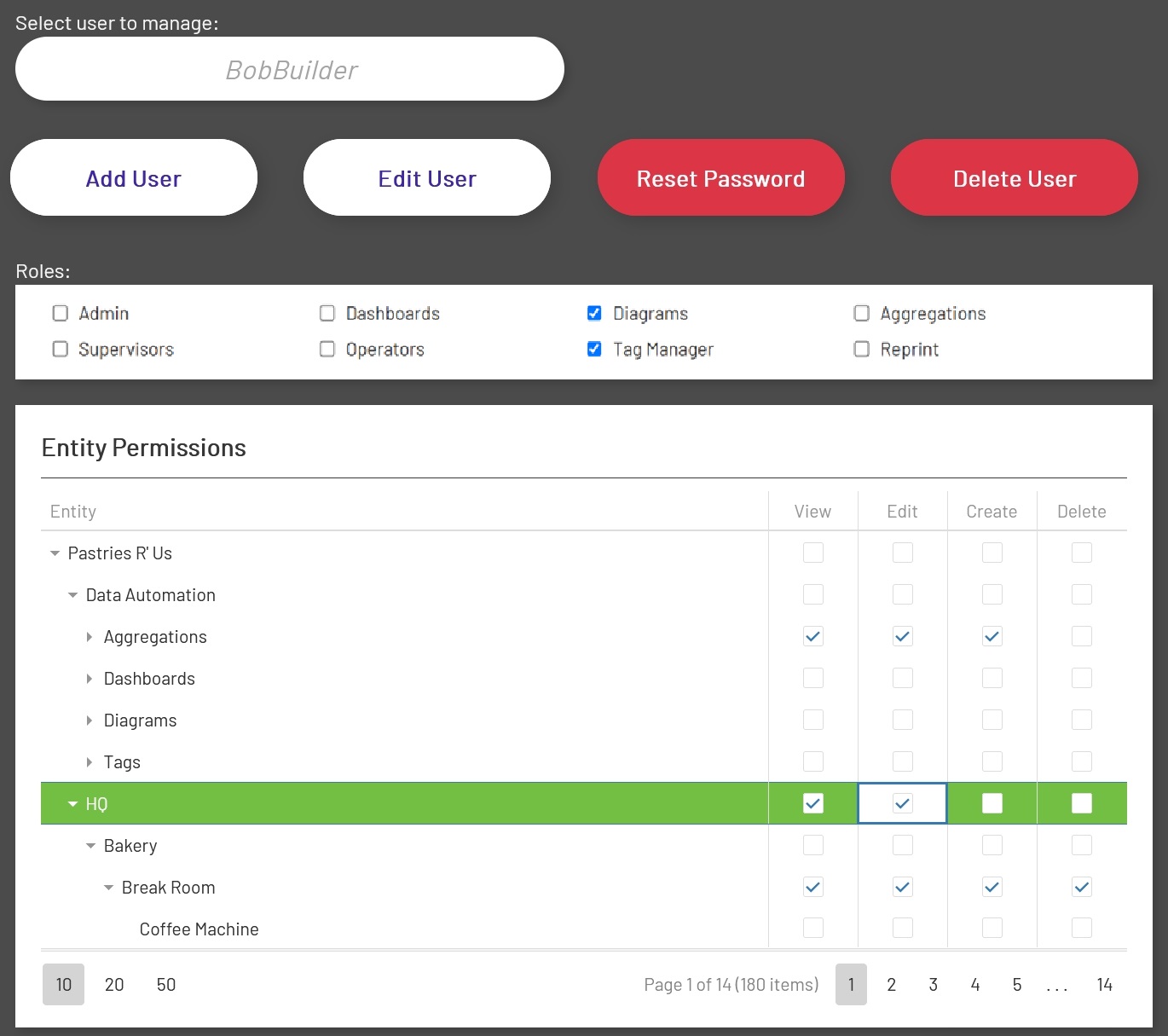
The following user management features are available in Prophecy, accessible only by an Admin:
Add User
Normally, a new Prophecy user will simply be given the URL to Prophecy, and they can perform the registration process themselves once they land on the login page. After they register and choose a password, they will be able to access Prophecy itself - but they won't be able to actually do anything until roles and permissions are assigned.
However, a user can be added here as well, by an Admin. After entering their user name, full name, and email address, an email will be sent to the new user with a secure link to enter a password and login. Roles and permissions can be assigned immediately by the admin - before they verify their account by clicking the verification link in the email.
You may also choose whether the new user is a "Device Login" or not. This can not be changed later. A device login has a year-long session expiry, so please use this feature with caution. For more information on device logins, how they work, and why to use them, see Authorization and Authentication,
Reset Password
This will cause an email to be sent with a reset password link to the selected user. Use this when a user has forgotten their password, and/or they have been locked out due to too many login attempts.
Edit User
A user's username, email address, and full name can be updated by an Admin. If the email address changes, a new verification email will be sent to the new email address, and the "Email Confirmed" indicator on this form will be cleared, until they respond to the verification message.
Unlock User Account
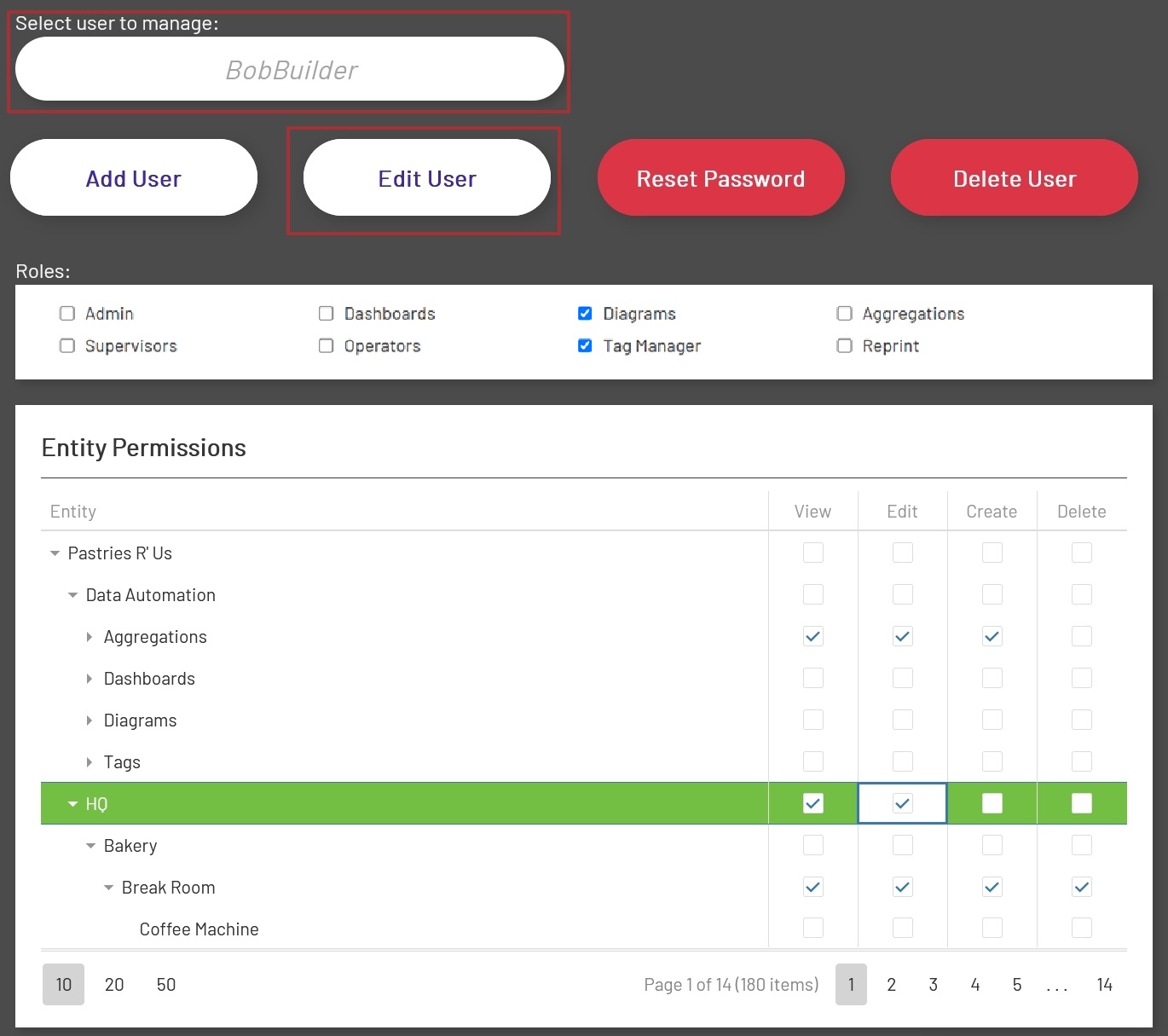
There will most likely be times when a User accidentally enters their password incorrectly too many times and gets locked out of their account. By default, this happens after 5 unsuccessful log in attempts and remains locked for 5 minutes. Fortunately, an Admin can unlock any locked accounts before the lock out expires. To unlock a locked account, select the user that has been locked out from the Users Drop Down. After selecting the User, click the Edit User Button.
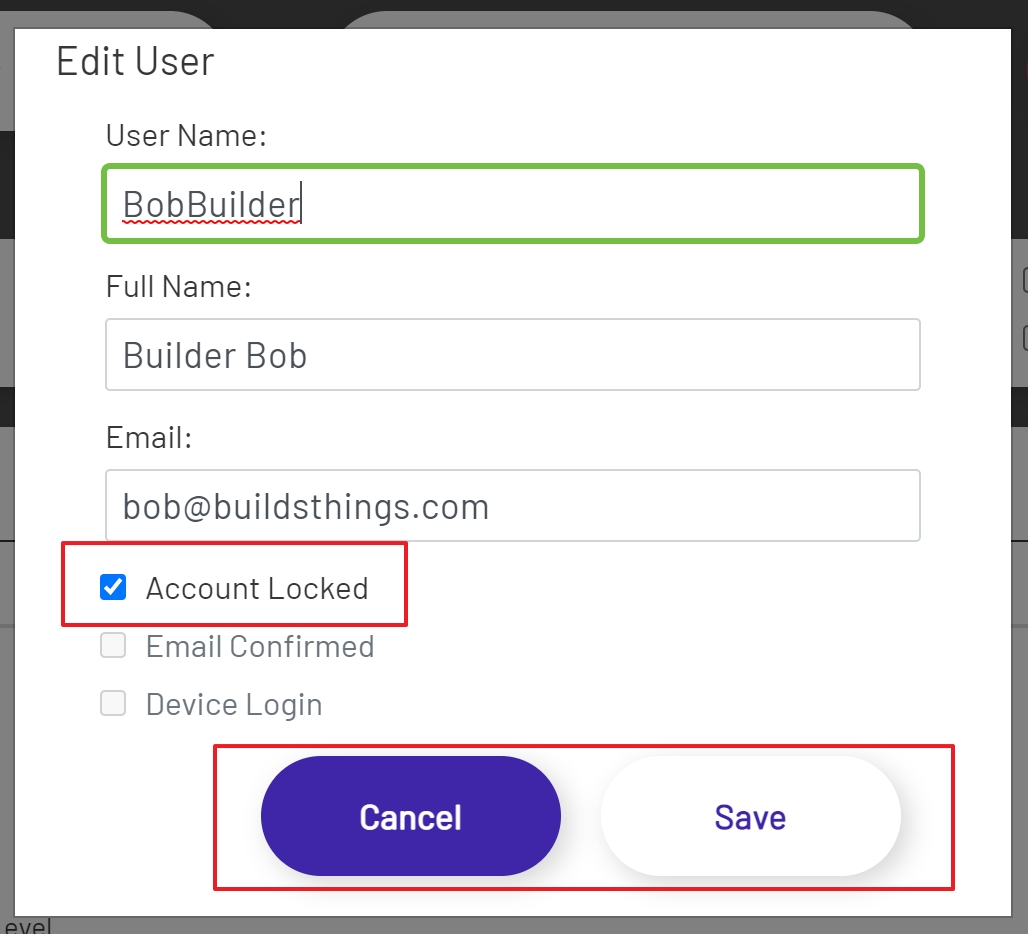
Clicking the Edit User Button will open the Edit User Modal Window. Look towards the bottom of the Modal Window for the Account Locked Check Box and simply uncheck this box. After unchecking the Account Locked Check Box, click the Save Button to save the changes for the User. Or click the Cancel Button to cancel the process.
Delete User
This will delete a user's account completely, including roles and permissions. Obviously, use this with caution.
See the related section, Authorization and Authentication, for information on how to assign user roles and permissions.