External URLs are a potential security concern. Caution is advised when using this feature.
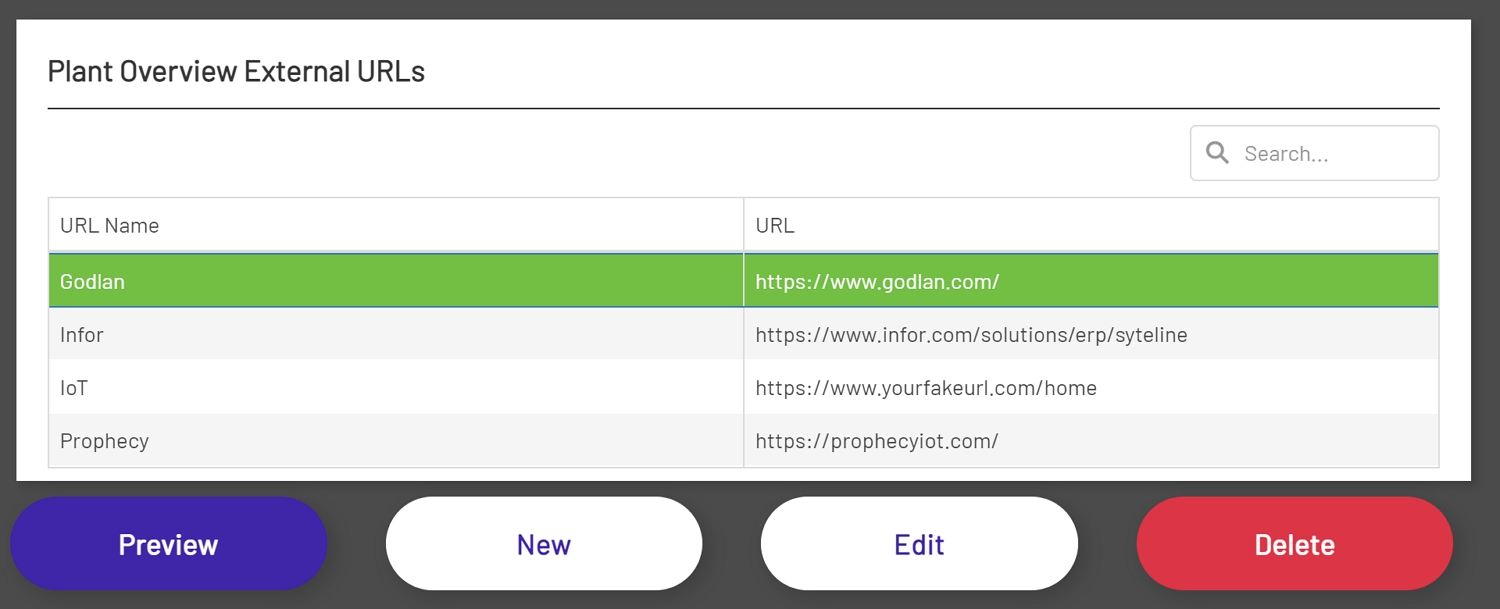
External URLs must be added to a whitelist before the external URL option is available in the Plant Overview feature. Only HTTPS resources are allowed in the whitelist. All URLs should be checked to ensure that they display correctly after they have been added. Not all sites will allow them to be displayed within another site.
Adding a URL
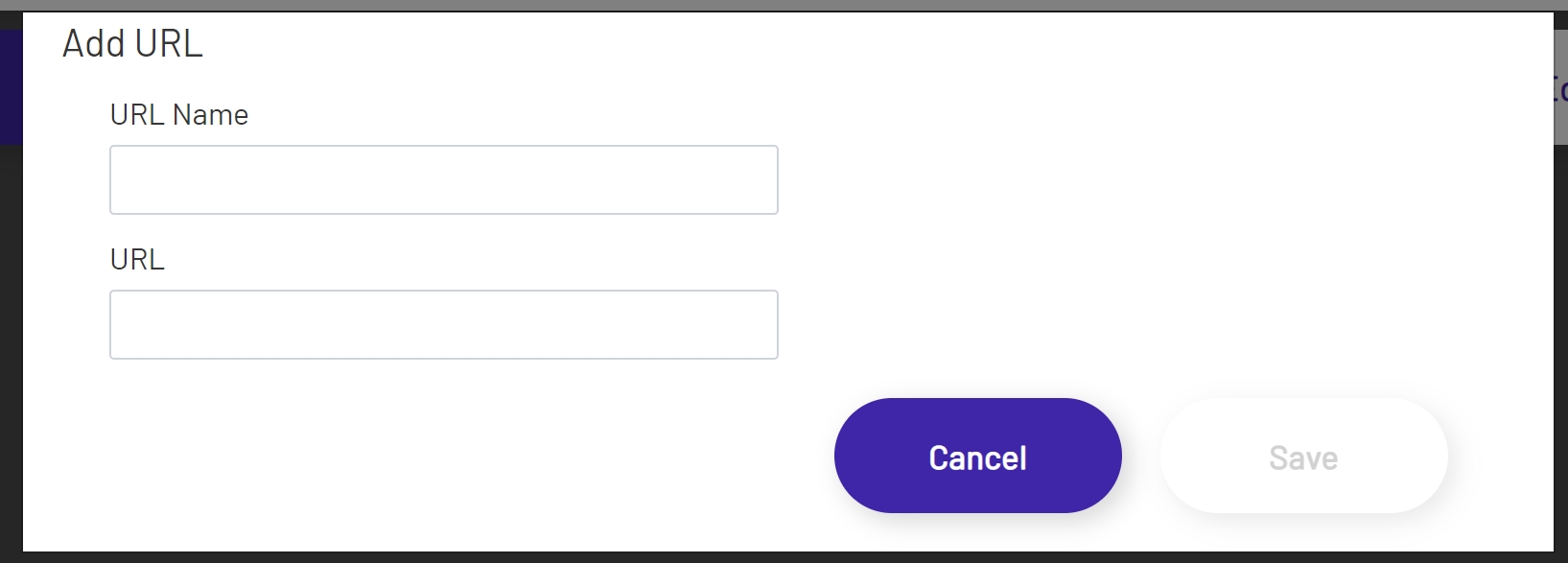
To add a URL to the list, click the new button under the list of allowed sites. From there, enter a name and the URL of the site to be added. The name and URL are required values. When finished, click the save button at the bottom right of the Add URL pop up. To discard changes, click the cancel button.
New URL
New URL pop up
Editing a URL
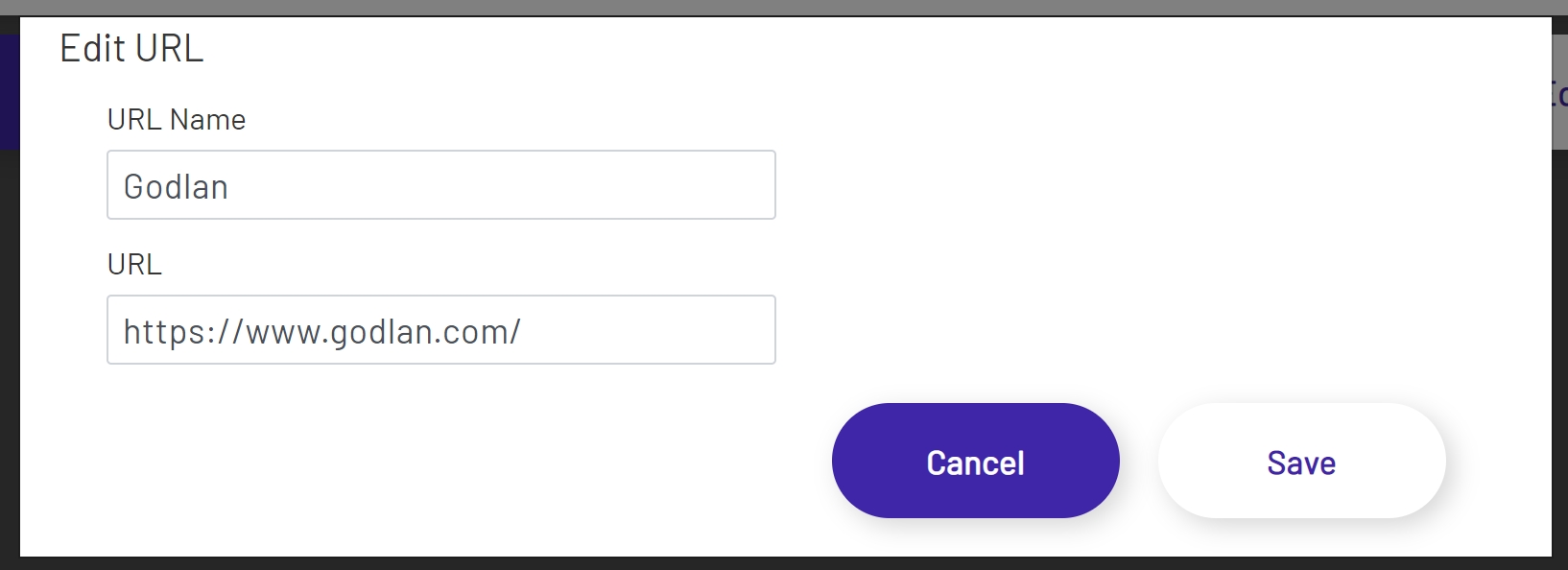
To edit an existing URL, click on the site to edit in the list of allowed sites, then click the edit button below the list of allowed sites. Edit either the URL Name, URL or both. When finished, click the save button at the bottom right of the Edit URL pop up. To discard changes, click the cancel button.
Edit URL
Edit URL pop up
Previewing a URL
To preview an existing URL, click on the site to preview in the list of allowed sites, then click the preview button below the list of allowed sites. This will open the URL in preview mode. It is important to check that the URL works in preview mode. Not all sites are allowed to be displayed within other sites. When finished, click the Done button at the bottom right of the pop up.
Preview URL
Preview URL pop up

Deleting a URL
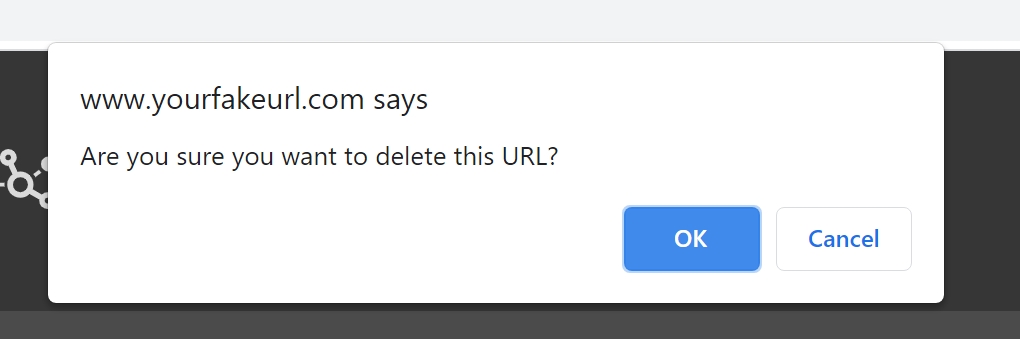
To delete a URL, first select the URL in the list of URLs. Once selected, click the delete button below the list of allowed URLs. After the delete button is clicked, you will be asked to confirm deletion. Click Ok to proceed or click cancel to disregard deletion.
Delete URL
Deletion Confirmation