There may be times when the needs of an existing Label have changed. It could be that the Label name needs to be updated, the Label needs to be hidden, a Label needs to be deleted, or a Label Field needs to be added, renamed, or removed. Fortunately, there is a relatively simple process to handle these tasks in Prophecy.
Editing Labels
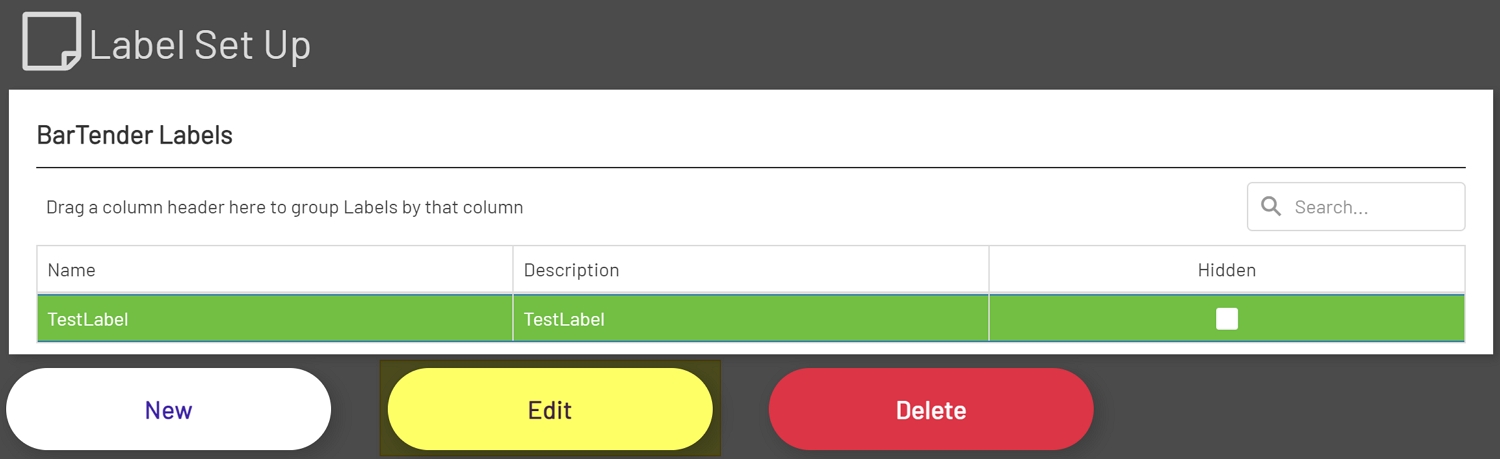
To edit an existing Label, click on the Label in the Labels grid that needs the edit. The Label to edit should then be highlighted. Then click on the Edit button below the Labels grid.
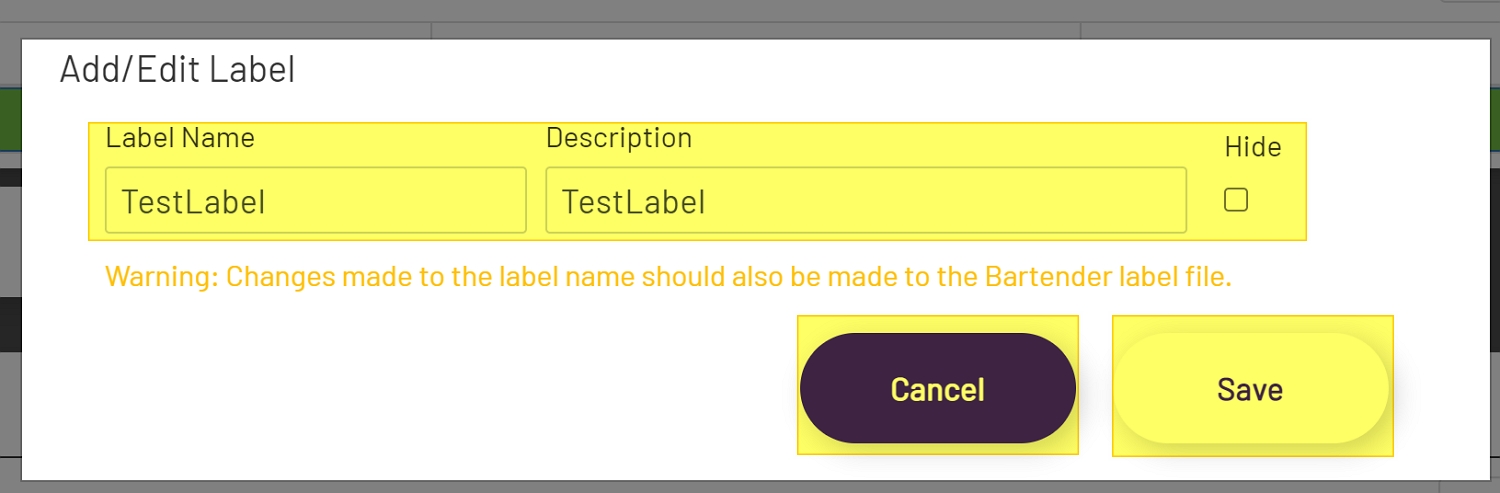
In the Edit Modal, the Label Name can be changed, the description can be updated, or the Hidden checkbox can be checked. Checking the Hidden checkbox will hide the Label from being selected in Reprinting and Diagrams dropdowns.
Once all changes have been made click the Save button or click the Cancel button to discard changes.
Note: Any changes made to the Label Name must also be made to the BarTender Label Template Name. These two values must always match.
Deleting a Label
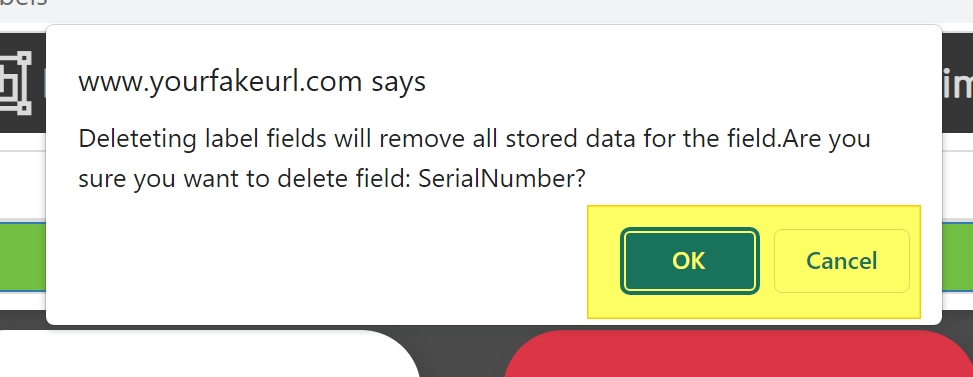
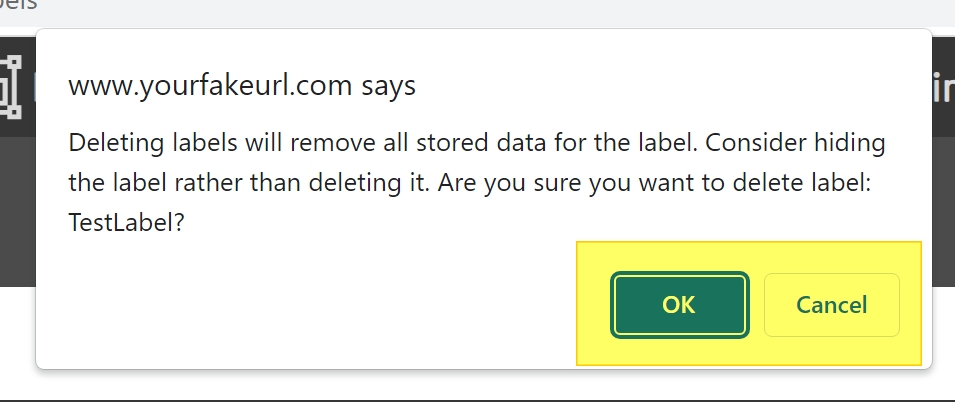
To delete a Label, click on the Label in the Labels grid. The Label to delete should then be highlighted. Then click the Delete button below the Labels grid. After clicking the Delete button a Deletion Confirmation should show. Click OK in the confirmation window to delete the Label or click Cancel to cancel the deletion process.
Adding Fields
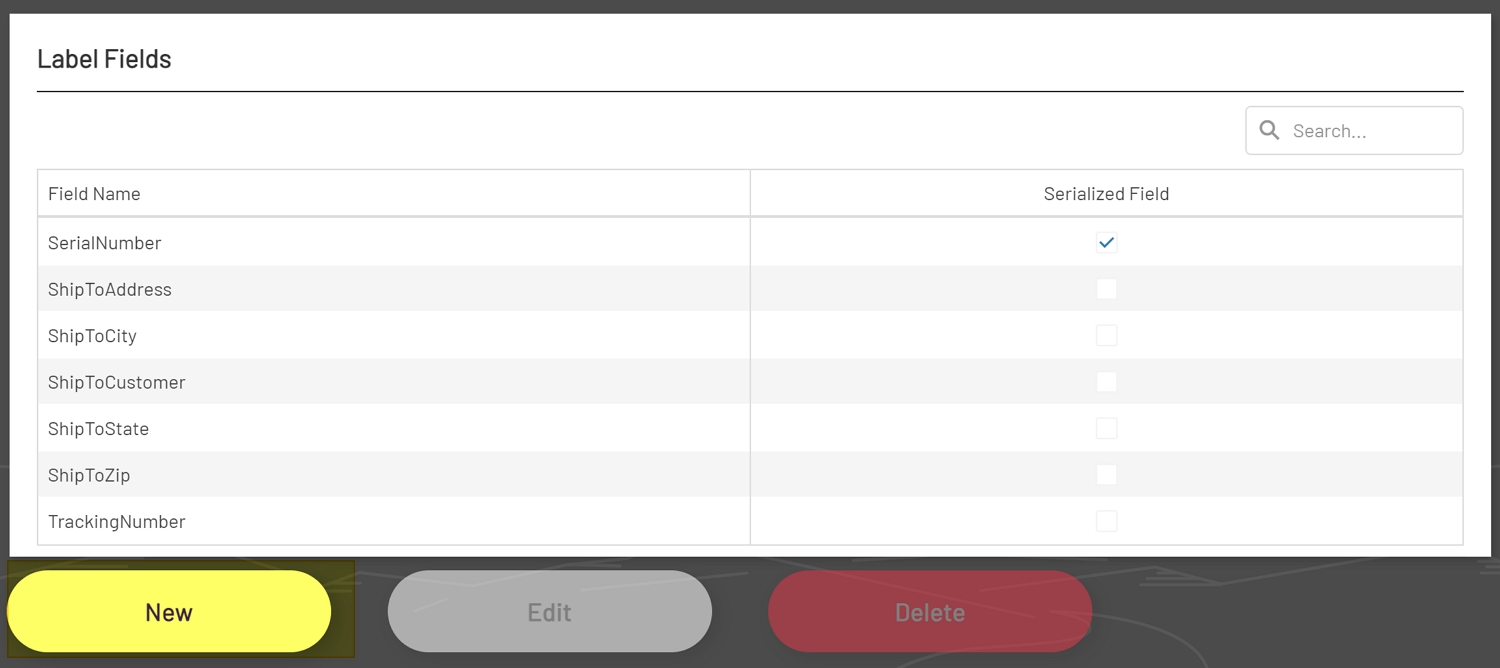
To add a Field to an existing Label, click the New button below the Label Fields grid.
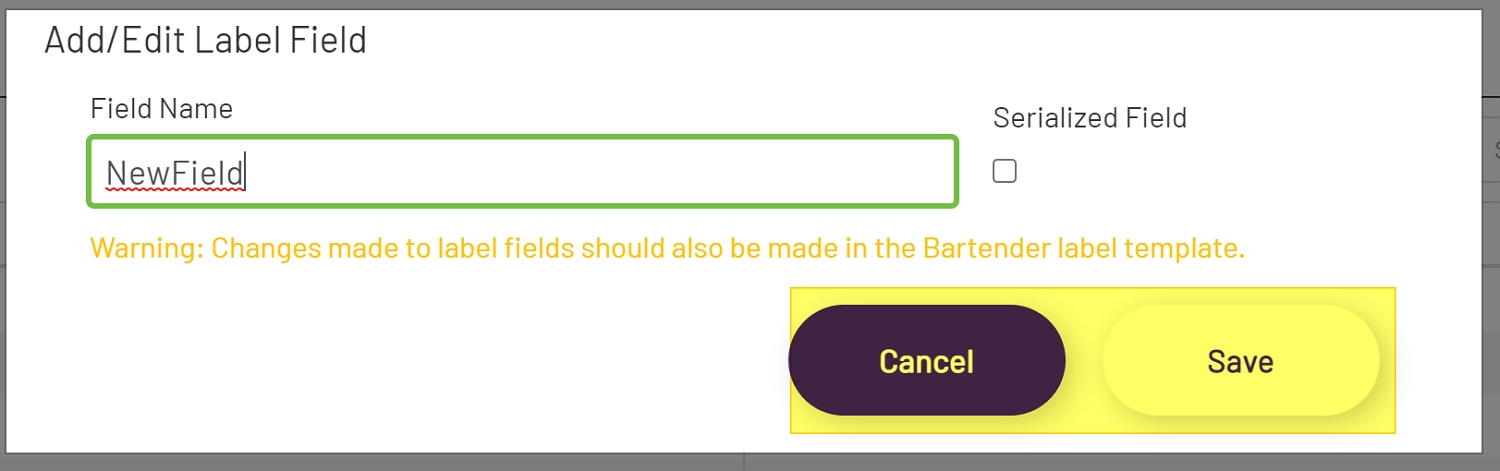
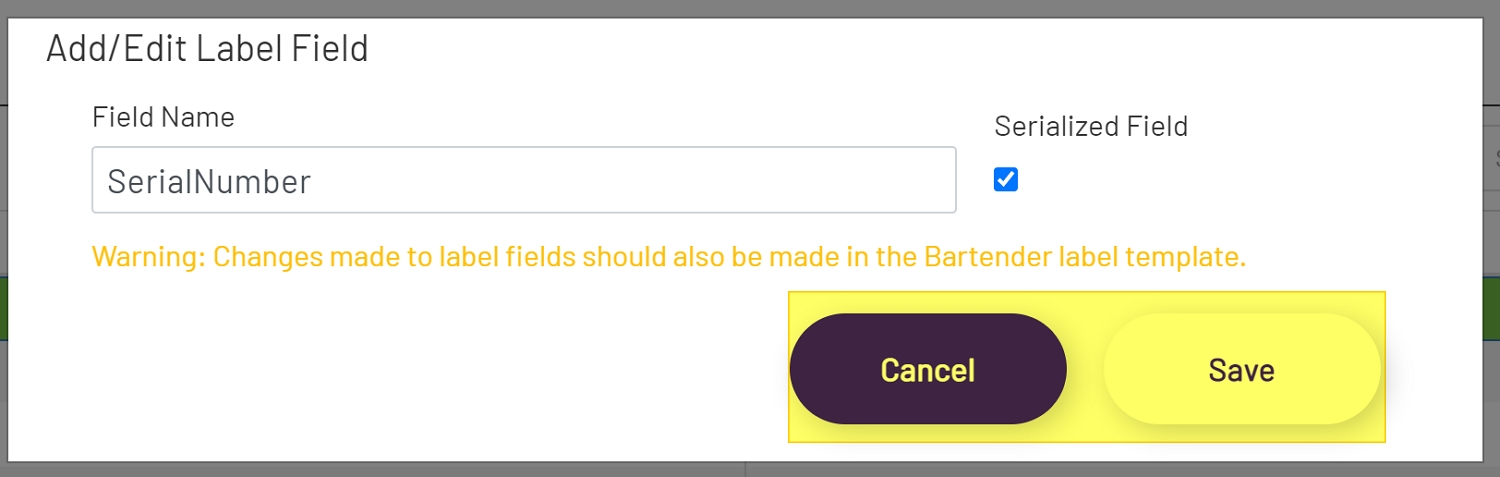
In the Add\Edit Label Field Modal, enter a Name for the new Field. Then choose whether or not this is a Serialized Field. After all changes have been made, click the Save button to save the changes or click Cancel to discard them.
Note: Any Field added here should also be added to the BarTender Label Template.
Editing Fields
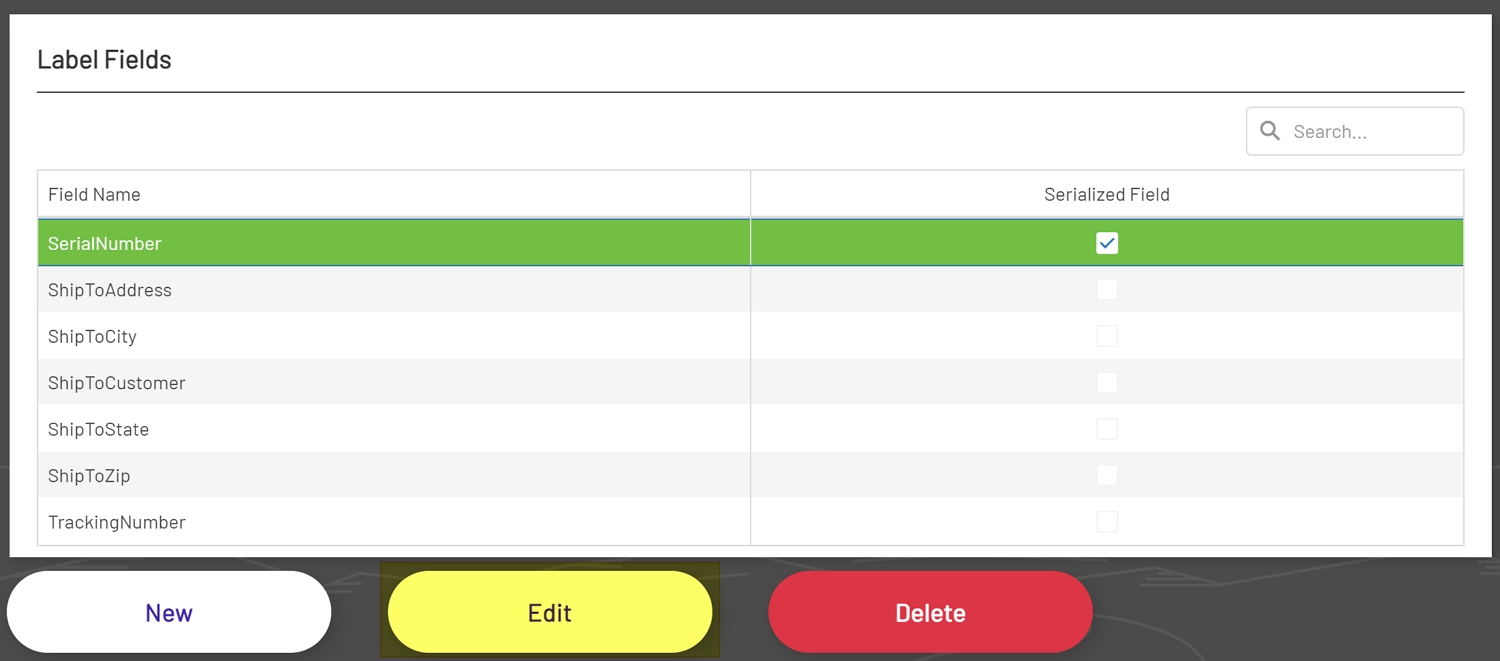
To edit an existing Field first, select a Label from the Labels grid. This will then populate the Label Fields grid. Next, click on the Field to edit in the Label Fields grid. The Field to edit should then be highlighted. Then click the Edit button below the grid.
In the Add\Edit Label Field Modal, the Field Name can be changed, or the Serialization type can be updated. After making all the necessary changes, click the Save button to keep the changes or the Cancel button to discard changes.
Note: Any Field edited here should also be edited in the BarTender Label Template.
Deleting Fields
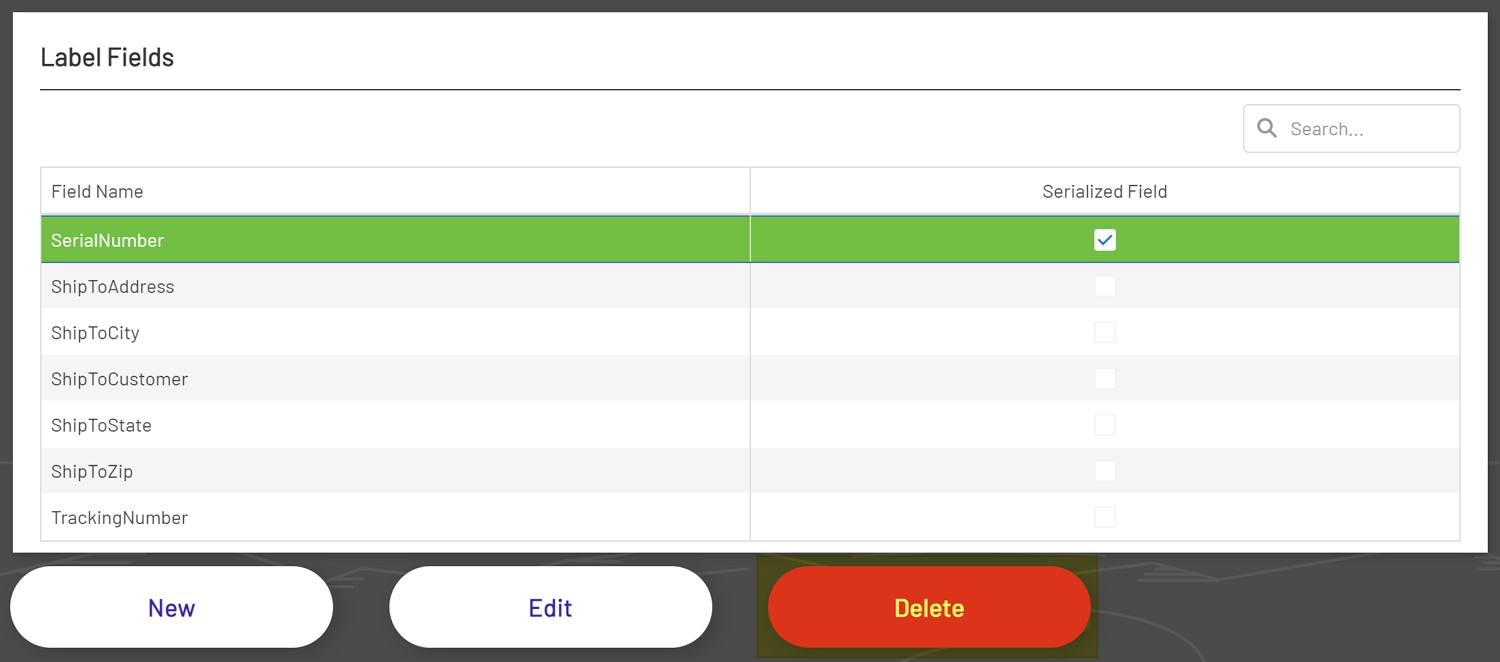
To delete a Field first select a Label from the Labels grid. Then click on the Label Field to delete in the Label Fields grid. The Label Field to delete should then be highlighted. Next, click the Delete button below the Label Fields grid. After clicking the Delete button a Deletion Confirmation should show. Click OK in the confirmation window to delete the Label or click Cancel to cancel the deletion process.
Note: Any Field deleted here should also be deleted in the BarTender Label Template.