To use a theme in a diagram, first ensure that a theme is already created by accessing the admin section of Prophecy and following the instructions here.
To apply a theme to an existing diagram, select an existing theme from the theme dropdown in the toolbar on the left side of the diagram modeler.
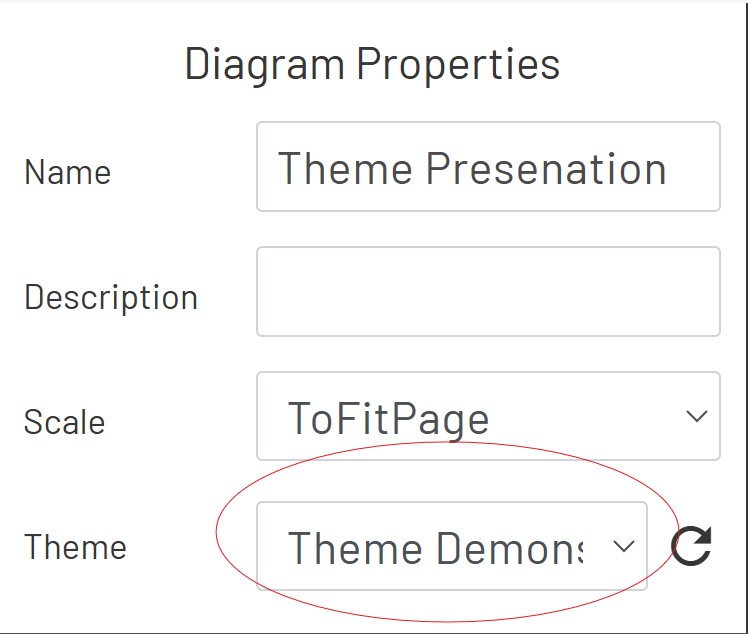
When selecting a new theme, the user will immediately be prompted for how they want to apply the theme configuration.
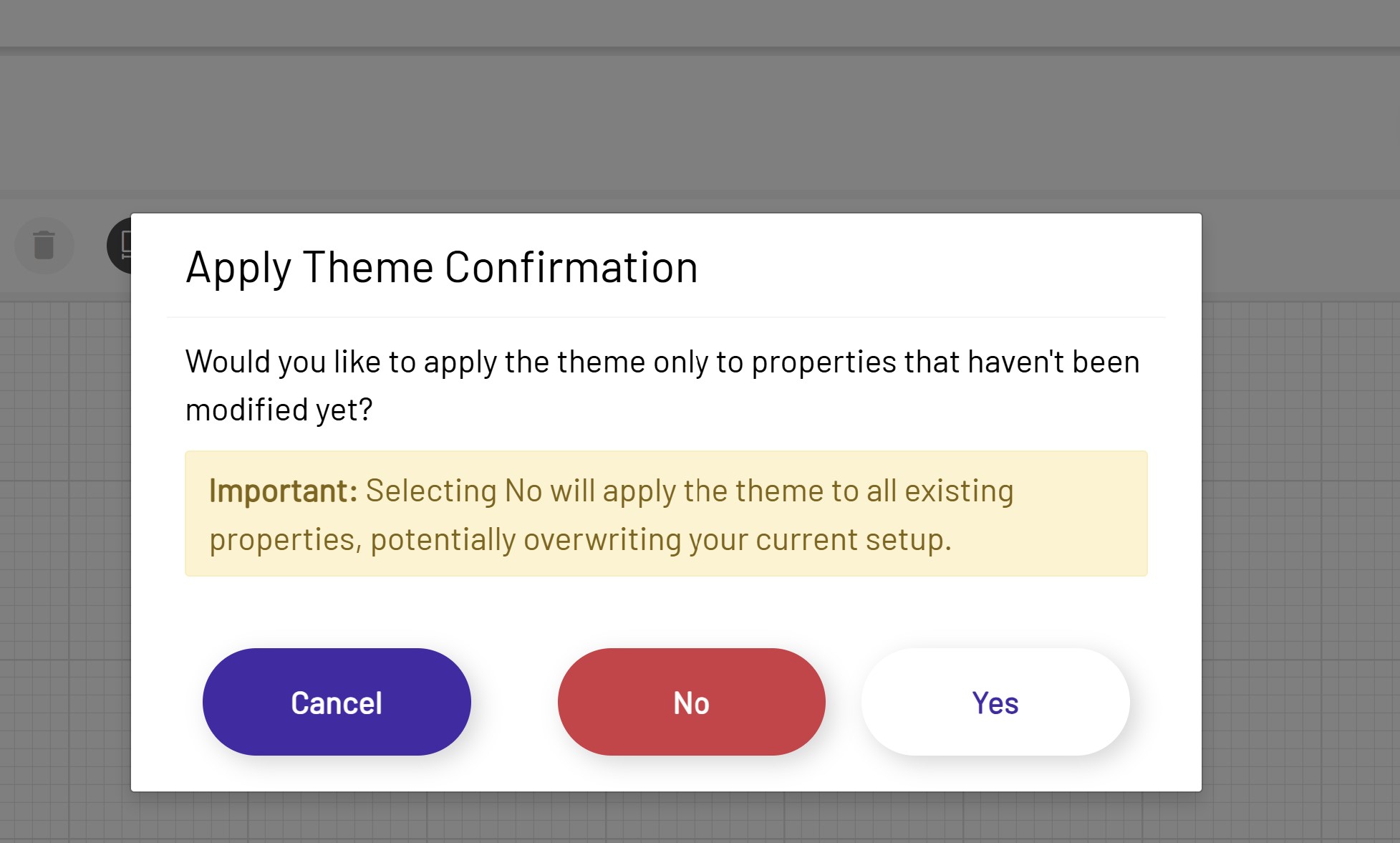
Selecting No will apply the theme to all existing controls, regardless of whether the user has made edits to the controls. Selecting Yes will only apply the theme to the properties that have not yet been modified by the user. The theme modifications are applied granularly to the property level of the controls. For example, if the user selects yes and a control has had its border radius property already modified, all of the properties besides the border radius will be modified by the applied theme. Otherwise, if the user selects No, the border radius and all other properties from the theme will override the controls properties.
Upon applying a theme by selecting Yes or No, all of the existing controls within the diagram modeler will be updated to reflect the theme that was created or imported into the theme designer. Any new shapes that are added will also reflect the theme from the theme designer.
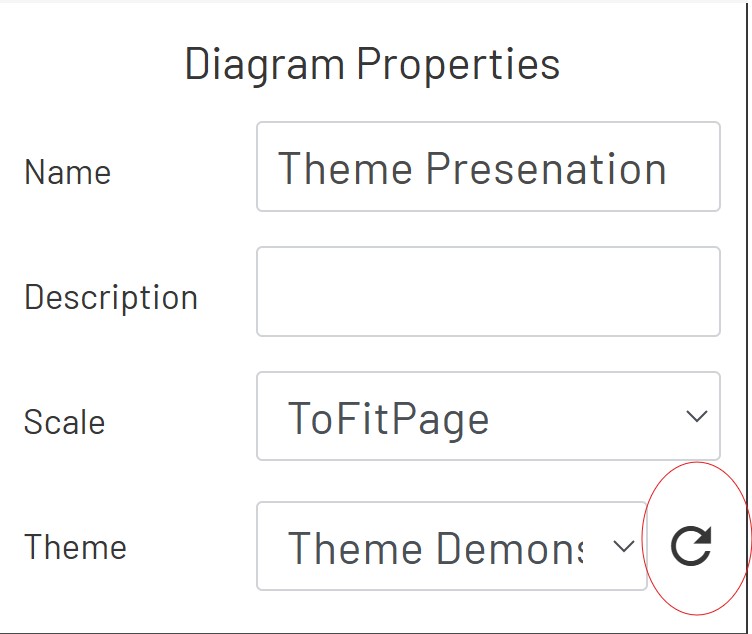
If updates need to be made to the theme a diagram is using, a refresh theme button is available right next to the theme dropdown. This will take any new updates made inside of the theme designer and apply them to the current diagram.
If existing control properties have been modified by the user but they want to allow those properties to instead be modified by the theme, they can do so by utilizing the property override section. This can be found at the bottom of the left toolbar when a control is selected within the diagram modeler.
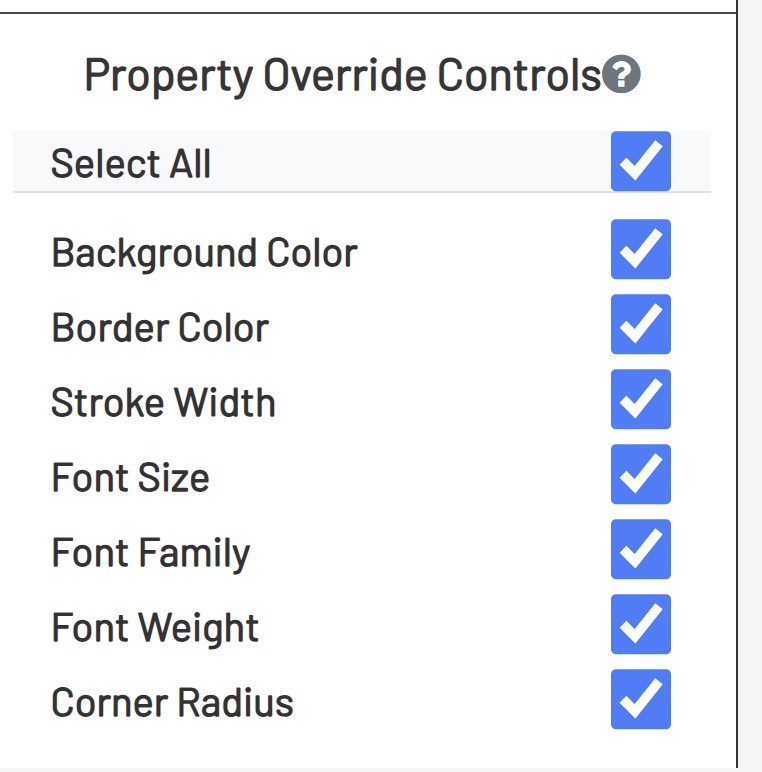
By selecting these checkboxes, it will ensure that the properties are overridden when the theme is refreshed or when a new theme is applied. When a property on a control is modified, the corresponding box will immediately be unchecked from the property override controls so that it will not be automatically overridden by applying a theme.