The data type editor is used for defining complex types. Complex types consist of either simple data types, other complex types or collection(s) of either of these types. These properties can be defined in the properties section in the Edit View. Once the properties are defined we can see a JSON representation of the data type in the JSON Schema Vieew at the top of the Edit View section. To check if the JSON satisfies a type, we can use the Json Sandbox View.
Properties Section
In the properties section, the user can define all of the types that will be associated with a complex type. We can logically group properties in these types to, for example, define a dog type. The dog type below is used to define all of the properties that would be used to describe a dog such as age, color, breed etc. This is just an example of how properties should be defined so that we can define our larger complex types.
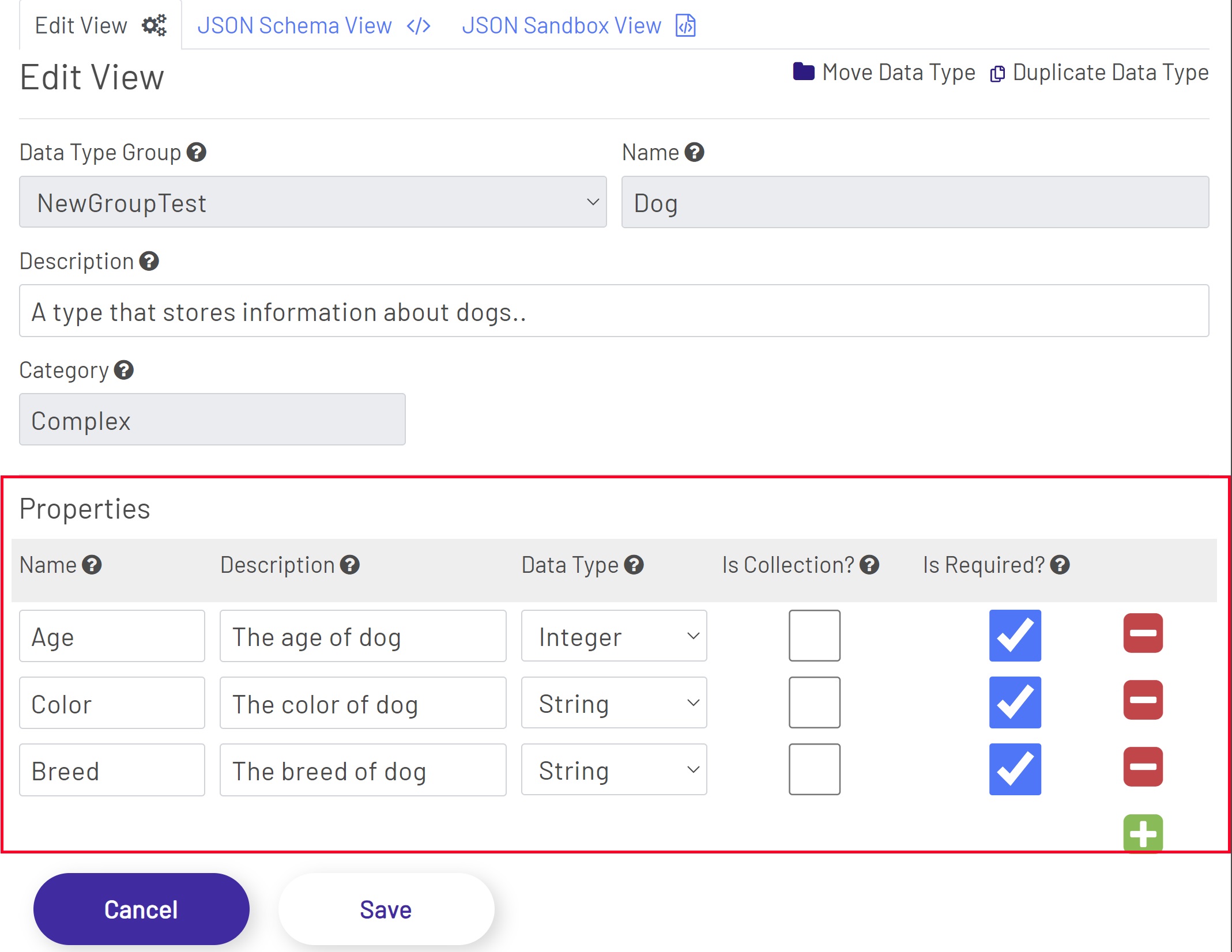
In the properties section, we can set the Name of a property, a description and the data type. The data type is any type that we have defined in the data type tree Data Type Tree. The properties section also has checkboxes for 'Is Collection' and 'Is Required'. The Is Collection is used to set whether or not the field contains multiple entries of whatever data type we set the property to. The Is Required sets whether or not the field is required when Prophecy is reading in this data type.
JSON Schema View
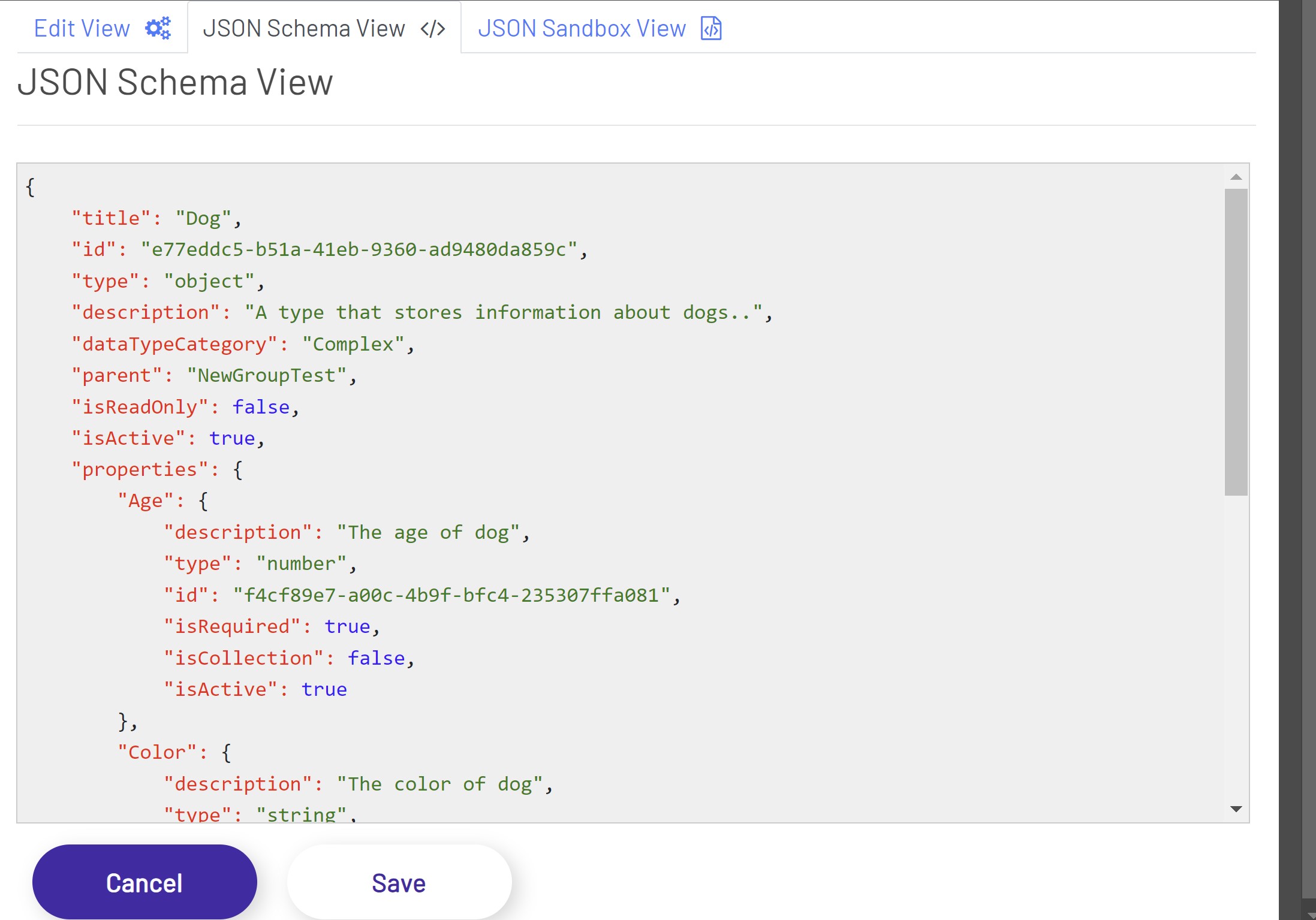
The JSON Schema View shows us the JSON representation of the type that we have defined in the Edit View. This JSON representation is just a data format that takes all of the inputs in the Edit View and creates a machine readable format that can be stored and easily retrieved so that we can validate our complex types.
JSON Sandbox View
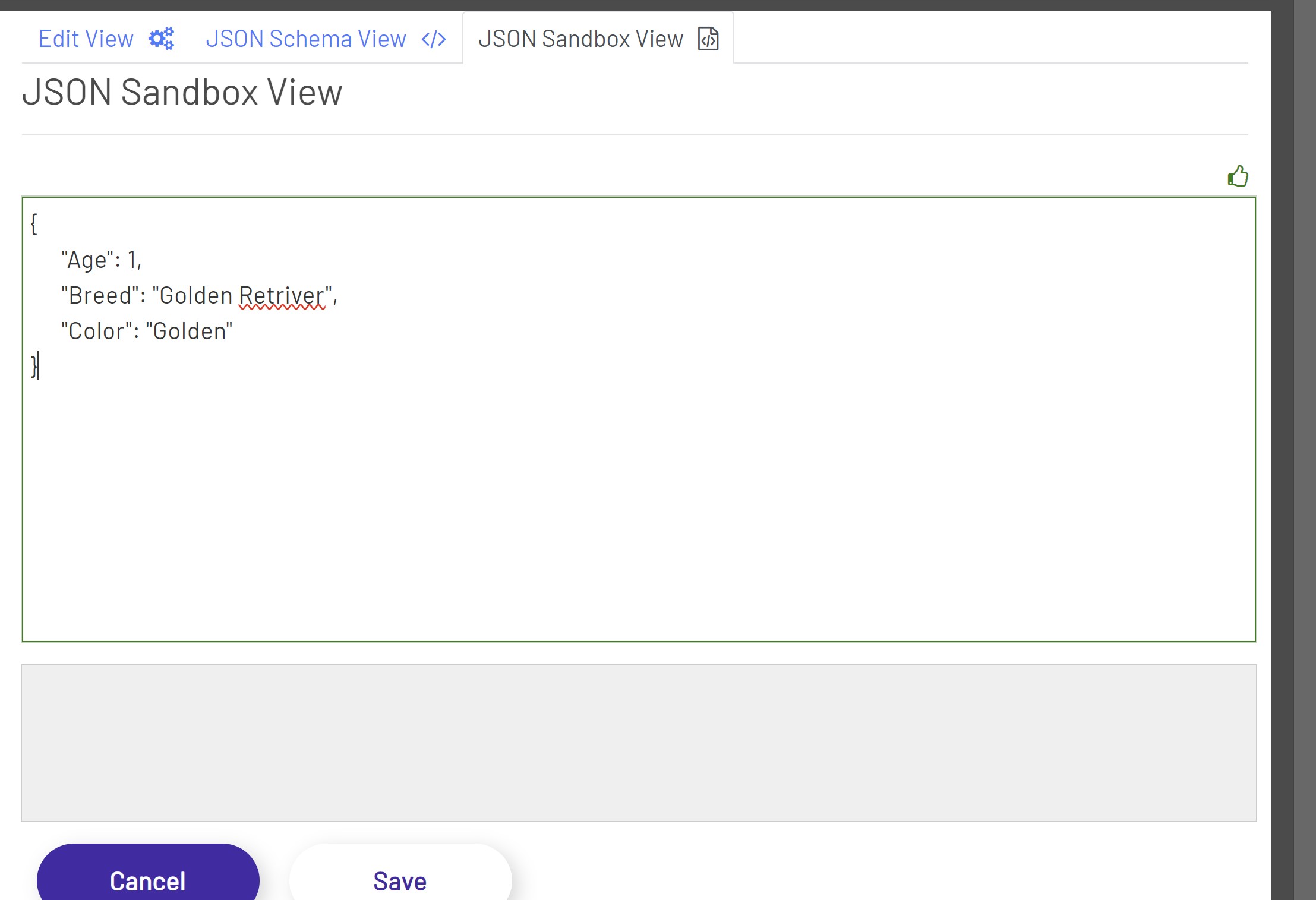
The JSON Sandbox view allows us to validate that a user inputted JSON object satisfies the type that we have defined in the Edit View. Here, we can enter Json and we will get validation messages that tell us whether or not the object we entered satisfies our type. Below is an example that satisfies the dog type that we have defined. Here, we have no error messages but just a green border that tells us the entered JSON is valid.
If the inputted data does not satisfy the condition, we will get error messages that tells us why the inputted data does not satisfy the complex type. For example, if we remove one of the required properties from the dog complex type within the entered JSON, we'll get an error that looks like this.
Invalid Json Schema Error Message
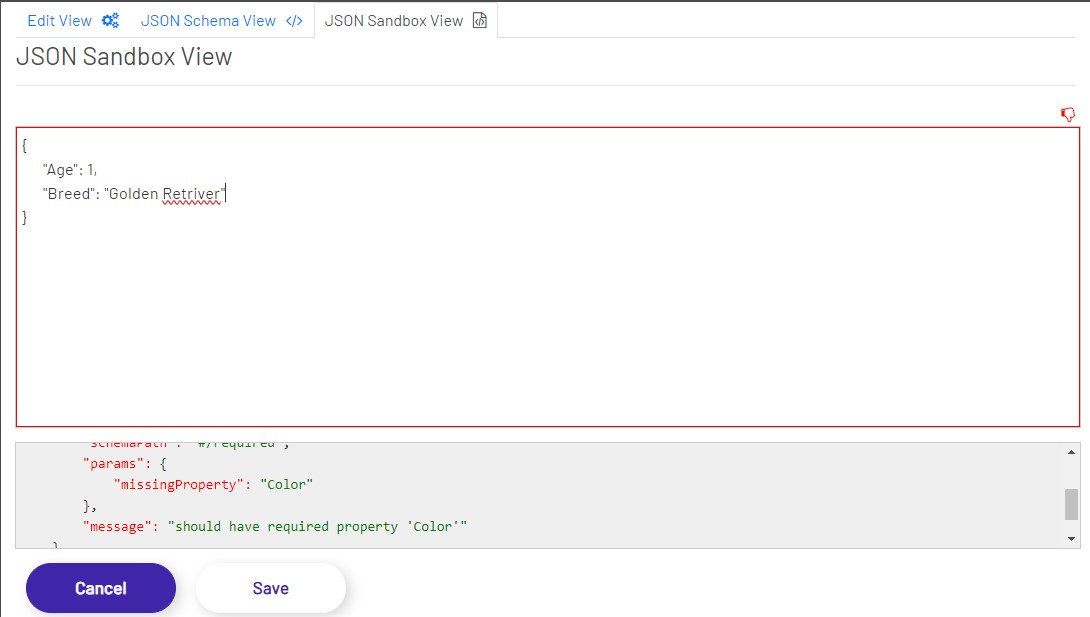
Here, since we removed the color property which is required, we will get an error message telling us that the Color property is required in order for the entered json schema to be valid.