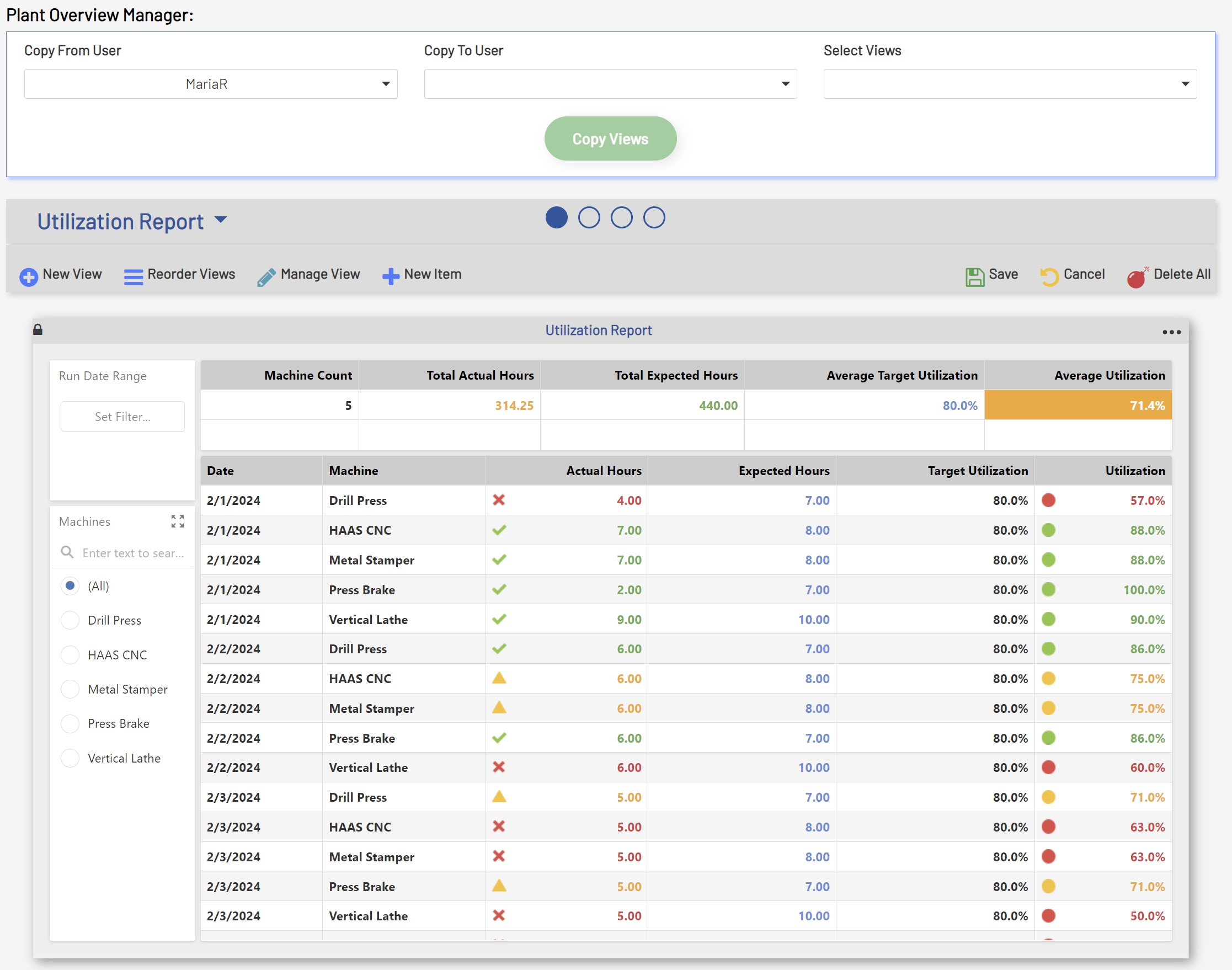
The Plant Overview Manager allows admins to add new views for users, manage existing views, or copy views from one user to another. This feature can be handy when Views need to be created for groups of users and when it may be preferred for those users not to create the Views themselves.
Plant Overview Manager Fields
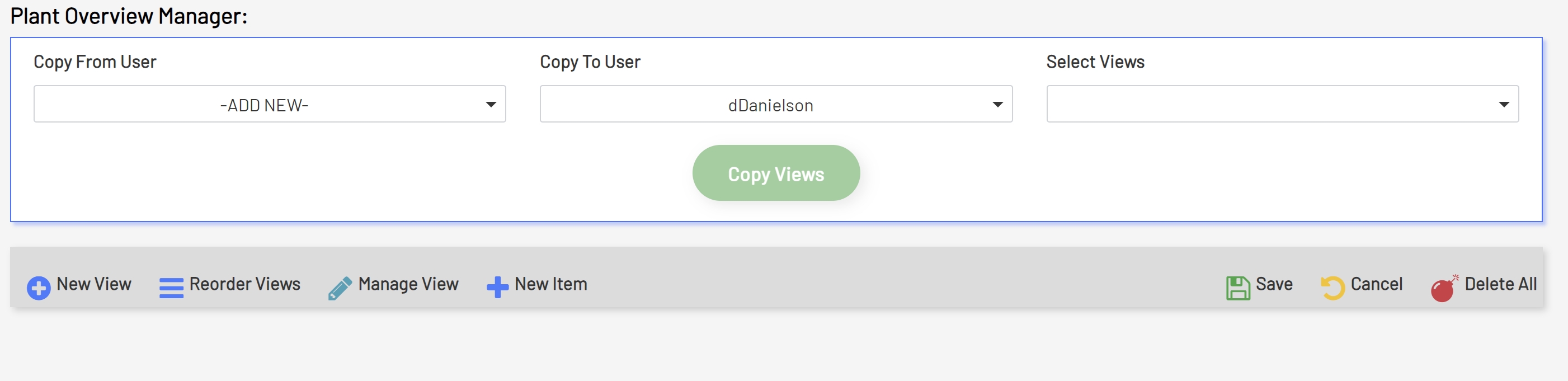
Copy From User: This is a dropdown list of all active users that currently have existing Plant Overviews in the system. The first entry in the list is '-ADD NEW-'. This option can be selected when adding a new View for a user.
Copy To User: This is a dropdown of all active users in the system.
Select Views: This is a multi-select dropdown that lists all individual Views for the 'Selected From User'.
Copy Views: This button is used to copy Views from one user to another once all required information has been populated. This button will remain disabled until a selection for all the above fields has been made.

Adding a New View for a User
To add a new View for a user, select the '-ADD NEW-' option from the 'Copy From User' dropdown. Once this selection has been made, select the user to create a view for from the 'Copy To User' dropdown. After selecting the desired user, an empty Plant Overview will be shown below the selection fields. To create a new Plant Overview, reference Plant Overview Setup.
Add New
Copying an Existing User View
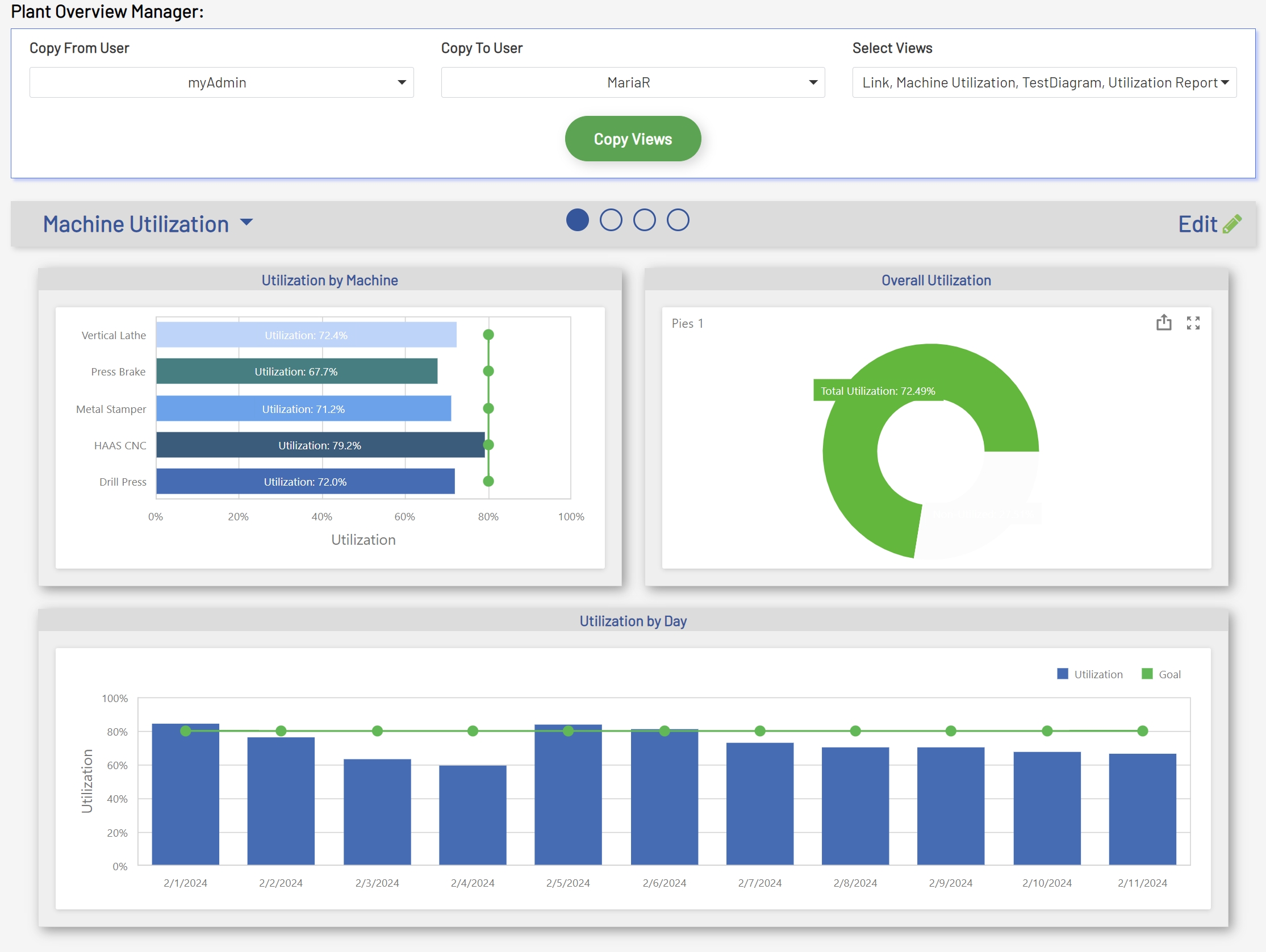
To copy an existing View from one user to another, first select the user whose view you would like to copy using the 'Copy From User' dropdown. Next, select the user for whom the View should be copied to using the 'Copy To User' dropdown. After these selections have been made, select the View or Views to copy from the 'Select Views' dropdown. If copying all Views is desired, then the 'Select All' option can be selected from the 'Select Views' dropdown. Otherwise. select each View that needs to be copied for the user. Using the 'Select All' option will automatically select all Views for 'Copy From User'. Once all desired selections have been made, click the 'Copy Views' button.
Note: Once a selection other than '-ADD NEW-' has been made, the selected user's view will be displayed below the selection fields. This can be useful when it is necessary to preview the Views before making a selection for the copy.
Note: If the selected 'Copy To User' has an existing Plant Overview, then a message will be displayed giving an option to overwrite the existing View if all Views are selected. If individual selections are made, and the 'Copy To User' has any of the selected views, then a similar option will be given to overwrite the selected views. The copy function is permanent and cannot be undone.
Copy Plant Overview
Copy All Message
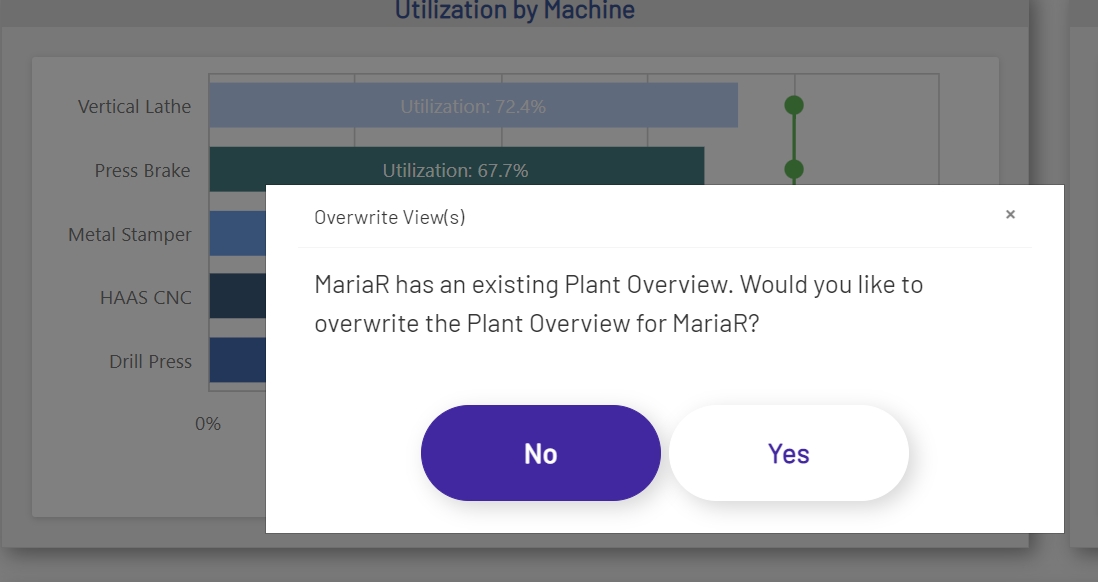
Copy Individual Message
Managing a User View
There are times when it may be necessary for an admin to update an existing user's View. When this need arises, simply select the user from the 'Copy From User' dropdown. After making the selection, the user's view will be loaded below the selection area. From there, the 'Edit' button can be clicked to place the View in 'Edit Mode'. To see more information on editing a view, reference Plant Overview Edit.
Edit Plant Overview