Data Presentation Basics
The Web Dashboard supports three types of Geo Point maps.
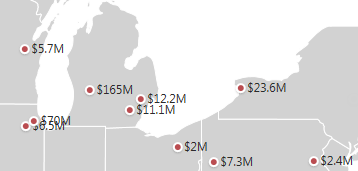
- The Geo Point Map dashboard item places callouts on the map using geographical coordinates.
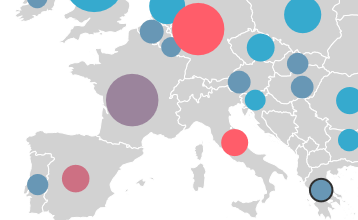
- The Bubble Map dashboard item displays bubbles on the map. The color and size of each bubble relay data particular to that color and size.
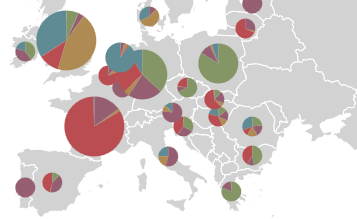
- The Pie Map dashboard item displays pies on the map. Each pie shows the relative contribution that different values contribute to the total.
You can switch between the provided values using the **Values** button (the  icon) in the map's [caption](../../data-presentation/dashboard-layout.md).
Map Zooming and Scrolling
Use the following actions to scroll a map.
-
Zooming
- Use the mouse scroll wheel to change the current zoom level for the map.
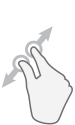
- On a touchscreen device, use pinch or spread gestures to change the current zoom level.

-
Scrolling
- To scroll the map, hold down the left mouse button and drag it.
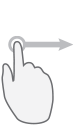
- On a touchscreen device, use flick gestures to scroll the map.
Tooltip
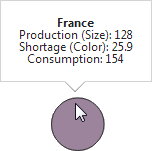
A Geo Point Map dashboard item can display a tooltip that displays information in a hovered callout/bubble/pie.