Web Dashboard - Designer Mode
The Web Dashboard allows you to create dashboards in a web browser and provides an intuitive UI that facilitates data binding, shaping, layout design, etc. Many of these normally complex tasks can be accomplished with a simple drag-and-drop operation, allowing you to start creating dashboards immediately.
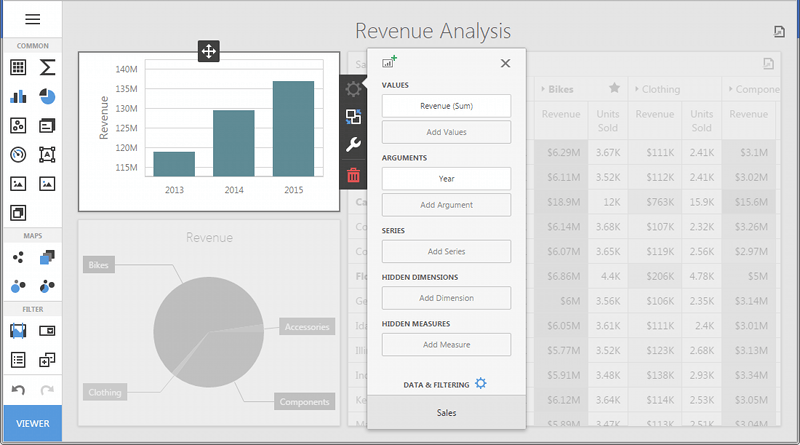
Creating Dashboards
The following topics will guide you through the process of creating a dashboard.
Displaying Local Date And Time
By default, date and time data in Prophecy is stored using the UTC format. This format is used in the application to avoid confusion for time zones and day light savings time. There may be times when Dashboard data needs display dates and times from Prophecy data in the local date and time format. Fortunately, the process to display dates and time in the local format is a fairly simple process.
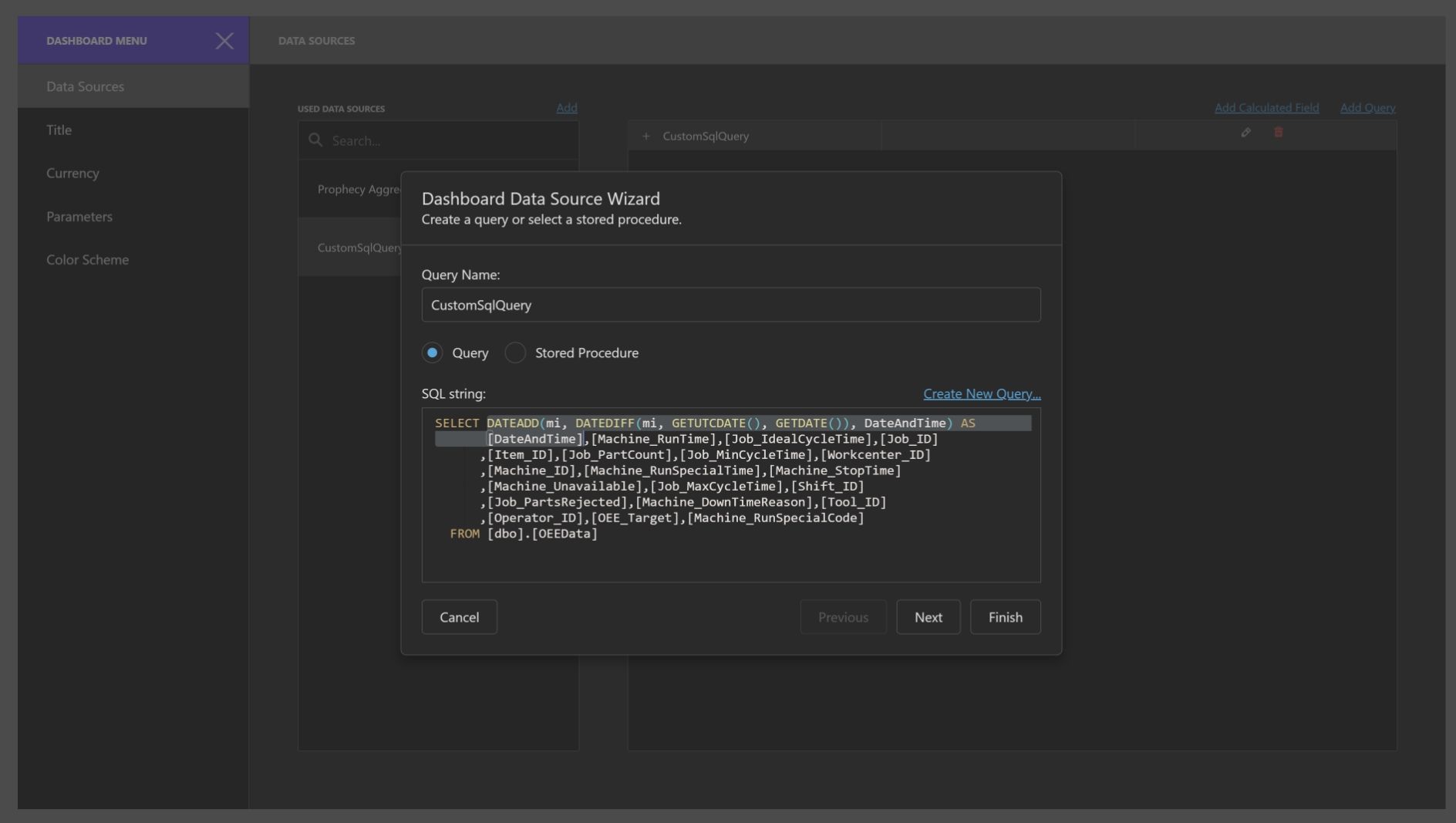
First, you will need to select an Existing Data Source or create a New Data Source for the Dashboard. Next, create a SQL Query against the Data Source. In the query being created, the following SQL function, 'DATEADD(mi, DATEDIFF(mi, GETUTCDATE(), GETDATE()), DateAndTime)', can be used to convert a Prophecy UTC date and time field to the local date time format.
Note: The date time portion of the SQL function above should be replaced with the date and time field that needs to be converted.
Below is an example Dashboard query using the above SQL function to convert a UTC date and time field to the local date and time.
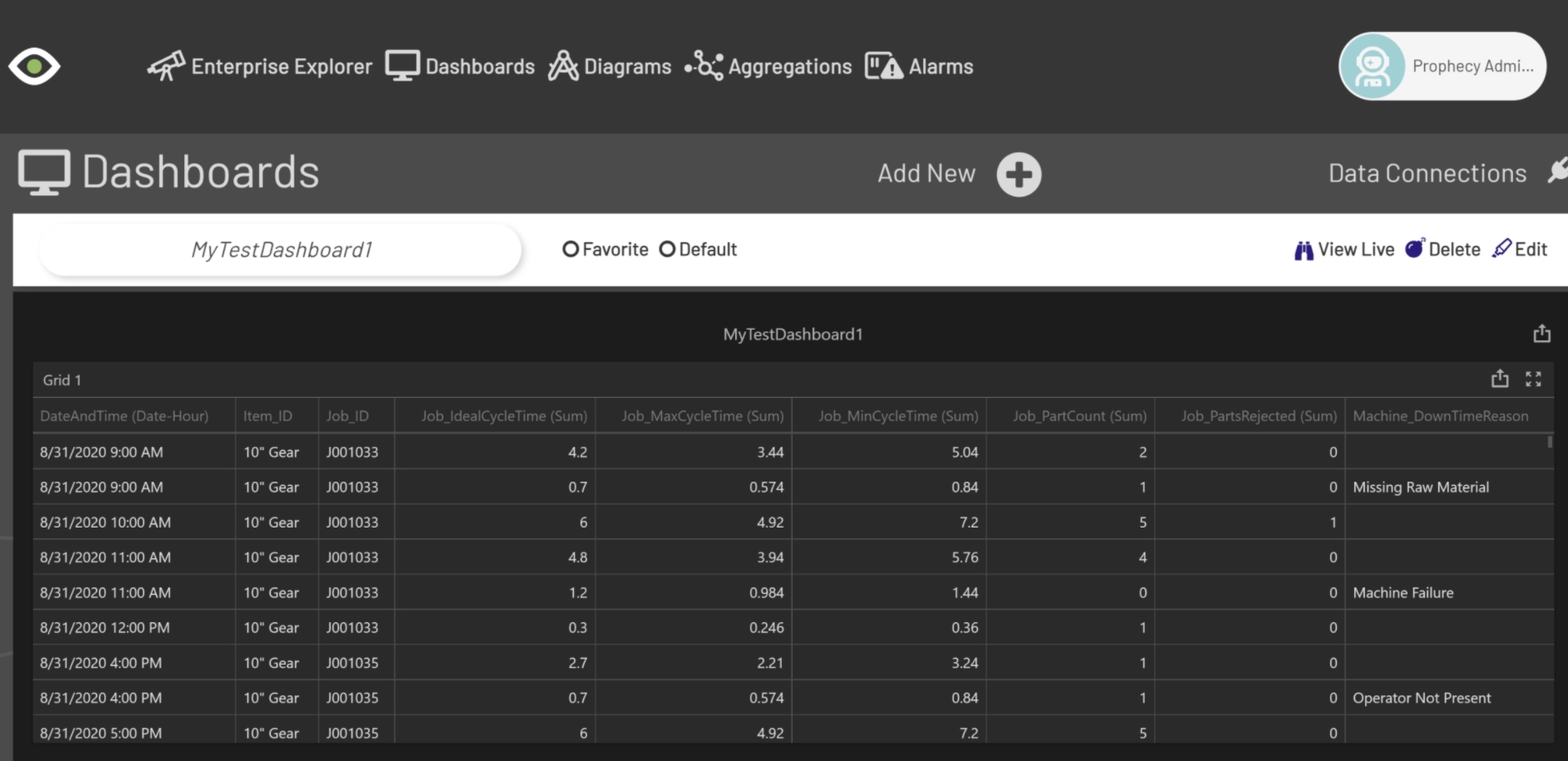
Below is the output from the query above.
Exporting
The Web Dashboard provides the capability to export the individual items of a dashboard, as well as the entire dashboard.
UI Elements
The topics in this section describe the main elements of the Web Dashboard.