To use diagram responsiveness effectively, it is important to understand how a responsive UI display works. When a diagram is set to responsive mode and the "View Live" button is clicked, several things will happen. First, the system will read in the user's screen dimensions. Second, the controls used in the diagram will be shifted to a relative position from the designer resolution (height and width set in the designer) onto the actual screen resolution that the diagram is being viewed in. If the screen resolution changes in view live mode, the diagram will automatically be resized to account for this.
The next thing that happens, after the controls are moved to a relative position, is that the controls will scale to the size of the viewport window that the diagram is being viewed in. The user can control which shapes will resize themselves by utilizing the shape scaling checkboxes in the tool pane when selecting a control. Note, that these scaling options will be selected by default when adding a new control.
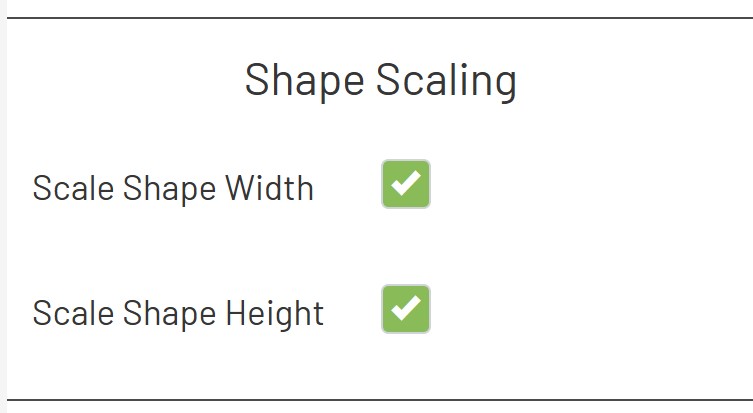
Checking Scale Width automatically stretches or shrinks the shape’s width from its design size to match the screen’s current horizontal space. Checking Scale Height does the same for the shape’s height, adjusting it to the screen’s vertical space.
When you enable these check‑boxes, be aware that certain controls can look stretched or offset horizontally or vertically on displays with aspect ratios that differ greatly from the one used during design. To minimize this, create your diagram with the target screen type in mind. Although the diagram will automatically scale to any resolution, screens whose resolutions vary greatly from the original may still show overlapping or distorted controls.
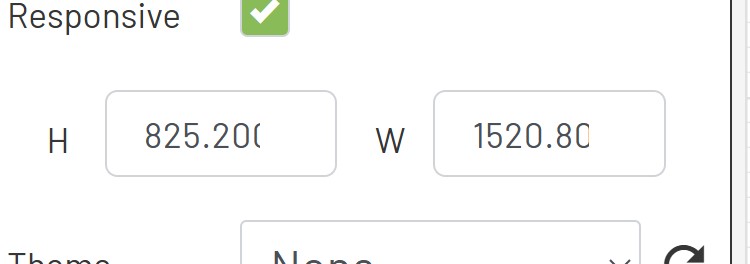
To tailor a diagram for a specific display, first find that screen’s viewport dimensions. Then, in the toolbar, set the diagram’s height and width to match those exact values—or use dimensions that retain the same aspect ratio if the exact dimensions are too large. Doing so prevents shapes from warping and keeps elements from overlapping when the diagram is viewed.
Note, that the initial height and width of the diagram will be set to your current screen's viewport. This means that the diagram will initially be optimized for your screen size. Adjust the height and width by editing the checkboxes in the left toolbar, here.